DeepSeek in LM Studio: Best Settings & Local Server Guide (LM Studio Edition)

Running DeepSeek models locally in LM Studio is straightforward: you download or import a compatible DeepSeek model and load it within the LM Studio app. Once loaded, you can chat with DeepSeek entirely offline and even serve it through a local API. This guide provides a practical reference for deploying DeepSeek on your own machine using LM Studio’s interface – covering model selection, recommended baseline settings, tuning for speed or stability, enabling DeepSeek as a local server endpoint, privacy considerations, and common troubleshooting. (This is an independent, unofficial guide for running DeepSeek in LM Studio.) Keep in mind that optimal settings can vary based on your hardware capabilities and the specific DeepSeek model variant you use, so use the baseline advice here as a starting point and adjust as needed.

Note: DeepSeek provides open-weight reasoning models built to solve problems step by step. In LM Studio, some DeepSeek reasoning models may show visible reasoning traces such as <think>...</think> before the final answer, depending on the model variant and prompt formatting. This is a normal part of DeepSeek-style reasoning output. If you only need the final result, you can ignore the reasoning trace and wait for the completed answer.

DeepSeek Model Selection in LM Studio

Choosing the right DeepSeek model: DeepSeek offers a range of model variants designed for different hardware capabilities. The original DeepSeek-R1 large reasoning model contains 671 billion total parameters with about 37 billion activated parameters per forward pass. In this guide, we focus specifically on running DeepSeek R1-style reasoning checkpoints locally in LM Studio.

For local use, most users rely on DeepSeek-R1 distilled models, which transfer much of the reasoning ability of the full model into smaller architectures. The official distilled lineup includes 1.5B, 7B, 8B, 14B, 32B, and 70B parameter models.

These distilled versions are intended to preserve much of the reasoning behavior of the larger R1 family while remaining far more practical for local deployment.

Larger variants such as 14B or 32B require significantly more memory and compute resources. In many local setups, GPU acceleration can improve performance, although exact requirements depend on quantization, runtime, and hardware configuration. Meanwhile, the full 671B DeepSeek-R1 model requires server-grade infrastructure with very large memory capacity, making it impractical for most personal machines.

In practice, most LM Studio users should start with a 7B or 8B distilled model, then move to 14B or larger checkpoints only if their system has enough RAM or VRAM to handle the additional compute requirements.

Quantized vs. full-precision models: Many DeepSeek models are available in quantized formats (like 4-bit or 8-bit integers) which significantly reduce memory usage at a small cost to output precision. Quantized models can significantly reduce memory usage, allowing larger models to run on hardware that would otherwise only support smaller full-precision models. DeepSeek’s community and LM Studio Hub provide pre-quantized model files (e.g. GGUF 4-bit versions) for convenience. If your GPU or CPU RAM is a constraint, choosing a quantized variant is often the best way to get DeepSeek running smoothly. Just remember that extremely aggressive quantization (like 3-bit) can degrade answer quality somewhat, so stick to 4-bit or 8-bit unless you absolutely need the memory savings.

Safety and source authenticity: When downloading a DeepSeek model, always use official or trusted sources and verify the file whenever possible. DeepSeek models are typically distributed through reputable platforms such as Hugging Face (for example the official deepseek-ai organization) and through LM Studio’s model catalog or community listings.

Avoid downloading models from random mirrors or unknown reuploads, as tampered model files can pose security risks. Always double-check both the model name and the publisher account before downloading.

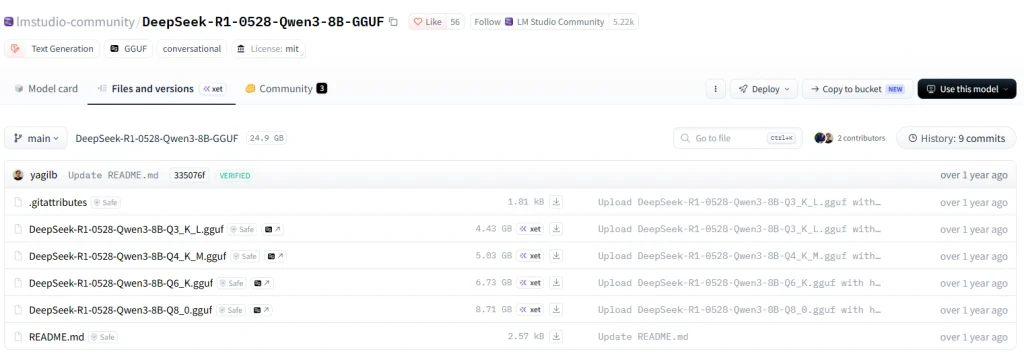
For example, official DeepSeek reasoning checkpoints may appear under names such as DeepSeek-R1-Distill-Llama-8B or newer checkpoints like DeepSeek-R1-0528-Qwen3-8B, typically published by the deepseek-ai organization. The exact naming can vary depending on the architecture, checkpoint revision, or quantization format.

If the model publisher provides a checksum or file hash, compare it with the downloaded file to confirm integrity. It is also good practice to review the model card, documentation, and community comments on the hosting page to spot any warnings or inconsistencies.

Getting DeepSeek into LM Studio (Two Paths)

Once you’ve chosen a suitable DeepSeek model, you have two ways to get it running in LM Studio:

Path A: Download via LM Studio’s Model Catalog. The easiest way to get DeepSeek running is through LM Studio’s built-in model catalog. Open LM Studio and go to the Discover tab, which is the built-in model browser. Use the search bar to look for “DeepSeek”, and you should see available DeepSeek models listed in the catalog. The official DeepSeek-R1 distilled models (such as 7B, 8B, 14B, and larger variants depending on availability) will typically appear with a description and publisher information. Choose the model variant that fits your hardware – most users should start with a 7B or 8B model – then click Download to add it to LM Studio. LM Studio will automatically download the model files and install them in your local model library. Before confirming the download, it’s good practice to review the model details and verify the publisher and model name. For example, check that the publisher is DeepSeek-AI or another trusted source rather than an unknown uploader. Once the download is complete, the model will appear in the My Models section of LM Studio. From there, you can simply select the model and click Load to start using it in the chat interface.

Path B: Import from local files. If you have already downloaded a DeepSeek model outside of LM Studio (for example a GGUF quantized model from Hugging Face), you can import it manually. The easiest method is using the LM Studio CLI. Open a terminal and run:

lms import /path/to/your/model.gguf

This command moves or copies the model into LM Studio’s internal models directory (typically ~/.lmstudio/models/<publisher>/<model-name>/). After the import completes, restart or refresh LM Studio and the model should appear in My Models, where you can load it normally.

Alternatively, you can place the files manually by creating a folder inside the LM Studio models directory that matches the publisher and model name, then placing the model file there (for example deepseek-ai/DeepSeek-R1-0528-Qwen3-8B/DeepSeek-R1-0528-Qwen3-8B.gguf). LM Studio will detect the model on startup if the structure is correct.

Manual import checklist:

  • Keep the same folder and model naming used by the official source.
  • Prefer GGUF format, which is widely supported by LM Studio runtimes.
  • Ensure the model file downloaded completely and is not corrupted.
  • If the model does not appear, confirm that you are using a recent LM Studio version that supports the model format.

By following either path, you’ll end up with DeepSeek available in LM Studio ready to load. For new users, Path A is recommended because LM Studio usually imports the model with the correct metadata and prompt template automatically. Path B is useful for offline installation or if you obtained the model through other means. In either case, once the model is listed in LM Studio, you can click to load it into memory and begin using it in the chat interface.

(Tip: After loading DeepSeek, try a simple query to verify everything is working. It’s normal for the first response to be a bit slower as the model warms up. If you see visible reasoning traces such as <think>...</think> followed by an answer, that is normal for some DeepSeek reasoning checkpoints in LM Studio.)

Best Baseline Settings for DeepSeek in LM Studio

When running DeepSeek in LM Studio, it’s important to start with sensible default settings. DeepSeek is a unique model (with its “thinking before answering” behavior), so tuning its parameters can affect both the quality of reasoning and performance. Below we outline a baseline configuration and when you might want to adjust each setting. You can set these via the gear icon next to the model in LM Studio’s interface (which opens the model’s default parameters dialog) or on-the-fly in a chat session as needed.

Context Window (Max Context Length): The broader DeepSeek family includes checkpoints with very large context windows, but local usable context in LM Studio depends on the exact checkpoint, runtime, quantization, and available RAM/VRAM. Do not assume that every DeepSeek variant should be run at 128K locally; instead, use the smallest context window that comfortably fits the task. However, using the maximum context size can drastically slow down generation and consume a lot of memory. As a baseline, it’s wise to limit the context length to a moderate value unless you specifically need to handle very long inputs. For most Q&A or casual chat, a few thousand tokens (e.g. 4k–8k tokens) of context is plenty. LM Studio will by default use the model’s default context length (which might be 2048 or 4096 for many models, or higher if the model card specifies an extended context). When to change: If you plan to feed DeepSeek a long document or have a very lengthy conversation and need the extra context, you can raise the context limit closer to the model’s max – just be aware that beyond a certain point, each additional token slows processing and uses more RAM. Conversely, if you’re on a memory-tight system and only doing short queries, you can lower the max context to reduce overhead. For example, setting a 1024-token limit for quick one-off questions can save resources. Always strike a balance: use the smallest context window that comfortably fits your task to keep DeepSeek efficient.

Max Output Tokens: This setting (often called “Max new tokens” or “Max response length”) controls how many tokens the model is allowed to generate for its answer. For DeepSeek, you’ll want enough headroom for the <think> reasoning plus the final answer. Baseline recommendation: start with a fairly generous limit so the model doesn’t get cut off mid-thought. DeepSeek’s chain-of-thought might use dozens or even hundreds of tokens for complex reasoning, and you want to allow that plus the answer. When to change: If you notice DeepSeek’s answers being cut off, increase the max tokens setting (for instance, up to 1024 or more for very complex questions). On the other hand, if the model tends to ramble or produce overly long outputs when it’s not necessary, you can lower the max tokens to keep responses concise. In iterative chats, a lower max output can also make the model hit a stopping point sooner so you can interject. The key is to ensure the limit is high enough for the largest expected answer but not so high that the model goes on tangents.

Temperature (Randomness) and Sampling Controls: DeepSeek reasoning models are designed to work through problems step by step before producing a final answer. Sampling parameters influence how deterministic or creative the model’s output will be during this reasoning process.

The most important parameter is temperature, which controls randomness in token selection. Higher values (for example 1.0) allow the model to explore more diverse possibilities, which can increase creativity but may also make reasoning less stable. Lower values (such as 0.2–0.4) make outputs more deterministic and predictable, which is often useful for tasks like coding, mathematics, or analytical problem-solving.

For DeepSeek R1-style reasoning checkpoints running locally in LM Studio, a temperature around 0.6 is often a practical starting point. This value tends to maintain stable reasoning while still allowing some flexibility in how the model explores possible answers. However, note that this is a tuning recommendation rather than a universal default, and different tasks may benefit from different temperature settings.

LM Studio also exposes additional sampling controls, most commonly Top-p (nucleus sampling) and Top-k.

A commonly used local tuning configuration is:
Temperature: ~0.6
Top-p: ~0.9–0.95
Top-k: ~40–50

These values are community-tested starting points for local deployments and should not be interpreted as official DeepSeek default settings.

When to adjust these settings:
If DeepSeek’s answers appear inconsistent, overly verbose, or unstable across runs, lowering the temperature slightly (for example to 0.4–0.5) can improve determinism and make the model’s reasoning more consistent. Reducing Top-p slightly can also encourage the model to favor more probable tokens, which may stabilize its reasoning behavior.

On the other hand, if you are using DeepSeek for brainstorming, creative writing, or exploratory tasks, increasing temperature (for example 0.8–1.0) can produce more diverse outputs. Keep in mind that higher randomness may also make the reasoning process less structured.

As a general rule, adjust sampling parameters gradually and in small increments, observing how the model’s reasoning style changes. The goal is to find a balance where DeepSeek produces clear step-by-step reasoning without drifting into repetition or incoherent output.

Repetition Penalty and Frequency/Presence Penalties: These controls help prevent the model from repeating itself or sticking to the same phrases. DeepSeek’s chain-of-thought can sometimes get caught in a loop (e.g. repeating similar reasoning steps) if allowed. As a baseline, enable a mild repetition penalty – to discourage verbatim repetition. LM Studio might label this as “Repeat Penalty” or have separate presence and frequency penalties (which penalize new vs. frequent token usage respectively). By default, many chat presets have a small penalty on to keep output on track. When to change: If you observe the model repeating parts of its answer or the <think> section echoing the same thoughts over and over, consider increasing the repetition penalty slightly. This will push the model to find alternative wording or move forward in reasoning. Be cautious not to set it too high (above ~1.5) as it can make the model abruptly drop topics or produce unnatural phrasing. If you find the output has become too terse or it’s avoiding revisiting important points, you might dial the penalty back down. Presence/frequency penalties can be used similarly: e.g. a small presence penalty can ensure it doesn’t reuse exact phrases from earlier in the conversation. The goal is to fine-tune these so that DeepSeek’s iterative thinking doesn’t turn into a repetitive loop while preserving logical consistency.

System Prompt and Instruction Format: In LM Studio’s chat interface, conversations are typically structured with a system message (optional instructions that guide the assistant’s behavior) followed by user prompts. When you run DeepSeek in LM Studio, the application automatically applies the correct prompt template for the model you selected. This means you normally do not need to manually format messages using tags such as “User:” or “Assistant:” — LM Studio handles the conversation structure internally. Whether a system prompt is needed depends on the specific DeepSeek checkpoint and prompt template. Many DeepSeek reasoning models will function without a custom system prompt, as the expected structure is usually defined in the model’s prompt template. The model will function normally even if the system message is left empty, because the default prompt template already provides the structure the model expects. DeepSeek will still generate its reasoning process before producing the final answer.

Baseline usage: In many cases, you can simply leave the system prompt empty or use a minimal instruction such as “You are a helpful assistant.” DeepSeek’s built-in reasoning capabilities will still produce step-by-step answers without additional prompting.

When to customize the system prompt: You may want to add a system prompt when you need to control the model’s tone, role, or output style. For example, you could set a system instruction like:

“You are an expert AI tutor. Explain answers clearly and step by step.”

This type of instruction helps guide the style of responses without interfering with the model’s reasoning behavior. Because DeepSeek is already trained to perform step-by-step reasoning, heavy prompt engineering is usually unnecessary. Instead, use the system prompt primarily for role definition, formatting preferences, or response style (for example: concise answers, educational explanations, or coding-focused responses). If you create a custom system prompt, ensure that it does not conflict with the model’s reasoning behavior. Avoid instructions that attempt to suppress reasoning entirely. If you prefer shorter reasoning traces, you can instead instruct the model to keep the <think> section concise. As with any prompt configuration, it is best to test small changes incrementally and observe how they affect the model’s reasoning and final answers.

Streaming (Token Streaming): LM Studio supports streaming token output, meaning you see the model’s answer appear token-by-token. Streaming is highly recommended when using DeepSeek, because it lets you observe the <think> process in real time. By streaming, you can watch the model “think out loud” and get insight into how it’s solving the problem. This also means you don’t have to wait for the entire reasoning and answer to finish before seeing anything. Baseline: keep streaming enabled (it usually is by default in chat UI). When to change: The only reason to turn off streaming would be if you prefer not to see the reasoning trace at all or want the final answer to appear all at once. If you disable streaming, LM Studio will compute the full response in the background and then display it when done – you won’t see the <think> content until it’s finished (or at all, if LM Studio then hides it). This might be less distracting if you only care about the final answer, but it removes the ability to intervene if the reasoning goes astray. In most cases, leave streaming on – it doesn’t significantly impact performance and improves interactivity for DeepSeek’s style of output.

GPU / CPU Offload and Acceleration: DeepSeek models can run on CPU-only, but if you have a decent GPU you’ll want to use it for acceleration. LM Studio, under the hood, will try to utilize your GPU for inference if available. In the model settings (gear icon), you may find options like GPU Layers or GPU Memory fraction, or an option to toggle Flash Attention if supported. Baseline approach: allow LM Studio to offload as much of the model as will fit into your GPU VRAM (if you have one). For example, if you have a 6 GB GPU and you’re running an 8B model, you might be able to put the entire model on the GPU for best speed. If you have a smaller GPU, LM Studio can load part of the model on GPU and the rest on CPU (this is often automatic, but advanced users can tweak how many layers on GPU vs CPU). Also, ensure accelerations like FlashAttention or other optimizations are enabled if your hardware supports them – these can significantly speed up token generation for large context or models, and LM Studio typically has a checkbox for it in advanced settings. When to change: If you run into out-of-memory errors on the GPU when loading DeepSeek, you may need to reduce the GPU utilization – e.g. offload more layers to CPU. This will slow things down but allow the model to run. Conversely, if you notice your GPU isn’t being utilized fully (monitor your GPU memory usage), you could try increasing the GPU allocation to get more speed. Keep in mind the diminishing returns: offloading some layers to a GPU gives a big speed boost, but offloading beyond what fits comfortably can lead to crashes. It’s often better to use a slightly quantized model that fully fits in GPU memory than a full-size model that must be mostly on CPU. In summary, use your GPU as much as possible but stay within its limits. If you’re CPU-only, maximize your CPU threads usage (LM Studio usually does this by default) and lean on quantized smaller models for better speed.

By starting with the above baseline settings, you’ll have DeepSeek running in a balanced state: it will reason through problems methodically without being too random, and it will perform decently given your hardware. As you get familiar with DeepSeek’s behavior, you can fine-tune these parameters to your liking. The next section will provide a “tuning playbook” for specific scenarios, which is essentially a guide on when to tweak these settings to resolve certain issues.

DeepSeek Stability vs. Speed Tuning Playbook (Symptoms → Adjustments)

Even with good defaults, you might encounter situations where DeepSeek’s behavior isn’t ideal for your use case. Here’s a practical playbook of symptoms and corresponding adjustments to tune DeepSeek’s performance or stability. Use these like debugging steps: identify the symptom that matches your experience and try the suggested tweaks.

  • Symptom: Output generation is too slow. If DeepSeek is responding at a crawl (e.g. taking very long to finish a response):
    • Use a smaller or more optimized model: Consider switching to a lower-parameter distilled model or a more heavily quantized version. For instance, if you’re using a 14B model on CPU and it’s slow, dropping to the 7B or 8B model can speed things up significantly. The 8B Distilled DeepSeek model can run on modest hardware with acceptable speed.
    • Leverage GPU acceleration: Check that the model is utilizing your GPU. In LM Studio’s settings, increase the number of layers on GPU if possible, or ensure your GPU is selected as the backend. If you forgot to toggle the GPU or if LM Studio defaulted to CPU, enabling the GPU will vastly improve speed.
    • Reduce the context length setting: A very large context window (e.g. 64k or 100k tokens) will slow down every inference, even if you’re not using all that context in the prompt. If you had max context set extremely high, try reducing it to a few thousand tokens. DeepSeek’s reasoning generally doesn’t require an enormous context unless you are giving it a very large problem to chew on.
    • Enable model optimizations: Ensure features like Flash Attention or speculative decoding (if supported by LM Studio and the model) are turned on. Speculative decoding is an advanced feature that can accelerate generation by guessing ahead – if LM Studio offers it, it could improve throughput at the cost of a tiny reduction in determinism.
    • Accept slower “thinking” as a trade-off for reasoning: Note that DeepSeek’s chain-of-thought mechanism inherently makes it a bit slower than a model that just blurts out an answer. It’s doing more work per query (essentially thinking through steps). Some slowdown is normal and expected for complex questions. If the speed is acceptable during the <think> phase, you might simply allow it that time. But if it’s too slow (e.g. multiple minutes per answer on hardware that should be faster), then the above adjustments are warranted.
  • Symptom: The model repeats itself or gets stuck in loops. If you see DeepSeek output something like <think> ... </think> and inside the <think> it keeps restating the same ideas, or it keeps re-answering the question multiple times:
    • Increase the repetition penalty: As mentioned in the settings, bumping up the repetition penalty can push the model out of a loop. For example, if it was 1.1, try 1.2 or 1.3. This makes the model less likely to repeat the same tokens in its reasoning.
    • Lower the temperature slightly: High temperature can sometimes cause rambling or looping as the model doesn’t “commit” to an idea. Reducing temperature by say 0.1 or 0.2 might stabilize the output and help the model conclude its reasoning instead of wandering.
    • Trim or reset context if necessary: If the repetition is happening after multiple chat turns, it could be reusing phrases from earlier. DeepSeek might be pulling the same reasoning from a previous turn’s <think>. In such cases, using LM Studio’s rolling window or truncate strategy for long conversations (so it doesn’t always see the entire history) can break the cycle. You can also manually delete or summarize earlier turns if the conversation has gotten very long.
    • Explicitly instruct the model (if needed): Although it shouldn’t usually be necessary, you can intervene by telling DeepSeek something in the user prompt like “Don’t repeat the same sentence.” The model will “hear” that and try to comply in its next answer. This is a last resort for single-turn loops. Generally, adjusting the sampling and penalty parameters is sufficient.
    • Model-specific note: If you consistently get loops with a particular DeepSeek variant, it might be an idiosyncrasy of that smaller model. You could try a slightly larger variant which might have been distilled with more capability to break out of loops. The developers reported that the distilled 8B model maintained strong performance – if a 7B loops, an 8B might behave better.
  • Symptom: Responses are inconsistent or vary widely in quality. Perhaps you ask DeepSeek a question twice and get two very different reasoning paths, or sometimes it’s spot-on and other times off-base:
    • Lower the randomness (temperature/top-p): Inconsistency often comes from sampling variability. By using a lower temperature and/or top-p, you make the model’s output more deterministic. This can improve consistency between runs. For example, if you had temp 0.8, try 0.5. The model will follow more predictable paths in its chain-of-thought, hopefully yielding consistent answers for the same question.
    • Use a stable prompt structure: Ensure you’re phrasing your questions clearly and similarly each time. DeepSeek is sensitive to prompt wording. If you got a good answer once, try to preserve the phrasing for similar queries to see if it repeats the success. Minor changes in wording can send the <think> process down a different route.
    • Increase model “thinking” budget (if available): Some advanced models or interfaces allow adjusting how much chain-of-thought the model uses. DeepSeek doesn’t have a direct “think longer” knob exposed, but if you suspect it’s not thinking hard enough on some queries, you can implicitly encourage more reasoning by asking the model to “show steps” or by providing a hint in the system prompt like “Think carefully step by step.” This might make it take a more thorough approach, leading to more consistent correctness (at the expense of verbosity).
    • Consider a larger model size: If you find the 7B/8B model sometimes gives wrong answers or hallucinations in its reasoning, a larger distilled model (like 14B or 32B) could be more consistent. They have more parameters to carry out stable logic, at the cost of speed. Within the same family, bigger models tend to make fewer simple mistakes. Of course, only go this route if your hardware can handle it.
    • Reset state between unrelated queries: Because LM Studio’s chat keeps context by default, an earlier conversation might bias later answers. If you ask a totally new question, start a new chat session or click the “Reset” icon, so DeepSeek isn’t influenced by prior Q&A. This ensures each answer is derived from a clean slate, which can improve reliability for one-off questions.
  • Symptom: Memory issues or crashes (out-of-memory errors). If LM Studio throws an error when loading the model, or the app/computer freezes or crashes during generation:
    • Use a more compact model or quantize further: Running out of memory (whether CPU RAM or GPU VRAM) is a sign you’ve hit the hardware limits. Check your system’s memory usage when the model loads. If it’s maxing out, you may need to drop to a smaller parameter model or use a 4-bit quantized version instead of 8-bit, for example. Quantization can dramatically reduce memory footprint – see our DeepSeek Quantization Guide for guidance on choosing the right quant level.
    • Limit context length: As noted earlier, a huge context size reserves a lot of memory. If you set an extremely high context length, the model allocates buffers for that, possibly causing OOM even if your actual prompt is short. Reducing the context setting (e.g. from 163k down to 8192 tokens) can free memory.
    • Enable Just-In-Time loading (for server mode): LM Studio has options to only load models when needed and unload them when idle (JIT loading and auto-evict). If you’re running multiple models or very large models, turning these on means LM Studio will free memory by unloading the model after use. The next request will incur a loading delay but at least it won’t crash. This is useful if you are only occasionally using DeepSeek or switching between models in one session.
    • Close other programs: It sounds obvious, but ensure that other heavy applications aren’t eating up RAM/VRAM. DeepSeek will happily use a lot of resources; if something else is also using your GPU (e.g. a game or another AI app), you might run out. Freeing up memory before launching LM Studio can help.
    • If GPU OOM, offload more to CPU: In LM Studio’s model settings, you can reduce the fraction of the model on the GPU. For example, instead of loading 100% of layers on a 12GB GPU (which might OOM), try 75% on GPU and the rest on CPU. This can resolve VRAM errors at the cost of some speed. Similarly, if system RAM is the issue, ensure you have enough swap space or page file – though performance will degrade if swapping, it can prevent outright crashes.
    • Upgrade LM Studio or model version: Occasionally, crashes could be due to bugs in the software or model runtime. Make sure you are using the latest LM Studio version, as updates often improve memory management and fix compatibility issues. Likewise, if an older model file is buggy, check if a newer revision is available (the DeepSeek community might release patched GGUF files if issues are found).
  • Symptom: Garbled or nonsensical output. If DeepSeek’s output is not just wrong but full of odd tokens or gibberish:
    • Verify model file integrity: This could indicate a corrupted model or a mismatch between model and tokenizer. If you imported manually, ensure you didn’t mix up files. Re-download the model from a reliable source and re-import. Check the file size and hash if possible to ensure it’s correct.
    • Correct prompt template: Sometimes gibberish appears if the model isn’t being prompted in the format it expects. DeepSeek’s model card specifies a certain prompt structure (which LM Studio should handle if the model was downloaded via the catalog). If you suspect the prompt template is wrong (for example, you see tokens like “<s>” or other artifacts in output), you might need to specify the right template in LM Studio. This can be done by editing the model’s YAML or using a custom prompt prefix. The easiest fix: remove and re-download the model via LM Studio’s hub, which will automatically apply the correct settings for you.
    • Avoid unsupported content/tools: If you were experimenting with LM Studio’s advanced features (like connecting DeepSeek to an internet search MCP or other plugin) and you get strange outputs, the model might be outputting tool-related text. Make sure you use integrations that DeepSeek supports. If not, disable them and try the query again. Garbled output could be the model trying to interpret a tool invocation or failing to handle some unsupported function call.
    • Try a different quantization: In rare cases, an overly aggressive quantization could produce odd token outputs. If you see this and nothing else fixes it, try using a 8-bit quant instead of 4-bit (if you have the RAM), just to see if quality improves. A slight quality boost might clear up nonsense output.
  • Symptom: Local API server not responding or refusing connections. You enabled the LM Studio server to use DeepSeek in an API, but you can’t seem to get a response:
    • Ensure the server is actually running: Double-check in LM Studio’s Developer tab that the Server toggle is switched on (or that you ran lms server start in the terminal). The UI should indicate that the server is listening (usually on http://localhost:1234 by default). If not, start it and note the address/port.
    • Use the correct URL/port: By default, LM Studio’s API is at http://localhost:1234. If you are calling from the same machine, use that exact host and port. If you changed the port in settings, use the new port. If you’re accessing from another device on your LAN, use the machine’s LAN IP (e.g. http://192.168.x.x:1234) and ensure “Serve on local network” is enabled in settings. A common mistake is using the wrong address (e.g. 127.0.0.1 from a different machine won’t work).
    • Authentication issues: If you enabled API authentication in the server settings, every request must include an Authorization header with a valid token. Without it, you’ll get 401 Unauthorized or no response. Make sure to either disable auth for local testing or include the bearer token correctly. LM Studio’s docs show how to generate and use tokens.
    • Firewall or network blocks: Your OS firewall might block incoming connections even on localhost. On Windows, for example, you might need to allow LM Studio or the port through the firewall for private networks. Similarly, if connecting from another device, ensure no firewall is blocking that traffic.
    • Model not loaded: If the server is running but the DeepSeek model is not currently loaded, API requests may return an error or an empty response. This usually happens when a request is sent before the model has been initialized in memory. In LM Studio, whether the model loads automatically depends on the Just-In-Time (JIT) loading setting. If JIT loading is enabled, the server can automatically load the requested model on the first API call. If it is disabled, you must load the model manually before sending requests. The easiest fix is to load the model through the LM Studio interface (My Models → Load) or by calling the model loading endpoint. LM Studio’s native REST API includes endpoints such as /api/v1/chat, /api/v1/models, /api/v1/models/load, /api/v1/models/unload, /api/v1/models/download, and /api/v1/models/download/status. Once the model is loaded, OpenAI-compatible endpoints such as /v1/chat/completions or /v1/responses will work normally.
    • Check LM Studio logs: A useful feature is lms log stream (if using CLI) which will print live logs. If your requests hit the server, you should see some logging (or error messages) there. That can clue you in if, say, the JSON payload is malformed or the model name is unrecognized, etc. Adjust your request accordingly (compare it with LM Studio’s API documentation examples to ensure format is correct).
  • Symptom: Changed settings, but model behavior became odd. If after tweaking some settings, DeepSeek starts acting strangely (e.g. not using <think> at all, or answers degraded):
    • Revert to baseline settings: If you suspect a particular change caused issues, undo it and test again. For instance, if you disabled the system prompt or set an extreme penalty, put it back to default values and see if normal behavior returns.
    • Reload the model: Some changes (like context length or prompt templates) might not fully apply until the model is reloaded. It’s safe to unload (close) the model in LM Studio and then reload it fresh with the new settings as default. This can clear any lingering state.
    • Use one change at a time: To isolate the cause, adjust one parameter at a time and observe. That way you’ll know what introduced the odd behavior. For example, suddenly getting no <think> output might be because a system prompt told the model not to think or an incorrect prompt template was set – remove or fix that, and it should resume normal reasoning.
    • Consult the community or docs: If you’re unsure why a certain tweak had a particular effect, don’t hesitate to search LM Studio’s Discord or forums. There might be known quirks (for example, some models require a specific EOS token setting or they’ll run on past the answer). DeepSeek’s community might have recommendations for ideal parameter ranges as well.

By following this playbook, you can usually dial in DeepSeek’s performance to your liking. Remember, every hardware setup is different – a change that works on one machine (GPU vs CPU, more vs less RAM) might behave differently on another. So use these adjustments iteratively and observe how DeepSeek responds.

If you plan to use LM Studio mainly as a local API service, note that current LM Studio builds can run headless in the background, start on machine login, and load models on demand.

(For a more detailed breakdown of DeepSeek-specific quirks and advanced fixes, see our DeepSeek Troubleshooting Guide.)

Running DeepSeek as a Local Server in LM Studio (Local API)

One of the great features of LM Studio is the ability to turn your local model into a server that other applications can query. This means you can use DeepSeek as a drop-in replacement for online APIs (like OpenAI’s API) in your own tools or scripts, all while running on your machine. Here’s how to set up and use DeepSeek’s local server mode:

Enabling the local server: In LM Studio, go to the Developer tab (you may need to enable “Developer Mode” in settings if you haven’t already). At the top of this pane, you’ll see an option to “Start server” – toggle that on to launch the local API server. By default, the server will start on localhost (loopback address) at port 1234. You can verify this in the LM Studio UI; it usually shows the address (e.g. Server running at http://127.0.0.1:1234). You can also start the server via command-line using LM Studio’s CLI: open a terminal and run:

lms server start

This will launch the server with default settings (again, typically on port 1234 unless that port was in use or changed). Once started, the server will continue running as long as LM Studio is open (or until you stop it via lms server stop or toggling off).

Server configuration: LM Studio allows some configuration of the server in the Server Settings (in the Developer tab or via a config file):

  • You can change the port number if needed (use an uncommon port if 1234 conflicts with another service).
  • You can enable “Require Authentication”, which means you must provide an API token with each request (we’ll discuss this in the safety section).
  • By default, the server listens only on localhost (so only programs on the same machine can access it). If you want other devices on your LAN to access the model, you can enable “Serve on Local Network” – this will bind the server to your local network IP as well. For example, it might then be reachable at http://192.168.1.100:1234 if that’s your PC’s address. Keep this off unless you intentionally want external access.
  • There are also toggles for allowing MCP (Model Context Protocol) servers via API and for enabling CORS (useful if you’re calling the API from a web app in a browser). By default, these can stay off unless your use-case demands them.

Once the server is running, any HTTP client can send requests to it. LM Studio’s API has two main flavors:

  1. LM Studio’s native REST API (under the /api/v1/ endpoints). This is a flexible API that supports stateful chat sessions, model loading, etc.
  2. OpenAI-compatible API (under the /v1/ endpoints). This mimics the format of OpenAI’s API, making it easy to use existing OpenAI client libraries or integrations by just redirecting the base URL.

OpenAI-compatible API integration:
For most users, the OpenAI-compatible API provided by LM Studio is the easiest way to integrate DeepSeek with existing tools and libraries. This compatibility layer allows applications that already support the OpenAI API to connect to a local LM Studio server with minimal changes.

Traditionally, many integrations use the /v1/chat/completions endpoint with the same JSON structure used by OpenAI’s ChatGPT API. Since DeepSeek is a chat-oriented reasoning model, this endpoint works well for typical conversational or prompt-based workflows.

However, newer integrations may also use the /v1/responses endpoint, which supports more advanced response workflows, including streaming and richer response handling. Both endpoints can be used with DeepSeek when running through LM Studio’s OpenAI-compatible interface.

LM Studio also exposes additional endpoints such as embeddings and other compatibility layers, but those are outside the scope of this guide since our focus here is running DeepSeek as a local reasoning and chat model.

Let’s go through two examples – one using cURL (a command-line HTTP client) and one using Python – to demonstrate calling DeepSeek via the local server. We will assume authentication is not required (the default).

cURL example (OpenAI-style request):

curl http://localhost:1234/v1/chat/completions \
-H "Content-Type: application/json" \
-d '{
"model": "deepseek/deepseek-r1-0528-qwen3-8b",
"messages": [
{"role": "user", "content": "What is the capital of France?"}
]
}'

This HTTP POST request is directed at the OpenAI-compatible chat completions endpoint on our local server (localhost:1234). We send a JSON body specifying:

  • "model": "deepseek/deepseek-r1-0528-qwen3-8b" – the model name as known to LM Studio. In this case, if you downloaded the 8B distilled model from the deepseek-ai publisher, that is the identifier. (You can check your My Models or use GET /v1/models to list available model IDs.) Use the exact model ID LM Studio expects – it might be something like deepseek/deepseek-r1-0528-qwen3-8b or simply the model name if it’s unique in your library.
  • "messages": [...] – an array of chat messages per OpenAI’s format. Here we just have one user message asking a question. You could include a system message too, but we’ll keep it simple.

If all goes well, the server will return a JSON response containing DeepSeek’s answer. It will look similar to an OpenAI API response, for example:

{
"id": "chatcmpl-...",
"object": "chat.completion",
"created": 1695761234,
"model": "deepseek/deepseek-r1-0528-qwen3-8b",
"choices": [
{
"index": 0,
"message": {
"role": "assistant",
"content": "<think>...</think>\nThe capital of France is Paris."
},
"finish_reason": "stop"
}
]
}

Inside the "content" you’ll see DeepSeek’s reasoning trace and answer (in this example, it would ultimately say “Paris.”). Your specific output will depend on the question asked, of course.

(If you have Require Authentication on, you’d need to add -H "Authorization: Bearer YOUR_TOKEN" to the cURL command. And if you enabled network serving and are calling from another PC, replace localhost with the host’s LAN IP. For local machine usage with default settings, no auth header and localhost is correct.)

Python example (using OpenAI API library):

You can also use the official OpenAI Python client (or any language library for OpenAI API) by pointing it to your local server. This way, you can use DeepSeek in scripts just like you would use ChatGPT, with only a couple lines of configuration:

from openai import OpenAI

client = OpenAI(
base_url="http://localhost:1234/v1",
api_key="lm-studio", # replace with your real token if auth is enabled
)

completion = client.chat.completions.create(
model="deepseek/deepseek-r1-0528-qwen3-8b",
messages=[
{"role": "user", "content": "Hello, DeepSeek! How can I run you locally?"}
],
temperature=0.6,
)

print(completion.choices[0].message.content)

In the above:

We set api_base to our local server’s URL (including the /v1 path for OpenAI compatibility).

We provide an api_key, which in this case isn’t actually checked unless auth is required. You can put any placeholder (like "lm-studio") or if you set up a token, use that here.

We call ChatCompletion.create with the model name and a messages list. The model name should match what LM Studio lists; if you’re unsure, you can also use an alias like "model": "current_model" if LM Studio has one loaded by default (see LM Studio docs for the exact model naming conventions).

The response object contains the assistant’s reply in .choices[0].message["content"]. In this example, answer will contain something like:

<think> I need to explain how to run me locally... </think>
You can run DeepSeek locally by downloading the model and using LM Studio...

(DeepSeek would likely give a detailed answer with a reasoning section.)

Using the OpenAI library makes integration easy – you could plug this into an existing application expecting OpenAI’s API, and just redirect the API base URL.

Integration notes: You can interact with the server in other ways too. For instance:

  • Multiple clients: You can have multiple applications (or users) hitting the local DeepSeek server. LM Studio can handle parallel requests, though keep an eye on performance – concurrent heavy queries will still be limited by your single model’s processing speed.
  • Stateful vs stateless: The /api/v1/chat endpoint of LM Studio has an option for stateful conversations (you don’t need to send previous messages every time). In contrast, the OpenAI /v1/chat/completions approach expects you to send the conversation history each request. Decide which fits your use-case. If using OpenAI-compatible mode, you may need to manage the message history client-side (like the above Python example sends one message; to have a multi-turn conversation, accumulate the messages).
  • Other endpoints: LM Studio’s server also exposes additional OpenAI-compatible endpoints such as /v1/completions for raw text completions and /v1/embeddings if the loaded model supports embeddings. For chat-tuned models like DeepSeek, it is generally recommended to use /v1/chat/completions or /v1/responses, while the legacy /v1/completions endpoint may produce unexpected tokens. Refer to LM Studio’s developer documentation for the full API specification and advanced endpoints such as listing, loading, or unloading models via the API.

By running DeepSeek as a local server, you effectively have your own private ChatGPT-like service. You can integrate it with chat UIs, developer tools, or home automation – all without sending data to any external cloud. Just be mindful that you’re now the sysadmin of this service, which leads us to the next section: keeping it safe and private.

Local Server Safety & Privacy (DeepSeek-Specific)

Running a powerful language model like DeepSeek on your own machine gives you a lot of control and privacy, but it also comes with responsibility. Here are important safety and privacy considerations when using DeepSeek locally, especially if you enable the server:

Localhost vs. Network Exposure: By default, LM Studio binds the API server to localhost only. This means only programs on your computer can talk to DeepSeek. This is the safest configuration – it’s essentially offline, and there’s no risk of external access. If you enable “Serve on Local Network,” the server will accept connections from other devices on your LAN. Only do this if you need it. For example, you want to query DeepSeek from your phone or another PC at home. Once enabled, anyone on your Wi-Fi or wired network could attempt to use the model, so ensure your network is secured (use a strong router password, etc.). Avoid exposing the server to the internet (WAN) directly. This means don’t port-forward it on your router and don’t turn on “serve on network” if connected to public Wi-Fi. Unlike cloud services, your local DeepSeek has no enterprise-grade security or abuse monitoring – if exposed, it could be queried by malicious parties, potentially causing misuse or just hogging your resources.

Use authentication if allowing external access: LM Studio provides an option to Require Authentication (token-based) for API access. If you plan to have the server accessible beyond just your machine (even on a LAN with multiple users), it’s wise to enable this. You can generate an API token in LM Studio’s Developer page and then any client must provide Authorization: Bearer <token> in requests. This at least ensures only people you’ve given the token to can use the API. It’s not unbreakable security, but it prevents casual unauthorized use. Combine this with network-level security (firewall rules or only enabling network access when needed). If you are extra cautious, you could also run the server behind a reverse proxy like Nginx with HTTPS and basic auth – but that’s an advanced setup. For most, keeping it to localhost or LAN with a token is sufficient.

Why not public? Aside from unauthorized usage, exposing DeepSeek to the internet poses safety risks because the model can be prompted to output all sorts of content. You don’t want random internet users (or bots) hitting your endpoint and generating inappropriate or even illegal content through your system. Additionally, DeepSeek has a mechanism to run tools or code via MCP (Model Context Protocol) if configured. If someone had access and you had any such integration enabled (like a plugin to browse the web or run shell commands), they might exploit that to execute commands on your machine.

Local data footprints: One benefit of local AI is that your data (questions, conversations) aren’t sent to any third-party. DeepSeek running in LM Studio will process everything on your machine. However, be aware of what data might persist:

Chat transcripts: LM Studio may save chat history within the app (to allow you to scroll up or revisit earlier sessions). Check if there’s a “Save chat” or if closing a tab retains it. If you discussed sensitive information with DeepSeek, that text could be sitting on your disk in LM Studio’s config or cache files. Currently, LM Studio stores data under your user profile. Look for a chats or history folder. You can delete or clear those if you want to be sure. The app might also let you explicitly clear conversation history.

Logs: If you ran lms log stream or have debugging on, some of your queries/answers might appear in log files. These are usually ephemeral console logs, but if you saved them, keep that in mind.

Model cache: The downloaded model files themselves are large, but they only contain the AI’s learned weights, not your prompts. Using DeepSeek doesn’t modify the model file. However, LM Studio might create a cache of compiled model data for faster loading. This could be in a cache folder and might include bits of model or runtime data. Typically not a privacy issue, but if you truly wanted to purge everything, you’d remove those too.

Operating system artifacts: Just as with any program, your OS might have pagefile/swap data or hibernation files that temporarily hold portions of memory (which could include parts of your conversation). This is a very low-level concern and generally not something to worry about unless your threat model is very high (in which case, you’d also encrypt your disk, etc.). For most users, it’s enough to trust that nothing is being sent out and the data stays local unless you share it.

Clearing or protecting data: If privacy is paramount (say you used DeepSeek to analyze some confidential document locally), you can take a few steps after your session:

Delete or export then delete the chat from LM Studio. If the app UI doesn’t offer deletion, find the file in ~/.lmstudio and remove it.

Consider disabling automatic chat history. Some local LLM UIs have an option not to save conversations. If LM Studio has a “Incognito” or similar mode, use it.

On a multi-user machine, keep your LM Studio usage to your account, or if others use the same OS account, know that they could theoretically read the LM Studio files. Using separate OS user accounts or enabling OS-level encryption will protect the files from casual access.

Offline operation: Once the DeepSeek model files are downloaded, local inference does not require an internet connection. DeepSeek runs entirely on your machine in LM Studio, and prompts are processed locally rather than sent to external services. LM Studio may use the internet for features like model downloads or updates, but these are optional. You can also enable Offline Mode or disconnect your machine from the internet to run the model fully offline.

Hardening the local server: If you must expose DeepSeek beyond a very controlled environment (for example, you want to access it from your work computer via the internet), consider using a secure tunnel or VPN. For instance, you could run a WireGuard or OpenVPN server on your LAN and connect through that, rather than opening up the LM Studio port. This keeps the traffic encrypted and within a private channel. Another approach is using an SSH tunnel (ssh port forwarding) if you just need occasional remote access. Both methods are preferable to leaving the API open on the public internet.

Monitor usage: Keep an eye on the LM Studio server console or logs when it’s running. This can help you spot any unusual activity (like an unexpected influx of requests). If you see something odd and you’re on a network, you might be getting unwanted traffic – shut down the server or disable network serving in that case.

In summary, running DeepSeek locally is as safe as you make it. By default, it’s private and offline – none of your data leaves your computer. Just maintain that isolation unless you have a good reason to extend it, and even then, do so with authentication and caution. Treat your DeepSeek instance like a powerful tool that you wouldn’t hand over to strangers. With these precautions, you can enjoy the benefits of local AI (control, privacy, customization) confidently and securely.

Troubleshooting: DeepSeek in LM Studio (Common Issues)

Even with careful setup, you might encounter hiccups when using DeepSeek in LM Studio. Here we compile common issues and how to address them:

  • Problem: “Model won’t load” or errors during model load. You attempted to load the DeepSeek model in LM Studio, but it fails to start (perhaps an error message or it just hangs):
    • Check LM Studio version: Ensure your LM Studio app is up-to-date. Newer model formats (like GGUF or certain quantization types) might require a newer version. Update to the latest release from LM Studio’s website if you’re on an older build.
    • Memory availability: If the model silently fails to load, it could be running out of memory during initialization. Watch your RAM (and VRAM) usage in Task Manager or system monitor as you hit “Load.” If it spikes and then the model unloads, you likely exceeded memory. Solution: try a smaller model or lower quantization, as discussed earlier. Also close other apps to free up memory.
    • Correct file format: LM Studio primarily uses GGUF/GGML or its own packaged formats (MLX). If you accidentally downloaded a PyTorch .bin or safetensors model (meant for transformers libraries) and try to import that, LM Studio won’t load it. Make sure you have a compatible model file – usually with extensions like .gguf, .ggml, or an .mlx directory. If not, convert the model or download a ready-made GGUF.
    • Folder structure issues: If you manually placed the model files, double-check the directory naming (it should match the internal model name). A mismatch can prevent LM Studio from recognizing the model. Renaming the folder to exactly the model’s name (per its card or YAML) can fix this.
    • Look at error logs: Run lms log stream in a terminal and then try loading the model. Any errors output there can hint at the cause (e.g. “unsupported tensor format” or “file not found”). You might discover a missing file or an unsupported configuration.
    • Try re-downloading via the UI: If manual import is giving trouble, delete the imported entry and use the LM Studio model catalog to fetch it. This often resolves issues by ensuring all pieces (including model.yaml, etc.) are in place.
  • Problem: “Generation is extremely slow on my machine.” DeepSeek responds, but it’s taking a very long time per token, beyond what you expected:
    • Verify hardware acceleration: Check if your GPU is being utilized (if you have one). If not, you might be inadvertently running on CPU only. Perhaps the model defaulted to CPU if the GPU memory was insufficient. Try a smaller model that can fit on the GPU, or adjust the GPU layers setting to engage the GPU. If you don’t have a GPU, ensure multi-threading is enabled – LM Studio by default uses all cores, but if you’re in developer mode, you might have pinned threads. More threads (to a point) = faster CPU inference.
    • High “thinking” overhead: DeepSeek’s chain-of-thought means it sometimes spends a lot of tokens on reasoning. If it’s taking long simply because it’s printing a very extensive <think> section, that might be normal for a hard question. But you can influence this: provide more direct questions or give it hints so it doesn’t need to reason as much. For instance, ask specific questions rather than extremely broad ones to limit how much it has to think.
    • Avoid context overuse: If you had pasted a whole book into the prompt (utilizing a large context), generation will slow down (each token in a large context model has to attend to all those input tokens). For better performance, try breaking up the input or using a smaller context window. Or use retrieval augmentation (if available) rather than massive prompt stuffing.
    • Use quantization for CPU: If you’re CPU-bound and not already using a quantized model, consider that. Lower-precision quantized models (such as 4-bit) typically reduce memory bandwidth and computation cost, which can improve CPU inference speed compared to full-precision models. The quality drop from 16-bit to 4-bit is often minor for many tasks, whereas the speedup is major. Optimize for speed if the slowdowns hinder you.
    • System considerations: High CPU temperature or throttling can slow things. On laptops, make sure you’re on a high performance mode and plugged in. Check that your CPU isn’t parked at a low frequency due to power settings, etc.
  • Problem: “DeepSeek’s answers are off or it misunderstands instructions.” You might see the model not following the prompt well or giving irrelevant answers:
    • Prompt formatting issues: Ensure that the conversation is formatted correctly. If you are seeing the user prompt echoed in the <think> section or the model seems confused about who said what, you may have a formatting issue. LM Studio should handle this, but if you manually call the API, make sure roles are set (system/user/assistant) properly.
    • System prompt conflicts: If you set a heavy-handed system instruction, it might conflict with your user query. For example, if the system prompt says “Answer in three words maximum” and you ask a complex question, DeepSeek might be struggling to obey that and still reason. Revisit any such instructions and test without them to see if it improves.
    • Model limitations: Remember that even though DeepSeek is advanced, smaller variants (like 7B, 8B) have limitations. They may not know certain niche facts or may get tricky logic wrong. If an answer seems off, it might not be your setup at all – it could just be the model’s knowledge cutoff or capacity. DeepSeek R1 was considered a milestone for reasoning, but no model is perfect. For critical questions, consider cross-checking the answer or trying a larger model if available.
    • Fine-tune settings: If instructions are ignored, try increasing the system prompt weight if such a feature exists (some UIs allow making the system prompt “stronger”). If DeepSeek is being too verbose, add an instruction in system like “be brief” or use a higher repetition penalty to avoid it elaborating unnecessarily. These small adjustments can align its behavior with your expectations.
  • Problem: “The server is running, but my integration still isn’t working.” This is a catch-all for when you have DeepSeek’s API on and a client app (maybe a browser extension, a third-party GUI, etc.) trying to use it:
    • OpenAI API compatibility mode issues: Some tools expect certain behaviors from an OpenAI API. LM Studio’s compatibility is good, but minor differences exist. For example, some clients might expect an OpenAI-Organization header or certain error codes. Usually, the fix is to configure the client properly (e.g., set it to use a self-hosted API, provide the endpoint and API key if needed). Consult the specific tool’s docs for using a custom endpoint.
    • HTTPS vs HTTP: Some applications will refuse to connect to an insecure (HTTP) endpoint for the API (since OpenAI’s official is HTTPS). If your client complains about lack of TLS/SSL, one workaround is to use a localhost HTTPS proxy or disable certificate verification if it’s an option (only for local use!). Alternatively, some libraries allow a flag like openai.api_base = "http://..." which skips SSL – as we did in the Python example. Make sure you’ve done that correctly.
    • Concurrent usage causing model unload: If you enabled JIT unload to save memory and you do a request after a long idle period, the first request might time out as the model reloads. You might need to increase any client timeout settings or disable aggressive auto-unloading if a client gives up too quickly waiting for a response.
    • Check for errors in LM Studio console: As always, look at LM Studio’s log output when your external app hits it. You might spot a message like “Unknown model requested” or “Invalid JSON”. This will tell you what to fix on the client side (e.g., using the correct model ID or properly formatting the JSON payload to match the spec).

Most issues can be resolved by methodically checking each part of the pipeline – from model setup to settings to network config. The combination of DeepSeek + LM Studio is quite new, so don’t hesitate to seek community help if you hit a strange problem. The LM Studio Discord and forums can be invaluable for specific errors; chances are someone has encountered your issue and has a solution or workaround.

Wrap-up

Deploying DeepSeek locally in LM Studio empowers you with a cutting-edge reasoning AI right on your own hardware. We covered how to pick an appropriate DeepSeek model variant and safely get it running in LM Studio, how to configure baseline settings for reliable chain-of-thought performance, and how to tune those settings when you need to balance stability vs. speed. We also walked through exposing DeepSeek as a local API service – turning your machine into a private AI server – and the crucial steps to keep that setup secure and private. Finally, we delved into common pitfalls and troubleshooting tips, so you’re equipped to solve any issues and get the most out of DeepSeek.

By following this guide, you should have a solid reference to confidently run DeepSeek R1 models through LM Studio on Windows, macOS, or Linux. Always start with the safe baseline, observe the model’s behavior, and incrementally adjust for your needs. With thoughtful tuning, DeepSeek can deliver powerful reasoning and answers on your own terms, without relying on cloud services.

Keep experimenting with DeepSeek in different scenarios – from coding assistance to complex Q&A – and adjust the settings as needed for each use-case. And remember, the landscape of local LLMs is evolving quickly. Stay updated via the DeepSeek community for any new model releases or LM Studio updates that could enhance performance or capabilities down the line.

For more information on DeepSeek and related resources, visit the DeepSeek Homepage. Happy prompting, and enjoy your self-hosted DeepSeek AI!

FAQ:

What is DeepSeek and how is it different from other local LLMs?

DeepSeek is an open-weight model family known for reasoning-focused behavior, including checkpoints that may expose intermediate reasoning traces depending on the runtime and prompt template. Unlike many chat models that return only a final answer, some DeepSeek reasoning checkpoints may expose intermediate reasoning traces such as <think>...</think> before the final response. Whether these traces are visible depends on the checkpoint, runtime, and prompt formatting. This makes DeepSeek particularly good at complex reasoning tasks, as it breaks them down logically. In practice, DeepSeek (especially the R1 models) behaves somewhat like ChatGPT with an internal monologue exposed. It’s different from other local LLMs because it was specifically trained to generate reasoning traces before answers, which can lead to more accurate solutions for math, logic, or inference problems. Keep in mind that DeepSeek’s full model is huge (671B parameters), but distilled smaller versions are available so it can run on normal hardware.

Which DeepSeek model variant should I run on my hardware?

It depends on your hardware resources (RAM/VRAM) and performance needs. For most users, one of the distilled DeepSeek R1 models is ideal. If you have a high-end GPU or a lot of RAM, you could try the 14B or 32B variants for better accuracy. The largest 70B distilled model offers excellent reasoning quality but needs significantly more memory and will be slower (consider it if you have a very powerful setup). The flagship 671B model is generally impractical to run locally unless you have a server-grade machine with hundreds of GB of memory – it’s mainly for research clusters. In summary: start small (7B/8B) and move up as your hardware allows. Quantized models (4-bit, 8-bit) are recommended for local use since they let you run bigger models with less RAM.

How do I import or download a DeepSeek model in LM Studio?

LM Studio offers two main ways:
Download via LM Studio’s Discover tab: Open LM Studio, go to the Discover tab, search for “DeepSeek,” then download the model you want. After that, the model will appear in My Models ready to load. You should find official DeepSeek R1 models listed (like deepseek-r1-distilled-8b, etc.). Click the one you want and hit Download. LM Studio will fetch the model files for you. Once done, it will appear in your My Models list ready to load.
Manual import: If you already have a DeepSeek model file (for example, a .gguf file from Hugging Face), you can import it. The easiest method is using LM Studio’s CLI – open a terminal and run lms import <path-to-model-file>. Follow the prompts; this will copy the model into LM Studio’s directory. Alternatively, place the model in ~/.lmstudio/models/<publisher>/<model-name>/ manually. After placing it, launch LM Studio and it should detect the model. Make sure the folder names match the model’s actual name (check the model card for naming). After import, you might need to provide a model YAML or it will use a default – but if it’s a known model like DeepSeek, LM Studio likely recognizes it and applies the correct prompt template automatically. In either case, once the model is in LM Studio, click Load to start using it. If the model doesn’t show up or load properly, double-check th

Why does DeepSeek start its answers with <think>…</think> and can I remove it?

The <think> tags are part of DeepSeek’s reasoning mode. Inside those tags, the model is essentially writing out its chain-of-thought (the intermediate thinking steps) before finalizing an answer. This behavior was trained into DeepSeek to improve reasoning accuracy – by making it articulate the steps, it tends to get complex answers correct more often.
If you find the <think> section verbose or distracting, you have a couple of options:
Ignore it: You can simply wait for the model to output the final answer (which comes after </think>). The reasoning text might actually be useful to you (it shows how the model arrived at the answer), but if not, you don’t have to use it.
Post-process it: If you’re using the API, you can programmatically strip out the <think>...</think> portion from the output and only display the answer to end-users. This way, the reasoning is generated but not shown.
Disable via prompting: Some DeepSeek reasoning checkpoints may expose visible reasoning traces such as <think>...</think>, depending on the model runtime and prompt template. You could try instructing the model not to show its reasoning. This sometimes works, but it may also reduce answer quality or the model may still internally reason before producing the final response. It is not guaranteed, since step-by-step reasoning is part of how DeepSeek reasoning models are trained.In general, it’s best to embrace the <think> output as a feature. It can be insightful and you can always collapse it (LM Studio might allow you to hide the thinking section) or remove it after generation. It’s similar to seeing the working for a math problem – useful for transparency. So, you can remove it after the fact, but you can’t easily stop DeepSeek from producing it without potentially affecting its performance.

What are practical starting settings for DeepSeek in LM Studio?

A practical starting configuration for running DeepSeek reasoning models in LM Studio is:
Temperature: ~0.6 This is a commonly used baseline for DeepSeek R1-style reasoning models because it keeps outputs stable and coherent without making them overly rigid. It is a practical tuning value rather than a universal default.
Top-p: ~0.9–0.95 This works well with a temperature around 0.6 and helps keep generation focused while still allowing some diversity in reasoning.
Top-k: ~40–50 This is a practical local tuning range in LM Studio for controlling token selection without making outputs too restricted. It is not an official DeepSeek requirement.
Max output tokens: ~512–1024 DeepSeek reasoning models may spend a portion of tokens in the reasoning phase before producing the final answer. A slightly larger output limit helps avoid responses being cut off.
Repetition penalty: optional and task-dependent. A mild repetition penalty may help reduce loops in some local setups.
Context length: ~4K–8K tokens for most tasks Although some DeepSeek checkpoints support large contexts, extremely large context windows increase memory usage and slow inference. Use the smallest context window that comfortably fits your task.
System prompt: optional or minimal You can leave the system prompt empty or use a light instruction such as:
“You are a helpful assistant.”
Streaming: enabled Streaming is typically recommended in LM Studio because it displays tokens as they are generated, which is useful for observing reasoning-style responses. These settings provide a balanced starting point for most local DeepSeek workflows. From there, adjust parameters gradually depending on your task—for example lowering temperature for more deterministic answers or increasing max output tokens for complex reasoning prompts.

How can I make DeepSeek run faster on my computer?

To speed up DeepSeek’s responses, consider the following:
Use a smaller or more quantized model: If you’re currently running the 14B model and it’s slow, switching to the 7B or 8B model will speed things up significantly. Quantized models (4-bit) run faster and use less memory than 16-bit ones, so prefer those for efficiency.
Leverage your GPU: If you have a discrete GPU, make sure LM Studio is using it. In the model settings, allocate as many layers to the GPU as will fit. GPU inference (especially with libraries like llama.cpp optimization that LM Studio uses) can be many times faster than CPU.
Reduce context and output length: Limit the context length to what you actually need (e.g., don’t set 100k context if you only ever input a few thousand tokens). Similarly, don’t allow the model to generate 1000 tokens if typically an answer is done in 200. Shorter generation means faster completion.
Enable performance options: Turn on FlashAttention or any “accelerate” toggles in LM Studio for that model. These can improve token generation speed on supported hardware.
Run in a lighter environment: Close other heavy programs so DeepSeek has maximum CPU time and memory bandwidth. If you’re on a laptop, plug it in and use High Performance mode to avoid CPU throttling.
Speculative decoding (advanced): LM Studio has an advanced feature called speculative decoding that can speed up generation by using a smaller model to “guess” some tokens ahead. If DeepSeek supports it (check LM Studio’s documentation), enabling this could improve throughput. It’s a bit experimental, but worth a try if speed is a big concern. Remember, DeepSeek’s chain-of-thought means it may take a little longer than straightforward models because it’s essentially generating more text (the reasoning steps). So, some slowness is inherent. But the above steps ensure you’re not losing speed to suboptimal settings. For instance, running the largest model on CPU with huge context is a worst-case for speed – using the right size model on GPU with reasonable context is the best case.

Is it safe to expose my DeepSeek server to other devices or the internet?

Exposing it to other devices on your local network can be safe with precautions; exposing it directly to the internet is not recommended. Here’s why:
On your home network (LAN): If you toggle “serve on local network” in LM Studio, other devices like your laptop or phone on the same Wi-Fi can access the DeepSeek API. This is generally fine if your network is secure (WPA2/3 protected Wi-Fi, no untrusted users). However, it’s still wise to enable Authentication in the server settings. This way, even if someone got on your network, they couldn’t use the API without the token. Within a home or office LAN, with trusted users and a strong token, the risk is low and this setup is convenient. On the open Internet: Hosting DeepSeek’s API publicly is risky. Hosting DeepSeek’s API publicly is risky because unauthorized users could consume your system resources, access the model, or misuse any tools or integrations you have enabled. Malicious actors could discover the endpoint and, for instance, use it to generate spam or query harmful content. Additionally, the traffic is unencrypted (unless you set up a proxy with SSL), so your prompts/answers could be intercepted. If someone sends a carefully crafted prompt, they might even exploit any tools you gave DeepSeek access to (imagine if you allowed a browser plugin – they could tell the model to browse to dangerous sites). Essentially, you’d be running an AI service without the safety net that companies like OpenAI have, which could be abused. If you absolutely need remote access over the internet, do it through a secure channel. For example, keep the server to localhost and use a VPN or SSH tunnel into your network, so it’s not directly exposed. Another way is to run it behind a web server with authentication and SSL (like requiring a login before hitting the API, and using HTTPS). These add complexity but are important for security. In summary: LAN exposure with a token – OK with caution; WAN exposure – not advisable unless you really lock it down. For most people, keeping DeepSeek local-only or within a closed network is best. You get privacy and control without the headache of potential outside attacks or misuse.

Does DeepSeek require an internet connection or send any data online?

Once the DeepSeek model files are downloaded, it can run fully offline inside LM Studio. Local inference does not require an internet connection, so prompts and responses are processed on your own machine rather than sent to an external API. LM Studio itself may offer optional online features such as model downloads, update checks, or access to the model catalog. However, these features are not required for running an already installed DeepSeek model. If you prefer, you can use Offline Mode or simply disconnect your machine from the internet while using the model locally. This local setup is one of the main privacy advantages of running DeepSeek in LM Studio: your conversations stay on your device unless you intentionally enable an external integration or network-access feature. As a best practice, always download model files from official or trusted sources to reduce the risk of tampered or misleading reuploads.

Why are DeepSeek’s answers sometimes repetitive or irrelevant?

If you find DeepSeek giving repetitive answers or going off on a tangent, there are a few possible reasons:
Repeating due to chain-of-thought: Sometimes the <think> process can get stuck in a loop. The model might rephrase the question or repeat facts multiple times while “thinking.” This can lead to a final answer that is a bit repetitive or longer than necessary. Adjusting the repetition penalty higher can mitigate this, as can providing a nudge like “you have already stated that” in the conversation to remind it.
Too high creativity: A high temperature can cause the model to stray off-topic or introduce irrelevant details. If you suspect this, try lowering the temperature. At a lower temp, DeepSeek will be more deterministic and likely stick closer to the question.
Model size/limits: Smaller models (e.g. 7B) sometimes don’t capture all nuances and can produce filler or unrelated sentences because they’re unsure of the correct answer. Upgrading to a larger model (like 14B) can improve coherence if your hardware permits. They have more knowledge and better grasp of context.
Prompt context issues: If your conversation has gone on for a while, the model might be carrying earlier context that is no longer relevant, which can confuse it. DeepSeek might then mention something from previous topics. Clearing the conversation or starting a new chat for a new topic can help keep it focused.
Lack of instruction: DeepSeek will try to answer thoroughly, which is usually good, but if you want a concise or specific answer, you might need to instruct it accordingly. For example, if it’s giving a whole essay and you just want a fact, you can prompt: “Give a brief answer:” or use the system message to set the desired style. Without such guidance, the model might default to very elaborate answers (which could wander). In short, repetitive/irrelevant output can be tuned away by parameter adjustments (lower temp, higher repetition penalty) and by managing the conversation context. As you use DeepSeek more, you’ll get a feel for when it might start to ramble – that’s your cue to either rein it in with settings or intervene with a clarifying prompt. If issues persist, it’s possible the prompt or question is particularly challenging for the model; you could try rephrasing the query more clearly so the model doesn’t get confused and repeat itself.

What if a DeepSeek model fails to load or keeps crashing in LM Studio?

If DeepSeek isn’t loading or LM Studio crashes:
Memory crash: The most common cause is running out of memory (RAM or VRAM). If LM Studio crashes when you hit “Load,” it’s likely the model doesn’t fit. The solution is to choose a smaller model or a more compressed version. Also verify you didn’t set an extremely large context size by default – that can consume a lot of extra memory. You can edit the model’s default context down (via the gear icon before loading).
Software bug: It could be a bug in LM Studio or the backend. First step is to update LM Studio to the latest version, as many issues get fixed in updates. If it’s already latest, try using the CLI (lms load <model>) to see if any error output is shown there. You might catch an error message that the GUI hides.
Model file issues: A partially downloaded or corrupted model file can cause problems. If you suspect this, delete the model and re-download it (or verify the file’s checksum if available). Ensure the download completed fully – these files are large, and an incomplete file will not load.
Incompatible model format: Not all model formats are equal. LM Studio expects GGUF/GGML for local CPU/GPU execution. If you somehow got a model meant for a different runtime (like a Tensor RT engine or ONNX), it won’t work. Stick to the formats recommended by LM Studio (the ones you see in their model catalog).
Disk space: Another angle – if you’re low on disk space, the model might not fully extract or load (especially relevant for MLX format which might unpack files). Make sure you have some free space on the drive where LM Studio is storing models.
Swap usage: On Linux/Windows, heavy swapping due to low RAM can make it appear like it crashed (it’s just extremely slow or unresponsive). Check if your system is thrashing the disk. If so, you again need a smaller model or to add more RAM.
GPU drivers: If you’re using GPU acceleration and have outdated drivers, it could cause a crash. Update your NVIDIA/AMD drivers to the latest stable version. Similarly, ensure your GPU actually supports the model (e.g., some very large models need more VRAM than your GPU has – that’s a memory issue again).
Community support: If none of the above reveals the issue, consider checking forums or Discord. Search if others had DeepSeek model load issues. It might be a known bug with a workaround (like “use --low-vram flag” or something specific). Crashes and load failures can be frustrating, but systematically checking these factors usually uncovers the cause. In many cases, it comes down to hardware limits. Thankfully, the distilled DeepSeek models are made to mitigate that, so with the right choice of model size and settings, you should be able to get it running stably. Once it’s loaded successfully, crashes during usage are rare unless you push the model into an out-of-memory scenario again (like extremely long generation). So the main hurdle is the initial load – overcome that by aligning model choice with your system capabilities.

Can I fine-tune or retrain DeepSeek models myself in LM Studio?

LM Studio is primarily designed for running and serving models locally. Model training or fine-tuning workflows are typically performed using external frameworks (for example PyTorch-based pipelines), after which the resulting model can be converted to formats such as GGUF and imported into LM Studio. So you cannot fine-tune a DeepSeek model within LM Studio’s interface. Fine-tuning a model as large as DeepSeek’s variants is a complex task that typically requires specialized training code, a lot of GPU resources, and the raw model in a framework like PyTorch or JAX. The DeepSeek models available via LM Studio are usually in a format optimized for inference (e.g. quantized), which is not suitable for further training.
If you are keen on fine-tuning: You would need to get the original model weights in a trainable format (for instance, the FP16 Hugging Face model files for a DeepSeek distilled model, if available). Then use a machine learning framework (like PyTorch with Hugging Face Transformers, or TensorFlow) to fine-tune on your data. This requires writing some code or using a script, as well as having sufficient hardware (even a 7B model fine-tuning ideally needs a decent GPU, and larger models might require multi-GPU or distributed setups). After fine-tuning, you would convert the model back to a format LM Studio can load (like generating a new GGUF file via llama.cpp conversion). That process is non-trivial. It’s doable for the smaller models if you have the knowledge (and there are community guides on fine-tuning LLaMa-based models which would be similar for DeepSeek’s distilled models), but LM Studio doesn’t handle any of that automatically. If by “modify” you mean adjust how it responds (without training), you can achieve a lot through prompting and perhaps small LoRA adapters. LoRA (Low-Rank Adaption) is a technique to fine-tune models by injecting small trainable weight matrices. Some community tools allow applying LoRAs at runtime. If someone releases a LoRA for DeepSeek (say to specialize it in coding or a certain persona), you could potentially apply that outside of LM Studio, then import the merged model. Again, that’s outside LM Studio’s direct feature set. In summary, fine-tuning DeepSeek is possible but not through LM Studio directly – you’d use ML frameworks and your own training pipeline. Most users won’t need to fine-tune; the model is already quite capable out-of-the-box. Instead of fine-tuning, you can often get what you want by clever prompt engineering or by switching to a model variant that aligns with your task (some models are tuned for code, some for chat, etc.). Keep an eye on the DeepSeek community; if fine-tuned variants or new releases come out, you can download those ready-made rather than doing it yourself.