

To run DeepSeek in LM Studio, install the desktop app, download a compatible DeepSeek model, and load it in Chat. You can then use it on your own computer without a DeepSeek account or API key. Once the model and its runtime are downloaded, the basic chat workflow can work offline.
For a first setup, DeepSeek-R1-0528-Qwen3-8B in GGUF format is a useful candidate if your computer has enough free memory. This guide uses a specific community conversion so you can identify the right download, complete your first conversation, and connect a script to the same model if you need a local API. Start with chat; the server setup is optional.
Table of Contents
What your computer needs
Check that LM Studio supports your operating system before choosing a model. Its system requirements distinguish platform support from recommended memory:
| Computer | LM Studio requirements and guidance |
|---|---|
| Apple Silicon Mac | macOS 14 or later. LM Studio recommends 16 GB or more of RAM; an 8 GB Mac may work with smaller models and modest context. Intel Macs are unsupported. |
| Windows PC | x64 or supported ARM hardware. x64 processors need AVX2. LM Studio recommends 16 GB RAM and 4 GB dedicated VRAM. |
| Linux computer | x64 and ARM64 AppImage builds. The requirements page lists Ubuntu 20.04 or later and notes limited testing of versions newer than 22; check its current distribution guidance. |
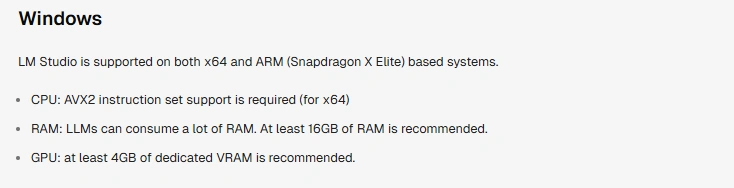
Those recommendations do not mean that every DeepSeek model fits in 16 GB, or that a 4 GB graphics card can hold an 8B model by itself. The download occupies disk space. Running it also needs memory for the model, conversation context, and runtime, while your operating system and other apps need their own share.
On a 16 GB machine, a quantized 8B model with a modest context window is a reasonable first candidate to assess. On an 8 GB machine, begin with a smaller model rather than assuming a roughly 5 GB download leaves enough working memory. Our DeepSeek hardware guide explains the difference between RAM, GPU memory, and model size in more detail.
Which DeepSeek model should you download?
Choose a model by its complete name, publisher, format, and size. Searching for “DeepSeek” alone can return different generations, full models, distilled models, and conversions with very different requirements.
The example here is DeepSeek-R1-0528-Qwen3-8B, an official DeepSeek release built from Qwen3-8B and trained using reasoning data from R1-0528. The 8B model is a separate, smaller model; downloading it does not put the full R1 model on your laptop.
For LM Studio, we use the LM Studio Community GGUF conversion. The underlying model comes from DeepSeek, while this packaged conversion comes from the community publisher. Check that relationship on the model card rather than treating any upload with “DeepSeek” in its name as an official DeepSeek file.
Start with a file that leaves memory to spare
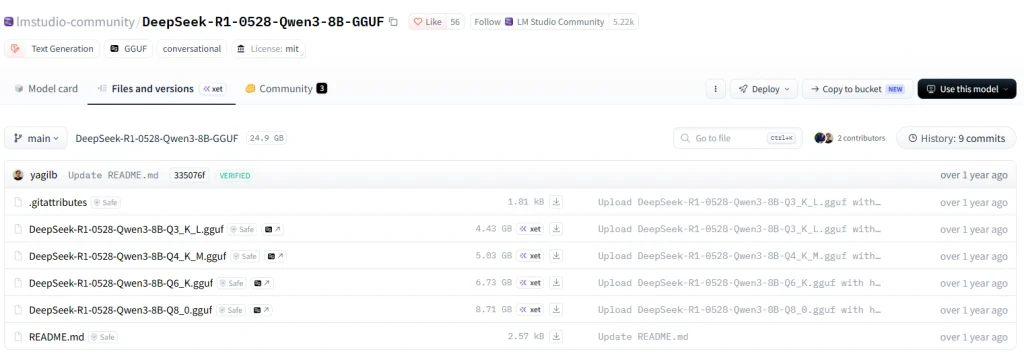
The community repository offers the following files. These are download sizes listed by the publisher, not total RAM or VRAM requirements:
| File variant | Download size | How to approach it |
|---|---|---|
| Q3_K_L | 4.43 GB | A smaller file when memory is tight. Consider a smaller model too, rather than choosing the heaviest compression automatically. |
| Q4_K_M | 5.03 GB | The starting file used in this walkthrough, subject to available memory. |
| Q6_K | 6.73 GB | An option when you have more memory and want less aggressive quantization. |
| Q8_0 | 8.71 GB | A larger download that needs more memory headroom. |
Quantization reduces the precision used to store weights, making the model smaller. It can also affect its answers. The useful choice is a file that runs comfortably and handles your work well; the largest file is not helpful if it leaves the computer swapping heavily or unable to load the conversation.
If the 8B model is too large, look for a documented conversion of the smaller DeepSeek-R1-Distill-Qwen-1.5B. DeepSeek’s original R1 release also includes 7B, 8B, 14B, 32B, and 70B distills. Consider larger variants only after checking their requirements. The full R1 has 671 billion total parameters; its 37 billion activated parameters do not turn it into a 37B download.
GGUF or MLX?
LM Studio supports GGUF models through llama.cpp on Mac, Windows, and Linux. Apple Silicon Macs can also use MLX models. GGUF provides one clear route for this walkthrough across supported platforms. If you choose MLX instead, use a compatible MLX conversion of the intended checkpoint; renaming a file does not convert it.
Install LM Studio and start your first DeepSeek chat
1. Install the app for your computer
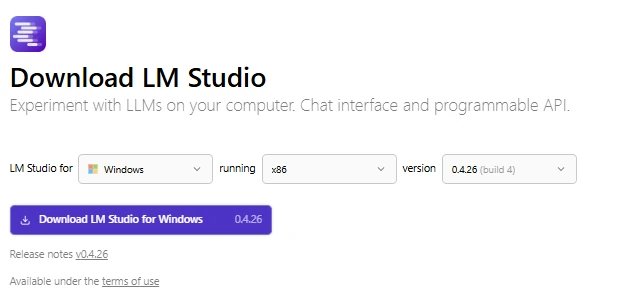
Open the official download page and use the Download LM Studio section for the desktop chat app. The page also offers Bionic and the headless llmster daemon; this walkthrough uses LM Studio. Choose the build for your operating system and processor, then install it. On an ARM Windows laptop, for example, choose the appropriate ARM build.
Open the app and complete its initial setup. If onboarding offers a different model, you can choose your DeepSeek download through Discover. You do not need to install Python or start an API server to use the chat interface.
2. Find the specific DeepSeek download
Open Discover, which LM Studio documents under the Cmd/Ctrl + 2 shortcut. Its search accepts model names and Hugging Face URLs. Search for this repository:
lmstudio-community/DeepSeek-R1-0528-Qwen3-8B-GGUFCheck the publisher and complete model name, then select the Q4_K_M file if it fits your memory budget. Wait for the download to finish before trying to load it. You need the selected variant, not every quantization in the repository. LM Studio’s download guide explains the discovery screen and local model library.
3. Load it in Chat
Open Chat, use the model selector at the top, and choose the downloaded DeepSeek model. Downloading saves the file; loading prepares it in memory. Wait for loading to finish before sending a message. This is the standard LM Studio chat workflow.
If load settings are available, use a modest context window for this first conversation. A 4,096-token window is an illustrative starting point for a short prompt, not the model’s maximum capacity or a requirement from DeepSeek. Keep enough room for both your input and the generated response. You can increase it later for longer tasks if memory permits.
4. Ask a question you can check
For the first conversation, use a small task with a clear result. For example:
A meeting starts at 14:20 and lasts 45 minutes.
What time does it finish? Give the finish time and a short explanation.
The finish time is 15:05. This is an illustrative prompt, not a reported model test. Seeing a completed answer confirms that the basic chat path works; checking its arithmetic helps you notice a bad response rather than treating any generated text as success. A reasoning model may display a thinking phase before its final answer.
Next, try a short task from your own work, such as explaining a function or rewriting a paragraph. Keep the first prompt self-contained so that missing context is easy to distinguish from a model or setup problem.
5. Add a document when you need it
LM Studio can attach PDF, DOCX, and TXT files to chats. According to its document guide, a short file may fit directly in context, while a longer file can use retrieval to select relevant passages. Ask a specific question, such as which section describes cancellation, and compare the answer with the document.
Retrieval does not mean every page was considered in every answer. It is useful for locating and discussing passages, but a request to find every exception in a large document deserves a more careful section-by-section review. Attaching a text document also does not give this R1 model image-understanding capabilities.
Settings worth changing—and what to leave alone
Separate load settings from generation settings. Context length and GPU offload affect how the model runs in memory. Temperature and output limits affect a response. Changing both groups at once makes it harder to work out why a result improved or failed.
Context length and GPU offload
Choose a context window for the work in front of you, rather than loading the advertised maximum for every conversation. Longer chats, documents, and generated answers all need room. If a larger window causes a load failure, reduce it or use a smaller model before changing unrelated sampling controls.
Start with LM Studio’s suggested GPU configuration. More offload can help when the GPU has room, but forcing everything onto insufficient VRAM is not a fix. On Apple Silicon, CPU and GPU share unified memory; on a PC with a discrete GPU, system RAM and VRAM are separate constraints.
You can save load preferences using the gear beside the model in My Models. LM Studio documents context length, GPU offload, and Flash Attention among its per-model defaults; changes apply the next time the model loads. Leave advanced controls at their defaults unless you have a specific reason to change them.
For an optional memory estimate, the lms load command offers --estimate-only. Run lms ls to find the model key, then substitute it here:
lms load "MODEL_KEY" --context-length 4096 --estimate-onlyThis estimates requirements without loading the model. It is more useful than treating the file size as the full memory budget, but it is still an estimate, not a promise about speed on your computer.
Temperature, output length, and repeat settings
For the original R1 series, DeepSeek recommends temperature 0.5–0.7, with 0.6 preferred. Its R1-0528 model card also documents 0.6 for the official web/app configuration. Use 0.6 as a starting point here, not as a claim that one setting produces the best result for every local file.
Leave top-p, top-k, and repetition controls at the model’s supplied defaults initially. The top-p value in a benchmark setup is not evidence that every LM Studio user should copy the entire benchmark configuration. If you change a setting, repeat a familiar task and change one variable at a time.
An output limit that is too small can stop a reasoning model before it reaches its final answer. Increase the allowance when needed, while staying within the loaded context. For a short conversation, you might allow 2,048 output tokens within a 4,096-token context, provided the prompt and history leave enough room. These are example budgets, not recommended limits for every task.
Prompt templates and thinking tags
LM Studio normally reads the prompt template from model metadata. Leave that template in place. A template formats user and assistant turns for the model; it is not the same thing as a system instruction asking for short answers.
Follow the card for the exact checkpoint. Original R1 guidance discouraged system prompts, while R1-0528 guidance supports them and no longer requires forcing the opening <think> token. Do not paste old template workarounds into a newer model automatically.
If reasoning appears separately in the interface, let the model finish before judging the answer. If raw tags appear in an integration, check how that client presents reasoning and final text. Simply deleting everything before an assumed delimiter can hide useful output when a response is incomplete or formatted differently.
Already have a GGUF file? Import it instead
You can skip another download if you already have the correct, complete GGUF file. The lms command-line tool ships with LM Studio; open the app at least once, then check lms --help in a new terminal. If the command is unavailable, finish the app’s CLI setup before using this optional route.
Replace the example path with your file’s actual path:
lms import "/path/to/model.gguf" --copyThe --copy flag keeps the original file. Without it, lms import moves the file by default. Follow the categorization prompts, then look for the imported model in My Models and load it from Chat.
For manual file organization, LM Studio documents a publisher/model/file structure inside its models directory:
~/.lmstudio/models/
  publisher/
    model/
      model-file.gguf
If you changed the models directory in the app, use that location. The manual import guide covers this structure. Importing a file does not add support for an unsupported model architecture, and a file ending in .safetensors is not a GGUF file.
Use DeepSeek through LM Studio’s local API
The local server is useful when you want a script or compatible app to use your downloaded model. It is optional for desktop chat. Requests go to LM Studio on your computer rather than to DeepSeek’s hosted service.
Start the server and find the model ID
Open the Developer tab and select Start server, following LM Studio’s server guide. Check the displayed port and keep Serve on Local Network disabled for this same-computer setup. The examples below use port 1234. If you choose a different port, change it in each URL.
With the CLI available, the equivalent explicit start command is:
lms server start --bind 127.0.0.1 --port 1234The command uses a loopback address, which limits access to this computer. LM Studio’s server-start reference explains the bind and port options. Load the DeepSeek model before your first request so that model loading is easy to distinguish from connection problems.
List the models visible to the server:
curl http://127.0.0.1:1234/v1/modelsIn Windows PowerShell, use curl.exe if curl resolves to a PowerShell command rather than the cURL program. Find the intended DeepSeek entry in the JSON response and copy its id. With Just-In-Time loading enabled, the list may include downloaded models that are not currently loaded.
Handle authentication deliberately
The server does not require authentication by default. LM Studio 0.4 and later can require tokens: enable Require Authentication in Developer → Server Settings and create a token through Manage Tokens. The authentication guide covers permissions and token creation.
If authentication is enabled, include the token in model-listing and inference requests. For cURL, add -H "Authorization: Bearer YOUR_LM_STUDIO_TOKEN", replacing the placeholder locally. A DeepSeek platform key will not authenticate to this local server. Keep real tokens out of shared scripts and screenshots.
Send a request with Python
Install the client library in your Python environment:
python -m pip install openaiSave the following as local_deepseek.py. Replace the model placeholder with the ID you copied. If authentication is on, set the LM_API_TOKEN environment variable to your LM Studio token before running the script.
import os
from openai import OpenAI

client = OpenAI(
    base_url="http://127.0.0.1:1234/v1",
    api_key=os.environ.get("LM_API_TOKEN", "lm-studio"),
    timeout=180.0,
    max_retries=0,
)

response = client.chat.completions.create(
    model="REPLACE_WITH_ID_FROM_V1_MODELS",
    messages=[{
        "role": "user",
        "content": "A meeting starts at 14:20 and lasts 45 minutes. "
                   "Give its finish time and a short explanation.",
    }],
    temperature=0.6,
    max_tokens=2048,
)

choice = response.choices[0]
print(choice.message.content or "No final text returned.")
print("Finish reason:", choice.finish_reason)
Run it with python local_deepseek.py. The client points to the local server even though the package is named openai. The fallback value lm-studio is only a client placeholder for a server with authentication disabled; it is not a working token when authentication is required.
The request follows LM Studio’s Chat Completions interface. Look for returned text and the finish reason. A length-limited result may need more output allowance or a shorter conversation. The timeout and output limit above are example choices; increase the timeout if your computer needs longer to finish.
Prefer cURL?
Save this as request.json in your current directory and replace the model ID. Keeping JSON in a file avoids shell-specific quoting problems:
{
  "model": "REPLACE_WITH_ID_FROM_V1_MODELS",
  "messages": [
    {
      "role": "user",
      "content": "Explain what a local model server does in two sentences."
    }
  ],
  "temperature": 0.6,
  "max_tokens": 2048
}
curl http://127.0.0.1:1234/v1/chat/completions -H "Content-Type: application/json" --data-binary "@request.json"Use curl.exe on PowerShell when needed, and include the authorization header if you enabled tokens. The response is JSON; the assistant text is under choices[0].message.content. If you build a multi-turn chat with this endpoint, send the relevant previous user and assistant messages along with each new question.
Which API should an integration use?
For an OpenAI-compatible app, use http://127.0.0.1:1234/v1 as the base URL and the exact local model ID. LM Studio supports both Chat Completions and Responses interfaces. Follow the compatibility documentation for the interface your client expects; compatibility does not give the model capabilities it does not have.
For software built specifically around LM Studio, its native v1 REST API offers model management and stateful chat under /api/v1/. That path is different from the OpenAI-compatible /v1/ path. An embeddings endpoint also needs a suitable embedding model; the presence of that endpoint does not turn R1 into one.
Offline use, documents, and server privacy
LM Studio’s offline documentation says local chat, document processing, and local-server use can operate without internet access after the necessary files are downloaded. Model discovery, new downloads, runtimes, and app updates need a connection. Prepare those downloads before relying on the setup while traveling or working offline.
That local workflow does not automatically include every integration you add. A remote MCP server or an app that sends data elsewhere creates another data path. Check those connections separately before using private material.
Local chat history also remains data on your computer. LM Studio’s chat documentation describes locally stored conversations and the option to reveal their files. Account access, device backups, and shared computers therefore still matter even when prompts never go to a hosted model.
For the server, keep network sharing off unless another device genuinely needs access. If you enable it, require authentication and restrict access to the intended devices. CORS is a browser permission mechanism, not authentication; leave it off for ordinary Python or terminal requests. Review the server settings before adding network clients or tools.
When DeepSeek does not work as expected
The model will not load
Start with the reported error. For a memory error, close other memory-heavy apps, lower the load-time context, and try a smaller model or file. For an unsupported architecture or runtime error, check the exact conversion and update the relevant LM runtime. The runtime manager is available through Cmd + Shift + R on Mac or Ctrl + Shift + R on Windows/Linux.
If the download was interrupted, verify it completed before downloading it again. Increasing temperature or changing the prompt will not solve a load-time memory failure.
Generation is slow
Separate a slow initial load, a long prompt-processing phase, and slow token generation. A large document can take time before the answer starts. A reasoning model can then spend additional time thinking. Begin a fresh chat with the short example prompt to narrow down which part is slow.
If even short requests are too slow, reduce model size, check GPU offload, and avoid memory pressure from other apps. Do not expect a small quantized laptop model to match the behavior of DeepSeek’s hosted service. If local speed remains unsuitable for your work, compare the trade-offs in DeepSeek local vs API.
Answers repeat, look garbled, or ignore the request
Try a fresh conversation, restore the model’s supplied prompt template, and remove experimental sampling changes. Confirm that the conversion belongs to the intended DeepSeek checkpoint. A plain Qwen template or unrelated tokenizer configuration may not be appropriate just because the model name includes Qwen.
For an instruction problem, give the model the necessary source text and a concrete output request. If the task still fails, a different model or less aggressive quantization may help, but neither guarantees correctness. Check important answers against the underlying material.
It keeps thinking or stops without a final answer
Check the output limit and how much context the conversation uses. A cutoff during reasoning is different from a finished answer whose reasoning is merely displayed separately. Allow more output where memory and context permit, shorten the prompt, or break the task into smaller requests. Do not add a stop sequence such as </think> if you want the final answer that follows it.
The API connection fails
Connection refused: confirm that the server is running and the port matches the URL. A service running inside a container or on another computer has its own meaning of localhost; the same-computer URL in this guide cannot address every deployment.
401 or unauthorized: check Require Authentication and supply a valid LM Studio token. Unknown model: call /v1/models again and copy the intended ID. 404: check whether the app expects a base URL or a full endpoint, and whether you mixed /v1/ with /api/v1/.
If the response still fails, keep lms log stream open while reproducing one request to inspect model input and output, as LM Studio’s Chat Completions documentation suggests. Read the error returned by the server too. Remove private prompts and tokens before sharing diagnostic output.
Frequently asked questions
Is this the same DeepSeek model as the website or API?
Not necessarily. LM Studio runs the checkpoint you downloaded. The smaller R1 model used here does not acquire the hosted service’s model, tools, image support, or context limit. Use local model IDs for local requests. The DeepSeek R1 model guide explains the differences within the R1 family.
Can I run DeepSeek without a dedicated GPU?
CPU-based use is possible with a supported runtime and enough system memory, but response speed depends on the model and hardware. Start with a small quantized model and a short task. An 8 GB computer should not be treated as having 8 GB available for model weights alone.
What are the best settings for DeepSeek in LM Studio?
There is no single preset for every checkpoint and computer. Start with the model’s supplied template and defaults, a context window that fits your task, and temperature around 0.6 for the R1 setup discussed here. Adjust memory-related settings before sampling settings when the problem is loading or speed.
Is local DeepSeek free, and does it work offline?
Running the downloaded model does not create DeepSeek hosted-API token charges, and the core local workflow can work offline after setup. You still provide storage, memory, computing hardware, and electricity. External services connected to the model can have their own costs and internet requirements.
Can another device use the LM Studio server?
Yes, when you intentionally enable network access and configure the client to reach the server’s address. Require a token and restrict access appropriately. Leave the server on loopback for the walkthrough above; you do not need public internet exposure to use a local model.
Does seeing thinking tags mean the model is broken?
No. A reasoning checkpoint may produce thinking text, and different clients display it differently. Unexpected raw tokens, endless repetition, or missing final text are reasons to check the template, runtime, and output budget. The presence of a reasoning trace is not evidence that the answer is correct.
Can I train or fine-tune DeepSeek in LM Studio?
The download-and-chat workflow is for inference. Chatting does not retrain the model or make it permanently learn your files. Fine-tuning is a separate workflow; a resulting model would need a supported architecture and format before you could use it in LM Studio.
Build on a working first conversation
Get one suitable model answering a short, checkable prompt before adding long documents, larger context windows, or an API client. That gives you a working reference point. Then make the change your task actually needs: more context for a document, a different model for a harder question, or the local server for a script. Keep the setup you can use comfortably and verify its answers against your own work.