
Cursor is the AI-first code editor that has taken the developer world by storm. Built as a fork of VS Code, it keeps everything familiar — extensions, keybindings, themes — while adding AI capabilities that feel native to the editing experience. Chat with AI about your code, generate multi-file changes with Composer, edit inline with Cmd+K, and let Agent Mode autonomously navigate your codebase, run terminal commands, and fix errors.
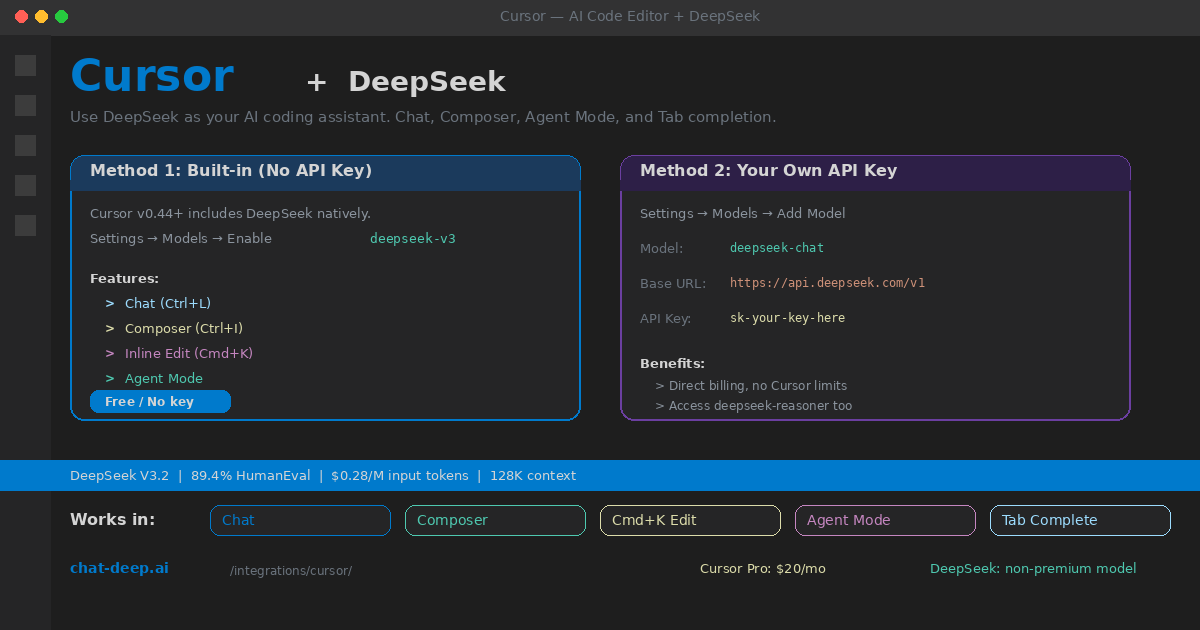
DeepSeek is available in Cursor two ways. Since version 0.44, Cursor includes DeepSeek V3 as a built-in model — toggle it on in settings and start using it immediately, no API key required. For developers who want direct API access with their own key, Cursor’s custom model system connects to DeepSeek’s OpenAI-compatible endpoint in under a minute.
This guide covers both setup methods, explains how DeepSeek works in each Cursor feature, and provides tips for getting the best coding assistance. If you are new to DeepSeek, our API documentation covers the fundamentals. For model comparisons, visit our models hub.
Method 1: Built-in DeepSeek (No API Key)
The easiest path. Cursor hosts DeepSeek V3 on US-based servers via Fireworks.ai. You get the model without managing an API key, and it does not count against your premium model credits.
Open Cursor and navigate to Settings → Models. Find deepseek-v3 in the model list and toggle it on. That is it. DeepSeek now appears in the model picker dropdown across all AI features — Chat, Composer, inline edit, and Agent Mode.
DeepSeek is classified as a “non-premium” model in Cursor, which means it does not consume your 500 monthly fast-use credits. On the Pro plan ($20/month), you can use DeepSeek with essentially unlimited fast requests while saving your premium credits for models like Claude or GPT-4o when you need them. This makes DeepSeek the ideal default model for everyday coding tasks.
Method 2: Your Own API Key (Direct Access)
If you want to bypass Cursor’s proxy, access deepseek-reasoner for chain-of-thought reasoning, or simply prefer direct billing to your own DeepSeek account, use the custom model feature.
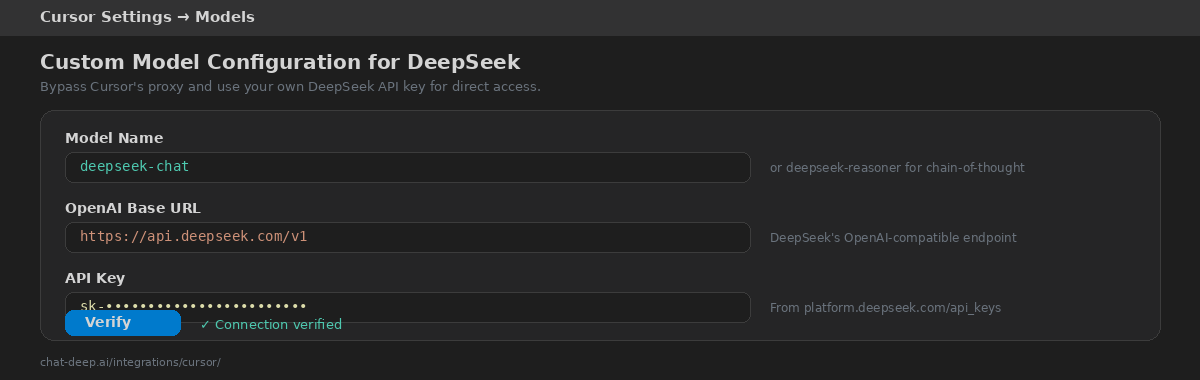
Go to Settings → Models → Add Model. Configure three fields:
Model name: Enter deepseek-chat for the general-purpose model or deepseek-reasoner for the reasoning model. The model name must match exactly what DeepSeek’s API expects.
Base URL: Enter https://api.deepseek.com/v1. This is DeepSeek’s OpenAI-compatible endpoint. Make sure to include the /v1 suffix.
API Key: Paste your DeepSeek API key (starts with sk-). Get it from platform.deepseek.com. Our login guide covers account creation.
Click “Verify” to confirm the connection. A green checkmark means the setup is complete. Your custom model appears in the model picker with a small person icon indicating it uses your own API key. All charges go directly to your DeepSeek account — check our pricing page for current rates ($0.28/M input tokens, $0.42/M output).
How DeepSeek Works in Each Feature
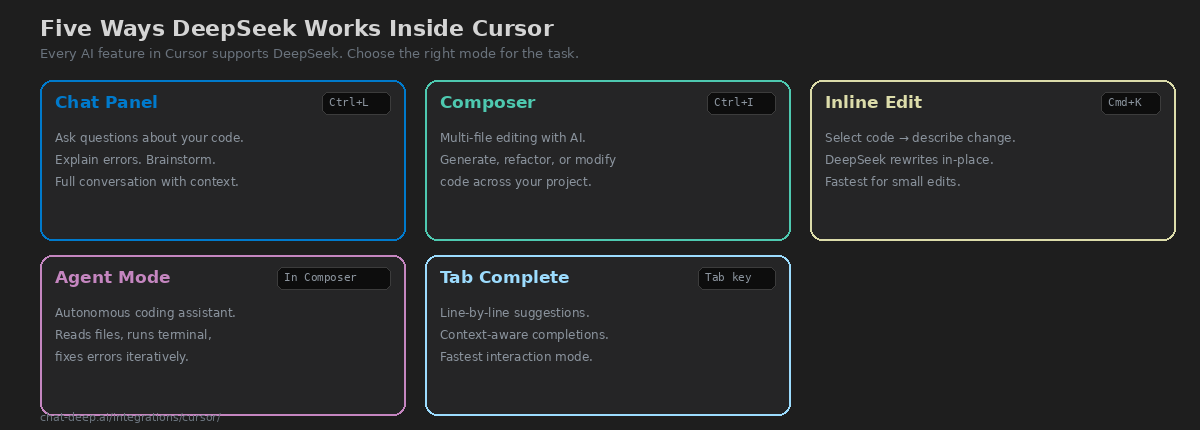
Cursor has five AI-powered features, and DeepSeek works in all of them. Each one serves a different part of your coding workflow.
Chat (Ctrl+L / Cmd+L). Open the chat panel, select DeepSeek from the model dropdown, and ask questions about your code. Cursor automatically includes relevant files from your project as context, so DeepSeek understands your codebase without you having to paste code manually. Use Chat for understanding unfamiliar code, debugging errors, brainstorming approaches, and getting explanations. The 128K context window means DeepSeek can process large files and complex codebases effectively.
Composer (Ctrl+I / Cmd+I). Composer is Cursor’s multi-file editing interface. Describe what you want to build or change, and DeepSeek generates edits across multiple files simultaneously. You review the diffs and apply them with one click. Composer is the right tool when your task spans multiple files — adding a new feature, refactoring a module, or implementing an API endpoint with its tests and documentation.
Inline Edit (Cmd+K / Ctrl+K). Select a block of code, press Cmd+K, and describe the change you want. DeepSeek rewrites the selected code in place, showing a diff you can accept or reject. This is the fastest interaction mode — perfect for quick refactors, adding error handling, converting types, or rewriting a function signature.
Agent Mode. Available within Composer, Agent Mode lets DeepSeek act autonomously. It reads your project files, runs terminal commands, checks build output, and iterates until the task is complete. If a build fails, Agent Mode reads the error, edits the code, and rebuilds — without you intervening. Use Agent Mode for complex tasks like setting up a new project, migrating frameworks, or debugging issues that span multiple files and require running tests.
Tab Completion. As you type, DeepSeek predicts the next lines of code and shows ghost text suggestions. Press Tab to accept. This is the most subtle but frequently used feature — it accelerates your typing speed by completing patterns, function bodies, and boilerplate automatically.
Using DeepSeek Reasoner for Hard Problems
The deepseek-reasoner model (available via Method 2 with your own API key) adds chain-of-thought reasoning before answering. It shows its thinking process in <think> tags, then delivers the conclusion. This is valuable for genuinely difficult coding problems — complex algorithm design, mathematical logic, debugging race conditions, or architectural decisions that require step-by-step analysis.
The trade-off is speed. The reasoner model takes 10-30 seconds to respond compared to 2-5 seconds for the standard chat model. Use deepseek-chat as your default for everyday coding, and switch to deepseek-reasoner in the model picker when you encounter a problem that truly benefits from deeper reasoning. For more on the differences between these models, see our DeepSeek V3 page.
Connecting to Local DeepSeek
If you run DeepSeek locally through Ollama or vLLM, you can connect Cursor to your local instance for complete privacy and zero API costs. Use Method 2 (custom model) with these settings:
Model name: deepseek-r1:14b (or whichever model you pulled in Ollama). Base URL: http://localhost:11434/v1. API Key: any non-empty string (Ollama does not check it, but Cursor requires the field to be filled). Every line of code you write and every question you ask stays on your machine — nothing is sent to any external server.
Writing Effective .cursorrules
Cursor supports a .cursorrules file at your project root that provides persistent context to the AI model. This is especially effective with DeepSeek because it reduces the need to repeat project-specific instructions in every prompt. A good .cursorrules file includes your tech stack (framework, language version, key libraries), coding conventions (naming patterns, file structure, preferred patterns), and what to avoid (deprecated APIs, anti-patterns specific to your project).
# .cursorrules example for a Next.js project
You are a senior TypeScript developer working on a Next.js 15 project.
- Use App Router, not Pages Router
- Prefer Server Components; use 'use client' only when necessary
- Use Tailwind CSS for styling, no CSS modules
- All API routes go in app/api/
- Write tests with Vitest, not Jest
- Never use 'any' type — always type explicitly
DeepSeek reads this context on every interaction, so its suggestions automatically align with your project’s conventions. This single file can dramatically improve the relevance of AI suggestions across Chat, Composer, and inline edits.
Cursor Pricing with DeepSeek
Understanding how Cursor’s pricing interacts with DeepSeek saves you money. Cursor offers three plans: Free (2,000 completions, 50 premium requests), Pro ($20/month, 500 fast premium requests, unlimited slow), and Business ($40/user/month, admin controls). The key detail: DeepSeek V3 is classified as a non-premium model. This means using DeepSeek does not consume your 500 premium fast-use credits on the Pro plan.
In practical terms, you can use DeepSeek for unlimited fast requests while reserving premium credits for Claude Sonnet, GPT-4o, or other premium models when you specifically need them. When you add your own DeepSeek API key (Method 2), the charges go directly to your DeepSeek account and bypass Cursor’s quota system entirely. At DeepSeek’s pricing of $0.28/M input tokens and $0.42/M output tokens, a typical coding session with heavy AI usage costs well under $0.05 per day. For a full breakdown, see our DeepSeek pricing page.
Cursor vs. Other AI Editors with DeepSeek
Several AI-powered editors and extensions work with DeepSeek, each with a different approach.
Windsurf (formerly Codeium) is Cursor’s closest competitor. It offers a similar feature set with its own AI model routing and a “Cascade” agent mode. Windsurf also supports DeepSeek via custom models. The main difference is pricing structure and agent implementation — try both and see which workflow feels more natural.
Continue is a free, open-source VS Code and JetBrains extension. It connects to DeepSeek through its OpenAI-compatible provider configuration. Continue lacks Cursor’s Composer and Agent Mode but offers full Chat, inline edit, and tab completion — and it is entirely free. If you want AI coding assistance without paying for an editor license, Continue is the strongest option.
Aider is a terminal-based tool that works from the command line. It excels at multi-file refactoring and works well with DeepSeek’s API. Aider is best for developers who prefer the terminal over GUI editors and want git-integrated AI changes.
Cursor’s advantage is the tightest integration between editor and AI. The model picker, Chat panel, Composer, Cmd+K, Agent Mode, and tab completion all work together in a unified experience that no plugin-based approach can fully replicate.
Tips for Best Results
Use @-mentions for context. In Chat and Composer, type @filename to explicitly include a file in the context. This helps DeepSeek understand the relevant parts of your codebase without guessing. Mention the files that are directly related to your question or task.
Start with Chat, graduate to Composer. For quick questions and single-file edits, Chat is faster. When your task grows to span multiple files, switch to Composer. For autonomous multi-step tasks, enable Agent Mode within Composer.
Review Agent Mode diffs carefully. Agent Mode is powerful but not infallible. Always review the generated diffs before applying them, especially for changes that touch critical code paths, database schemas, or security-sensitive logic.
Keep DeepSeek as your default. Since DeepSeek is non-premium in Cursor, use it for everyday coding and save Claude or GPT-4o credits for tasks where you specifically need a different model’s strengths. DeepSeek scores 89.4% on HumanEval, which is competitive with top-tier coding models, and its low cost means you never have to ration your AI assistance.
Monitor API health. If using the built-in model, Cursor handles availability through Fireworks.ai. If using your own API key, check our DeepSeek status page for any ongoing issues that might affect response times.
Privacy Considerations
By default, Cursor routes AI requests through its own proxy servers. If you are working with sensitive or proprietary code, enable Cursor’s Privacy Mode in settings — this prevents your code from being stored or used for training. When using DeepSeek via Method 2 (your own API key), requests go directly to DeepSeek’s servers and bypass Cursor’s proxy entirely. For maximum privacy, connect to a local DeepSeek instance via Ollama so no code ever leaves your machine. Our Ollama guide covers setting up local inference.
Conclusion
Cursor makes DeepSeek the most accessible AI coding assistant available — toggle it on and start coding with AI immediately, or connect your own API key for direct access and the reasoning model. Every Cursor feature works with DeepSeek: Chat for understanding code, Composer for multi-file generation, Cmd+K for quick inline edits, Agent Mode for autonomous tasks, and Tab completion for fast predictions. At non-premium pricing, there is no reason to ration your AI usage.
Start by enabling the built-in DeepSeek V3 model — it takes one toggle and zero configuration. Write a .cursorrules file to customize AI suggestions for your project. Use Chat for questions, Composer for multi-file changes, and Agent Mode when you want to sit back and let the AI drive. When you hit a genuinely hard problem, switch to deepseek-reasoner via your own API key for chain-of-thought analysis.
For other AI coding tools that work with DeepSeek, explore our Continue guide (open-source VS Code extension), Aider guide (terminal-based pair programming), Cline guide (autonomous coding agent), and Windsurf guide (Cursor alternative). Browse the full integrations section for all the ways to use DeepSeek across your entire development workflow.