
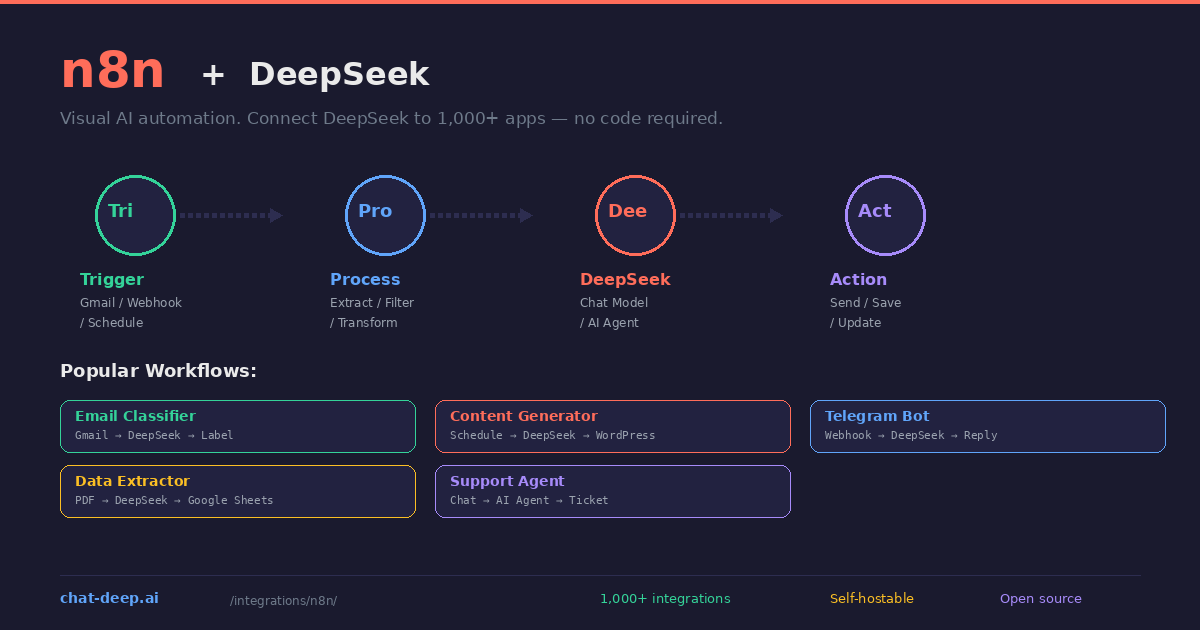
n8n is an open-source workflow automation platform that connects apps, services, and AI models through a visual drag-and-drop interface. Think of it as the programmable glue between your tools — when an email arrives, classify it with AI, extract data, and update a spreadsheet. When a form is submitted, generate a personalized response with DeepSeek and send it via Slack. These workflows take minutes to build and zero lines of code to maintain.
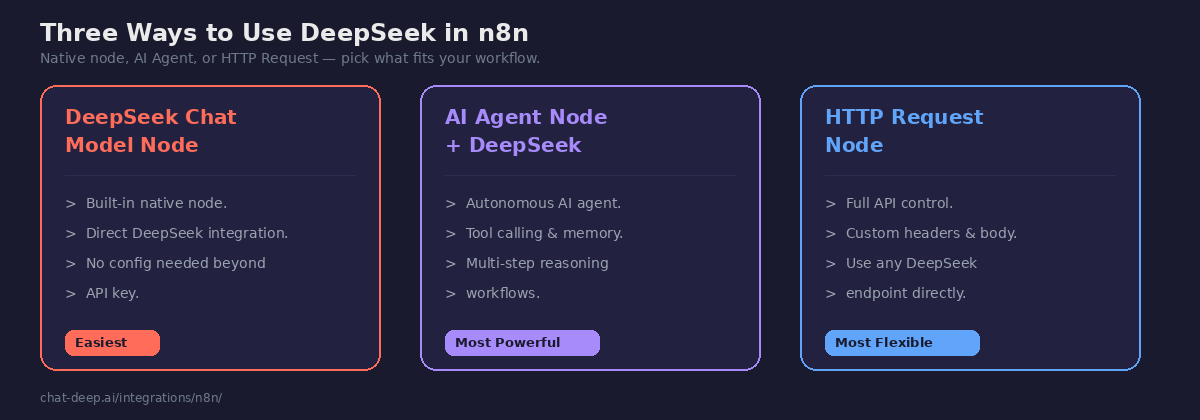
n8n has a built-in DeepSeek Chat Model node that connects directly to the DeepSeek API. It also supports DeepSeek through its AI Agent node for autonomous multi-step workflows, and through the HTTP Request node for full API control. With over 1,000 app integrations available, DeepSeek becomes the intelligence layer that connects to everything from Gmail and Google Sheets to Telegram, Notion, Airtable, and Salesforce.
This guide covers all three integration methods, walks through building practical workflows, and shows you how to get started on n8n Cloud or a self-hosted instance. If you need background on the DeepSeek API, our API documentation covers the technical details.
Getting Started
You need two things: an n8n instance and a DeepSeek API key.
For n8n, you have two options. n8n Cloud is the hosted version — sign up, and you are running workflows in minutes with no server to manage. The free tier includes 5 active workflows. Alternatively, you can self-host n8n using Docker on your own server for unlimited workflows and full data control.
For DeepSeek, create an account and generate an API key from the platform dashboard. Our login guide covers the setup. DeepSeek provides free credits for new accounts, so you can start building workflows before adding a payment method.
Method 1: DeepSeek Chat Model Node (Easiest)
n8n includes a native DeepSeek Chat Model node. This is the simplest way to add AI to your workflows — no community packages to install, no HTTP configuration to set up.
Here is how to build your first DeepSeek workflow step by step:
Step 1: Create a new workflow. Click “Add workflow” in the n8n dashboard. Add a Manual Trigger node as the starting point — you will swap this for a real trigger later.
Step 2: Add the DeepSeek node. Click the “+” button, search for “DeepSeek”, and select “DeepSeek Chat Model”. This node connects to DeepSeek’s API and handles chat completions.
Step 3: Configure credentials. Click “Create new credential” and paste your DeepSeek API key. n8n stores credentials securely and reuses them across workflows.
Step 4: Set your prompt. In the node settings, choose the model (deepseek-chat for general tasks, deepseek-reasoner for complex reasoning). Enter a system message to set the AI’s behavior and a user message with your prompt. You can use expressions like {{ $json.body }} to inject data from previous nodes dynamically.
Step 5: Test and run. Click “Test step” to see DeepSeek’s response. Once satisfied, connect an output action (send email, update spreadsheet, post to Slack) and activate the workflow.
The DeepSeek Chat Model node supports both deepseek-chat and deepseek-reasoner. Since DeepSeek’s API is compatible with OpenAI, the node leverages LangChain’s OpenAI integration under the hood. For current model capabilities and pricing, see our models hub and pricing page.
Method 2: AI Agent Node (Most Powerful)
n8n’s AI Agent node creates autonomous agents that can use tools, maintain conversation memory, and make decisions across multiple steps. When you connect DeepSeek as the language model, the agent can reason through complex tasks that require multiple actions.
To set up an AI agent with DeepSeek, add an “AI Agent” node to your workflow. Connect a DeepSeek Chat Model sub-node as the language model. Then attach tools — other n8n nodes that the agent can call when it needs information or wants to take an action. For example, you could give the agent a Google Sheets tool to look up customer data, a Calculator tool for pricing, and a Gmail tool to send responses.
The agent decides which tools to use based on the user’s request. If someone asks “What is the status of order #1234?”, the agent calls the Google Sheets tool to look up the order, then uses DeepSeek to compose a human-friendly response, and optionally sends it via email — all in one automated flow.
You can add a Memory Buffer Window sub-node to give the agent conversation context across multiple interactions. This is essential for chatbot workflows where the agent needs to remember what was said earlier in the conversation. For more on building AI agents with different frameworks, see our LangChain guide.
Method 3: HTTP Request Node (Most Flexible)
For full control over the API call — custom headers, specific parameters, or endpoints that the native node does not expose — use the HTTP Request node to call DeepSeek’s API directly:
Add an HTTP Request node and configure it with the method set to POST, the URL set to https://api.deepseek.com/chat/completions, and authentication configured with your DeepSeek API key as a Bearer token. In the request body, send the standard chat completions JSON with your model name, messages array, and any parameters like temperature or max_tokens.
This approach gives you access to every DeepSeek API feature including streaming, function calling, JSON mode, and the reasoning model’s thinking traces. It requires more manual configuration but offers complete flexibility. For the full API reference, see our DeepSeek API documentation.
Practical Workflow Examples
Here are five workflows you can build today. Each one combines a trigger, DeepSeek processing, and an output action.
Email classifier and auto-responder. Trigger: new email arrives in Gmail. DeepSeek classifies it as “support”, “sales”, or “spam”. Based on the classification, the workflow applies a label, drafts an appropriate response, and sends it — or archives the email if it is spam. This eliminates manual inbox triage.
Content generator on a schedule. Trigger: daily schedule at 9 AM. The workflow pulls trending topics from an RSS feed, sends them to DeepSeek with a system prompt for your brand voice, generates a blog post draft, and saves it to WordPress or Notion as a draft for review. Consistent content production without the blank-page problem.
Telegram chatbot with memory. Trigger: new Telegram message via webhook. The AI Agent node processes the message using DeepSeek, retrieves conversation history from a database, generates a contextual response, and sends it back through Telegram. Long-term memory stored in Google Docs or a database keeps the conversation coherent across sessions.
PDF data extractor. Trigger: new file uploaded to Google Drive. The workflow downloads the PDF, extracts text, sends it to DeepSeek with instructions to extract specific fields (names, dates, amounts), and writes the structured data to a Google Sheets row. Turn unstructured documents into organized data automatically.
Customer support agent. Trigger: new support ticket in Zendesk or Freshdesk. The AI Agent checks the knowledge base for relevant articles, uses DeepSeek to draft a response grounded in those articles, and adds the draft as an internal note for a human agent to review and send. Reduces first-response time without fully removing human oversight.
n8n’s template library has several ready-made DeepSeek workflows you can import and customize.
Tips for Building Effective Workflows
Write specific system prompts. The system message in the DeepSeek node defines how the AI behaves. “You are a customer support agent for a SaaS product. Reply politely, reference the knowledge base, and never make up features.” is far more effective than “You are helpful.” Specificity reduces hallucination and keeps responses on-brand.
Use expressions to inject context. n8n expressions let you pass data from previous nodes into your DeepSeek prompt. For example, {{ $json.emailBody }} inserts the email content from a Gmail trigger. This makes your workflows dynamic — the same workflow handles every email differently based on its content.
Choose the right model. Use deepseek-chat for fast responses in chatbots and classification tasks. Use deepseek-reasoner when the task requires step-by-step thinking — data analysis, complex logic, math problems. The reasoner takes longer but produces higher-quality results for hard problems.
Add error handling. n8n supports error workflows that trigger when a node fails. Set up an error handler that catches DeepSeek API failures (rate limits, timeouts) and retries or sends a notification. This prevents silent failures in production workflows.
Monitor costs. Each DeepSeek call costs tokens. At $0.28 per million input tokens and $0.42 per million output, the costs are low, but high-frequency workflows can add up. Use n8n’s execution logs to track how many times each workflow runs and estimate monthly DeepSeek costs. Check our pricing page for current rates and our status page to verify API availability.
Why n8n for AI Workflows
Several automation platforms support AI integrations, but n8n has specific advantages for DeepSeek workflows.
Open source and self-hostable. Unlike Zapier or Make, n8n is fully open source under a fair-code license. You can run it on your own server, which means your DeepSeek API keys, workflow data, and processed content stay in your infrastructure. This matters for teams handling sensitive data that should not pass through a third-party cloud platform.
Pricing based on workflows, not operations. Zapier charges per task (each step in a workflow counts as a task). n8n charges per workflow execution, regardless of how many steps it has. For AI workflows that involve multiple nodes — trigger, process, DeepSeek call, output — this can be significantly cheaper at scale.
Built-in AI nodes. n8n has native AI Agent, Chat Model, and Memory nodes built into the platform. You do not need external plugins or API-only integrations. The AI Agent node supports tool calling, memory, and multi-step reasoning — capabilities that would require complex Zapier configurations or custom code on other platforms.
Code when you need it. While n8n is visual-first, you can add JavaScript or Python code nodes anywhere in a workflow. This means you can preprocess data, parse DeepSeek’s response, or apply custom logic without leaving the platform. It is the best of both worlds — visual for simple tasks, code for complex ones.
For teams already using Zapier who want to explore DeepSeek, see our Zapier integration guide for that platform’s approach.
Self-Hosting n8n with DeepSeek
If you want full control over your automation infrastructure, self-host n8n using Docker:
docker run -d --name n8n \
  -p 5678:5678 \
  -v n8n_data:/home/node/.n8n \
  n8nio/n8n
Open http://localhost:5678, create your account, and start building workflows. Your DeepSeek API key and all workflow data stay on your server. The self-hosted version has no workflow limits, no execution caps, and no feature restrictions compared to the paid cloud version.
For teams that combine n8n with a locally-hosted DeepSeek model via Ollama or vLLM in Docker, the entire AI pipeline runs on your infrastructure with zero external API calls. Point the DeepSeek node’s base URL to your local Ollama instance at http://localhost:11434/v1 instead of api.deepseek.com, and every workflow execution stays completely private.. This setup is especially ideal for organizations with strict data residency requirements or for teams that want to eliminate variable AI costs entirely after the initial hardware investment.
Conclusion
n8n turns DeepSeek into a building block that connects to your entire tool stack. The native DeepSeek node gets you started in minutes with no code at all. The AI Agent node handles complex multi-step workflows autonomously with tool calling and conversation memory. And the HTTP Request node gives you full API control when you need it.
With over 1,000 app integrations, the workflows you can build are limited only by imagination: email triage, content pipelines, customer support agents, data extraction, chatbots, report generation, and more. DeepSeek’s low token pricing makes it practical to run these automations at high volume without worrying about AI costs eating into your budget.
Start with a simple workflow: trigger on a new email, classify it with DeepSeek, and apply a label. Once you see how it works, expand to content generation, chatbots, and data extraction. For complementary tools, explore our Zapier guide for a direct comparison, our Dify guide for visual AI app building, and browse the full integrations section for more ways to use DeepSeek across your stack.