
Raycast is the keyboard-first macOS launcher that has replaced Spotlight for hundreds of thousands of developers and power users. Press Option+Space from anywhere, type what you need, and it happens — launch apps, search files, manage windows, run scripts, or call DeepSeek. With AI deeply integrated into the launcher, you can select text in any application, hit the Raycast hotkey, run an AI command like “Summarize” or “Fix Grammar,” and get results in seconds without opening a browser or switching to a chat window.
DeepSeek is available in Raycast through two paths. The free path uses the “DeepSeek Quick Actions” extension from the Raycast Store — install it, paste your API key, and you have instant DeepSeek access from the command bar. The Pro path ($8/month) adds DeepSeek as a native model in Raycast’s full AI Chat, alongside 32+ other models from OpenAI, Anthropic, Google, Meta, and more. Both approaches turn Raycast into the fastest way to access DeepSeek on macOS.
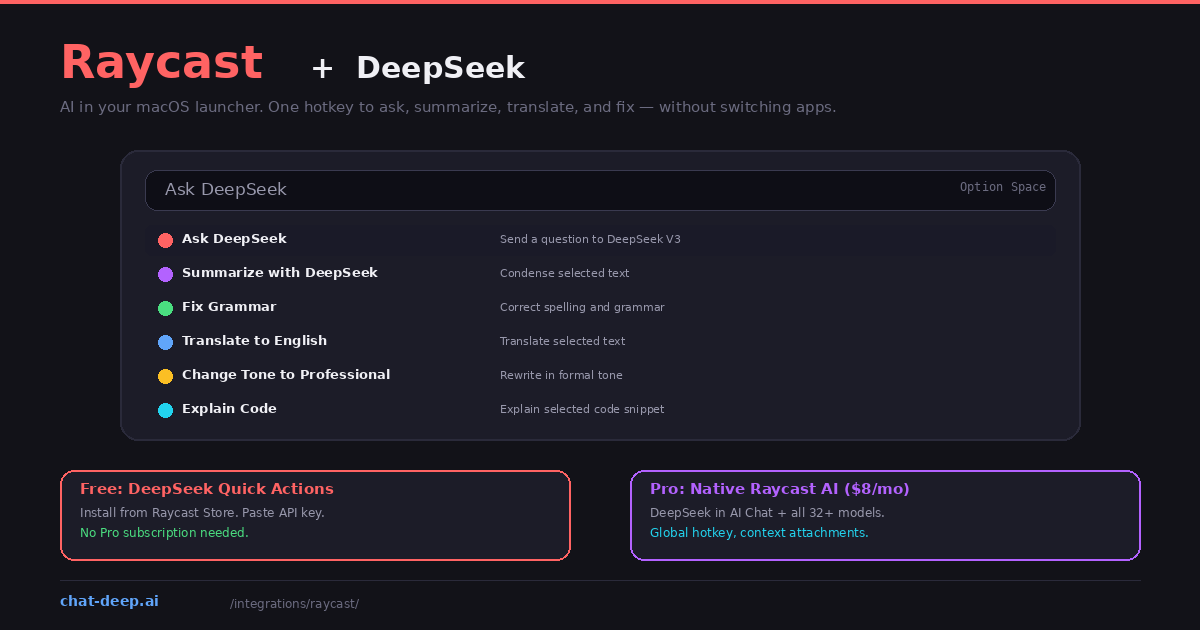
This guide covers both setup methods, the built-in AI commands, custom prompts, and tips for integrating DeepSeek into your daily workflow. For DeepSeek API details, see our API documentation.
Method 1: DeepSeek Quick Actions (Free)
This is the simplest path and requires no Raycast Pro subscription — just a DeepSeek API key.
Open Raycast and search for “Store” to access the Raycast Store. Search for “DeepSeek Quick Actions” and install the extension. Then open Raycast Settings (Cmd+,), navigate to Extensions, find the DeepSeek extension, and paste your API key (sk-xxxxxxxxxx) in the configuration field. Get your key from platform.deepseek.com — our login guide covers account creation.
Once configured, toggle Raycast from any app and type “Ask DeepSeek” to send a free-form question. You can also select text in any application first, then trigger Raycast — the selected text becomes the input for commands like “Summarize” or “Translate.” The response appears directly in the Raycast window, and you can copy it to your clipboard with one click.
The Quick Actions extension supports one-shot interactions — you send a prompt, get a response, and move on. It does not maintain conversation history like a chat interface. For quick tasks (summarize this email, fix this paragraph, translate this sentence), the one-shot model is actually faster than a full chat because there is no context overhead. For pricing, see our DeepSeek pricing page.
Method 2: Raycast AI Pro (Native Integration)
The Raycast Pro plan ($8/month billed annually) unlocks the native AI Chat with full conversational support, context attachments, and access to 32+ models including DeepSeek V3. This is the deeper integration.
Open Settings, navigate to AI, and you will see DeepSeek listed among the available models. Select it as your default or switch to it when needed from the model picker in the AI Chat window. DeepSeek is available through the Advanced AI add-on, which gives you access to the full range of frontier models.
The native AI Chat supports multi-turn conversations, context attachments (PDFs, screenshots, browser tabs, on-screen content), web search with inline references, and AI Extensions that connect to your other tools. You can attach a PDF, ask DeepSeek to summarize it, then follow up with specific questions — all within the Raycast window. Raycast also offers an “Auto Model” feature that automatically selects the best model for each task based on complexity.
AI Commands: The Daily Workflow
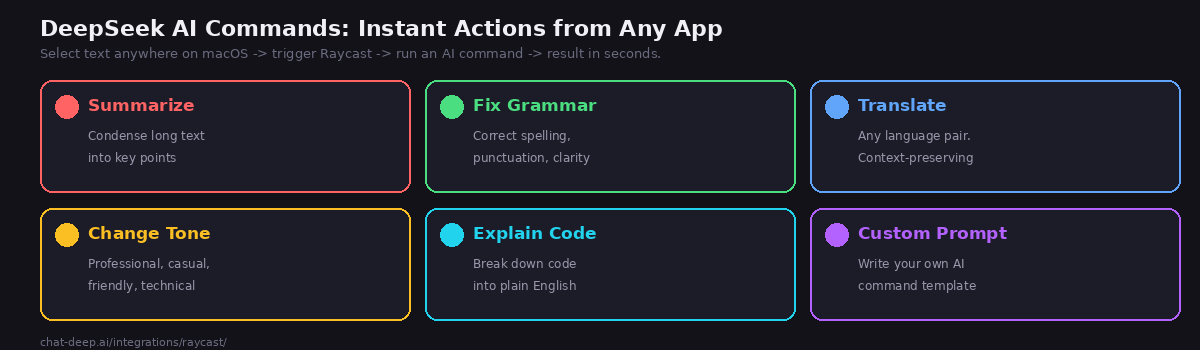
AI Commands are predefined actions you trigger from the Raycast command bar. They work with whatever text you have selected — in any application on your Mac. Select a paragraph in your email, trigger Raycast, run “Fix Grammar,” and the corrected text is ready to paste back.
Summarize. Select a long article, email thread, or document and run “Summarize.” DeepSeek condenses it to key points. Particularly useful for processing meeting notes, lengthy Slack threads, or research articles you want to quickly digest.
Fix Spelling and Grammar. Select text in any writing context — email, document, Slack message — and DeepSeek corrects typos, fixes grammatical errors, and improves clarity while preserving your original meaning and tone.
Translate. Select text in any language and translate it. DeepSeek handles all major languages and preserves context better than simple translation tools because it understands the full paragraph rather than translating sentence by sentence.
Change Tone. Rewrite selected text in a different register — professional, casual, friendly, technical, or empathetic. Invaluable when drafting sensitive communications where tone matters as much as content.
Explain Code. Select a code block in your editor or terminal and get a plain-English explanation. DeepSeek breaks down what the code does, identifies potential issues, and suggests improvements.
Custom Commands. Beyond the built-in options, Raycast’s Prompt Explorer has hundreds of community-created AI commands. You can also write your own — define a system prompt, set input parameters, and create a personal AI command library tailored to your specific needs.
Context-Aware AI
Raycast Pro’s AI Chat is context-aware in ways that a standalone chat window cannot match. Dedicated commands let you send your active window content, a selected screen area, or the focused browser tab directly into the AI conversation. DeepSeek sees what you see on screen.
A practical example: you are reading a technical blog post in Safari. Run the “Send Focused Browser Tab to AI Chat” command. The page content loads into the DeepSeek conversation. Ask “What are the three main arguments in this article?” and DeepSeek responds accurately with the full page as context. File attachments work the same way — drop a PDF into AI Chat and DeepSeek can summarize, extract, or answer questions about its content without any vector database setup.
Another powerful pattern is sending screenshots to AI Chat. Capture a screen area showing an error message, a UI bug, or a design mockup, and ask DeepSeek to analyze it. “What is causing this error?” or “How would I implement this design in React?” — DeepSeek processes the visual context alongside your text prompt. This turns Raycast into a visual AI assistant, not just a text-based one.
The AI Extensions system goes further by connecting DeepSeek to your other tools through natural language. Type @linear in the AI Chat to interact with your Linear issues, or @calendar to manage events. DeepSeek processes the tool’s data and responds with actionable information — all from the same command bar.
Local Models via Ollama
Raycast has experimental support for local models through Ollama. If you have Ollama installed with a DeepSeek model, Raycast can connect to it for AI interactions that stay entirely on your machine. The integration is still being refined, but for basic chat and text processing tasks, local DeepSeek through Raycast works well. This is relevant for users who need the speed of Raycast’s command bar but cannot send data to external APIs.
Privacy and Data Handling
Raycast’s privacy model is designed for professional use. All data is stored locally on your Mac by default. If you enable Cloud Sync, AI chats are encrypted at rest and in transit on Raycast’s servers for cross-device access. Critically, Raycast’s agreements with AI providers prohibit them from using any AI interactions to train their models — this applies to DeepSeek and all other providers available in the platform.
For maximum privacy, use the Ollama integration for local-only AI, or use the DeepSeek Quick Actions extension with your own API key (where the data policy is governed directly by DeepSeek’s terms). The Pro plan’s Cloud Sync can be disabled if you prefer to keep all AI conversations exclusively on your local machine.
Raycast vs. Other AI Access Points
How does Raycast compare to other ways of accessing DeepSeek on your desktop?
DeepSeek’s web app (chat.deepseek.com) is free and requires no setup, but it means opening a browser tab and context-switching away from your current work. Raycast eliminates this friction entirely — AI appears as an overlay on top of whatever you are doing.
Open WebUI provides a richer ChatGPT-like experience with RAG, multi-model comparison, and multi-user support. But it requires Docker setup and runs in a browser. Raycast is lighter — it is a native macOS application that opens instantly with a hotkey. Use Raycast for quick AI interactions throughout the day and Open WebUI for deep research sessions that need document RAG.
ChatGPT Plus costs $20/month with only OpenAI models. Raycast Pro at $8/month gives you DeepSeek plus 32+ models including GPT-4o, Claude, Gemini, Llama, and Mistral — better value by any measure. The launcher integration is also faster than switching to the ChatGPT app or website.
Raycast occupies a unique position: it is not the deepest AI interface (Open WebUI has more features), nor the cheapest (the DeepSeek web app is free), but it is the fastest. When the goal is to get an AI response without breaking your flow, nothing beats a global hotkey that works from any application on your Mac.
Pricing
The free Raycast tier includes all core launcher features plus a limited number of AI messages for trial. Pro at $8/month adds unlimited AI with all models including DeepSeek, Cloud Sync, custom themes, and unlimited clipboard history. Team at $16/user/month adds shared snippets and team commands. If you use the free DeepSeek Quick Actions extension instead of Pro, you only pay for DeepSeek API usage — typically a few cents per day. At $8/month, Pro’s value is strong: DeepSeek plus 32+ other models, context attachments, conversation history, and web search integrated into the fastest launcher on macOS.
Tips for Best Results
Set DeepSeek as your default model. If you primarily use DeepSeek, set it as the default in Raycast AI settings to avoid switching models every time you open AI Chat. Use Auto Model when you want Raycast to pick the optimal model per task.
Build custom AI commands for repetitive tasks. If you frequently translate emails to a specific language, create a dedicated command with a system prompt specifying the target language and tone. One keystroke replaces a multi-step process.
Use clipboard history with AI. Raycast stores clipboard history (encrypted, local). Copy multiple pieces of text throughout the day, then paste them into AI Chat for synthesis. “Based on these five messages I copied today, what are the action items?”
Combine with window management. Raycast’s window management lets you snap your editor to one half and AI Chat to the other with a single keystroke — a split-screen AI workspace without a dedicated AI editor. Check our status page for DeepSeek API availability before important sessions.
Conclusion
Raycast turns DeepSeek into an AI assistant that is always one keystroke away on macOS. No browser tab to open, no app to switch to, no context to lose. Select text, hit the hotkey, run a command, get results — all while staying in whatever application you were working in. The free Quick Actions extension makes this accessible to anyone with a DeepSeek API key, while Pro adds conversational AI with context attachments and 32+ models for $8/month.
The speed advantage is real. When you need to fix a grammar mistake in an email, translate a Slack message, summarize a long document, or understand a code snippet, the difference between “open a browser tab and paste into ChatGPT” and “press Option+Space and run a command” compounds across dozens of daily interactions. Raycast eliminates the micro-friction that makes AI tools feel like extra work instead of productivity multipliers.
For macOS users who live at the keyboard, adding DeepSeek to Raycast is the lowest-friction path to AI-assisted productivity. Explore our Obsidian guide for AI-powered knowledge management, Cursor guide for AI coding, Open WebUI guide for a self-hosted chat interface, and browse the full integrations section for more ways to use DeepSeek across your workflow.