
Visual Studio Code does not have built-in AI features like Cursor or Windsurf, but its extension ecosystem makes it the most flexible platform for DeepSeek integration. You can add DeepSeek as a GitHub Copilot replacement, an autonomous coding agent, a local private assistant, or all three simultaneously — each through a different extension, each serving a different part of your workflow.
This guide maps out every viable approach to using DeepSeek in VS Code as of April 2026. Instead of diving deep into one tool (we have dedicated guides for that), this article helps you decide which extension to install based on what you actually need. Whether you want tab autocomplete, autonomous multi-file editing, complete offline privacy, or zero-cost AI assistance, there is a DeepSeek setup for your VS Code.
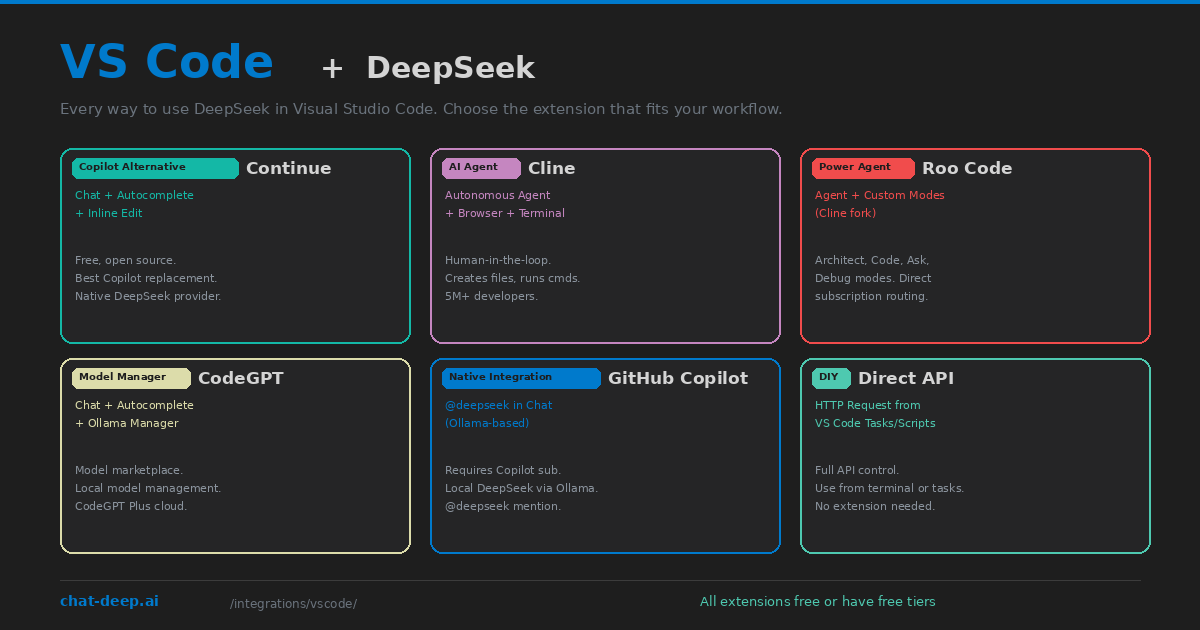
Option 1: Continue (Best Copilot Replacement)
Continue is the leading open-source AI coding extension for VS Code (and JetBrains). It provides the three features most developers want from a Copilot replacement: tab autocomplete, sidebar chat, and inline code editing. Continue has a native DeepSeek provider — set provider: deepseek in the config, paste your API key, and you have a working AI assistant in under two minutes.
Continue’s strength is its multi-model architecture. You can assign different DeepSeek models to different roles — deepseek-chat for fast autocomplete, deepseek-reasoner for complex reasoning in chat, and a local model via Ollama for sensitive projects. Context providers automatically feed your open files, git diffs, terminal output, and codebase index into every DeepSeek request.
Best for: Developers who want a straightforward Copilot replacement with DeepSeek, without paying for a separate AI editor or subscription. Free, open source, and works in both VS Code and JetBrains.
Option 2: Cline (Autonomous Agent)
Cline turns DeepSeek into a full autonomous coding agent inside VS Code. Unlike Continue (which responds to your requests), Cline takes action — it creates files, runs terminal commands, launches a browser, takes screenshots, and fixes its own errors. Every action requires your approval through a human-in-the-loop interface, so you maintain control while the agent handles execution.
Connect DeepSeek to Cline by selecting “OpenAI Compatible” as the provider with https://api.deepseek.com as the base URL. Cline tracks token usage and cost per task, which is important because agent workflows consume more tokens than simple chat interactions. With over 5 million developers, Cline is the most popular open-source AI coding agent available.
Best for: Complex tasks that require creating multiple files, running builds, fixing errors iteratively, and testing results. When you need an AI that does, not just an AI that suggests.
Option 3: Roo Code (Power Agent)
Roo Code is a community fork of Cline that adds specialized modes for different types of work. Architect Mode creates detailed implementation plans without writing code. Code Mode executes tasks like standard Cline. Ask Mode answers questions in a read-only context. Debug Mode traces errors through your stack. Orchestrator Mode manages parallel sub-tasks.
Roo Code also offers direct subscription routing — if you already pay for a ChatGPT Plus or Claude Pro subscription, Roo Code can route requests through those accounts via a browser bridge, potentially reducing your per-token API costs. DeepSeek works through the same OpenAI-compatible configuration as Cline, and local models via Ollama are natively supported.
Best for: Power users who want granular control over how the AI operates — separate thinking and execution phases, multiple specialized modes, and flexible model routing.
Option 4: CodeGPT (Model Manager)
CodeGPT combines AI chat and autocomplete with a built-in model manager. It provides a marketplace-like interface for browsing, downloading, and managing local models through Ollama integration. Select a DeepSeek model from the interface, click download, and CodeGPT handles the Ollama pull and configuration automatically.
CodeGPT also offers its own cloud service (CodeGPT Plus) with hosted models, but the free local mode with DeepSeek via Ollama is the main attraction for cost-conscious developers. The extension supports both chat-based interaction and inline code suggestions through slash commands like /fix, /refactor, and /explain.
Best for: Developers who want a visual interface for managing local AI models without touching the terminal. Good for beginners who want to try different DeepSeek model sizes easily.
Option 5: DeepSeek for GitHub Copilot
If you already have a GitHub Copilot subscription, a community-built extension adds DeepSeek to the Copilot Chat interface. Type @deepseek in the Copilot Chat panel to route your question to a local DeepSeek model running through Ollama. This approach keeps your existing Copilot workflow intact while adding DeepSeek as an additional model you can call when needed.
The extension runs entirely locally — DeepSeek processes on your machine via Ollama, and responses appear in the familiar Copilot Chat interface. The limitation is that the current version does not have file context access (DeepSeek models via Ollama do not support function calling reliably), so you need to manually paste relevant code into the chat.
Best for: Teams already invested in GitHub Copilot who want to add DeepSeek as a supplementary model for specific tasks without changing their primary workflow.
Option 6: Direct API (No Extension)
You do not need any extension to use DeepSeek from VS Code. Open the integrated terminal and call the API directly with curl, use it from a Python or Node.js script, or configure a VS Code task that sends the current file to DeepSeek and displays the response. This is the most flexible approach but requires the most manual setup.
A practical pattern: create a VS Code snippet or task that reads the selected text, sends it to DeepSeek’s API with a system prompt, and displays the result in an output panel. No extension dependencies, no marketplace risks, complete control. For the API format and parameters, see our DeepSeek API documentation.
Best for: Developers who prefer minimal dependencies, want to build custom tooling, or work in environments where installing marketplace extensions is restricted.
Running DeepSeek Locally in VS Code
Every extension listed above supports local DeepSeek models through Ollama. The setup is the same regardless of which extension you choose: install Ollama, pull a DeepSeek model (ollama pull deepseek-r1:14b), and point your extension to http://localhost:11434. All AI processing happens on your hardware — no code leaves your machine, no API costs, no internet required after the initial model download.
For the best local experience, the 14B model on a 16 GB RAM machine provides a reasonable balance of quality and speed. If you have an NVIDIA GPU with 10+ GB VRAM, Ollama automatically offloads layers for faster inference. The 32B model requires 32 GB RAM or a dedicated GPU but produces noticeably better code quality. See our Docker guide for detailed hardware requirements.
Combining Multiple Extensions
You do not have to choose just one. Many developers run multiple DeepSeek extensions simultaneously, each handling a different aspect of their workflow. A common setup is Continue for everyday autocomplete and chat, plus Cline for complex multi-file tasks that need agent capabilities. Continue handles the fast, frequent interactions. Cline handles the big, autonomous tasks.
The only constraint is that two extensions cannot both provide tab autocomplete at the same time — VS Code will use whichever extension registered last. If you run both Continue and Cline, disable tab completion in one of them to avoid conflicts. Chat and agent features work independently without issues.
Cost Comparison
All the extensions listed above are free to install. The cost comes from DeepSeek API usage or the infrastructure to run local models. Here is a realistic monthly cost estimate for different setups.
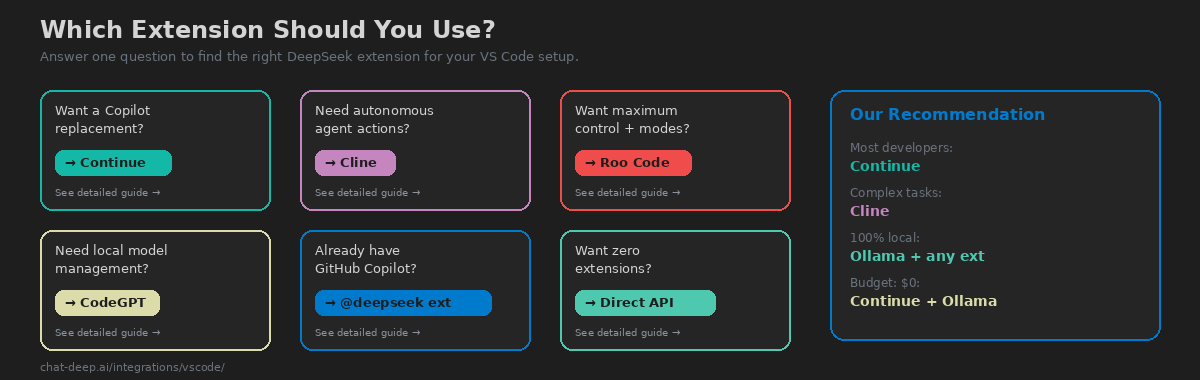
Continue with DeepSeek API (moderate daily use): $3-10/month in API tokens. Cline with DeepSeek API (heavy agent use): $10-30/month. Local DeepSeek via Ollama with any extension: $0/month after hardware investment. GitHub Copilot + DeepSeek extension: $10-19/month for Copilot subscription plus $0 for local DeepSeek. For current DeepSeek API rates, check our pricing page.
Compare this to GitHub Copilot alone at $10-19/month with no model choice, or Cursor at $20/month. The VS Code + extension + DeepSeek approach gives you more flexibility at equal or lower cost.
Extension Feature Comparison
| Feature | Continue | Cline | Roo Code | CodeGPT |
|---|---|---|---|---|
| Tab Autocomplete | Yes | No | No | Yes |
| Sidebar Chat | Yes | Yes | Yes | Yes |
| Inline Edit | Yes (Cmd+I) | No | No | Yes (/fix) |
| File Creation | No | Yes | Yes | No |
| Terminal Commands | No | Yes | Yes | No |
| Browser Integration | No | Yes | No | No |
| MCP Support | No | Yes | Yes | No |
| Codebase Indexing | Yes | Yes (AST) | Yes | No |
| Local via Ollama | Yes | Yes | Yes | Yes |
| JetBrains Support | Yes | No | No | Yes |
The table makes the trade-offs clear. Continue and CodeGPT are completion-focused tools — they help you write code faster. Cline and Roo Code are agent-focused tools — they execute tasks autonomously. Most developers benefit from having one of each installed.
Security and Privacy
When using DeepSeek through any VS Code extension, your code is sent to an external API. This is the same security model as GitHub Copilot or any other cloud-based AI tool. If your codebase is proprietary or contains sensitive data, consider these mitigation strategies.
The strongest option is running DeepSeek locally via Ollama. Every extension supports it, and no data leaves your machine. The trade-off is reduced model quality (local distilled models vs. the full V3.2 API) and the need for a capable GPU.
If you must use the cloud API, review each extension’s privacy policy. Continue is open source with no telemetry by default — you can audit the code and verify no data is sent beyond the model provider. Cline stores nothing remotely; all context processing happens locally in VS Code. Both are safer choices than closed-source extensions where you cannot verify the data flow.
For enterprise teams, consider using DeepSeek’s API through a proxy like LiteLLM that logs and controls which data reaches the model provider. Or deploy DeepSeek on your own infrastructure via Docker and point the extension to your internal endpoint.
Tips That Apply to Every Setup
Disable conflicting extensions. If you have GitHub Copilot installed alongside Continue, both will try to provide tab completions. Disable one to avoid duplicate or conflicting suggestions. You can keep both installed but toggle them based on the task.
Start with the DeepSeek API, move to local later. The hosted API gives you the best quality and fastest responses. Once you have a working setup and understand the workflow, experiment with local models via Ollama for cost savings and privacy. The transition is just a config change — no code modifications needed.
Use .env files for API keys. Never hardcode your DeepSeek API key in extension configuration files that might be committed to git. Use environment variables or extension-specific credential stores. Continue and Cline both support reading keys from environment variables.
Check our status page. When DeepSeek’s API is slow or unavailable, your VS Code extension will feel broken. Check our status page for current API health. Consider configuring a fallback model (a local Ollama model works well for this) so your workflow is not completely blocked during outages.
Our Recommendation
For most developers, start with Continue. It provides the broadest feature set (chat, autocomplete, inline edit, codebase context) with the simplest DeepSeek configuration. It is free, open source, works offline with Ollama, and covers 90% of what you need from an AI coding assistant. Install it, add your DeepSeek API key to the config, and you have a working setup in two minutes.
Add Cline when you encounter tasks that need autonomous execution — scaffolding new projects, implementing multi-file features, or debugging complex issues where the AI needs to run tests and iterate. Cline complements Continue rather than replacing it. Use Continue for the fast, frequent interactions (autocomplete, quick questions, small edits) and Cline for the big tasks that would otherwise take an hour of manual coding.
If you find yourself wishing VS Code had deeper AI integration — tighter model switching, built-in agent mode, codebase-aware context at the editor level rather than through an extension — consider graduating to Cursor or Windsurf. Both are VS Code forks that import your extensions, settings, and keybindings. Cursor offers DeepSeek as a non-premium model with unlimited fast use on the Pro plan. Windsurf ranks #1 in AI IDE rankings and offers DeepSeek at 0.25 credits per message. But for many developers, VS Code + Continue + Cline + DeepSeek is the optimal stack: free tools, complete flexibility, and the ability to keep your existing editor setup exactly as you like it.
For the full DeepSeek integration ecosystem beyond VS Code, browse our integrations section which covers frameworks, platforms, automation tools, and more. Check API availability on our status page before starting critical work sessions.