
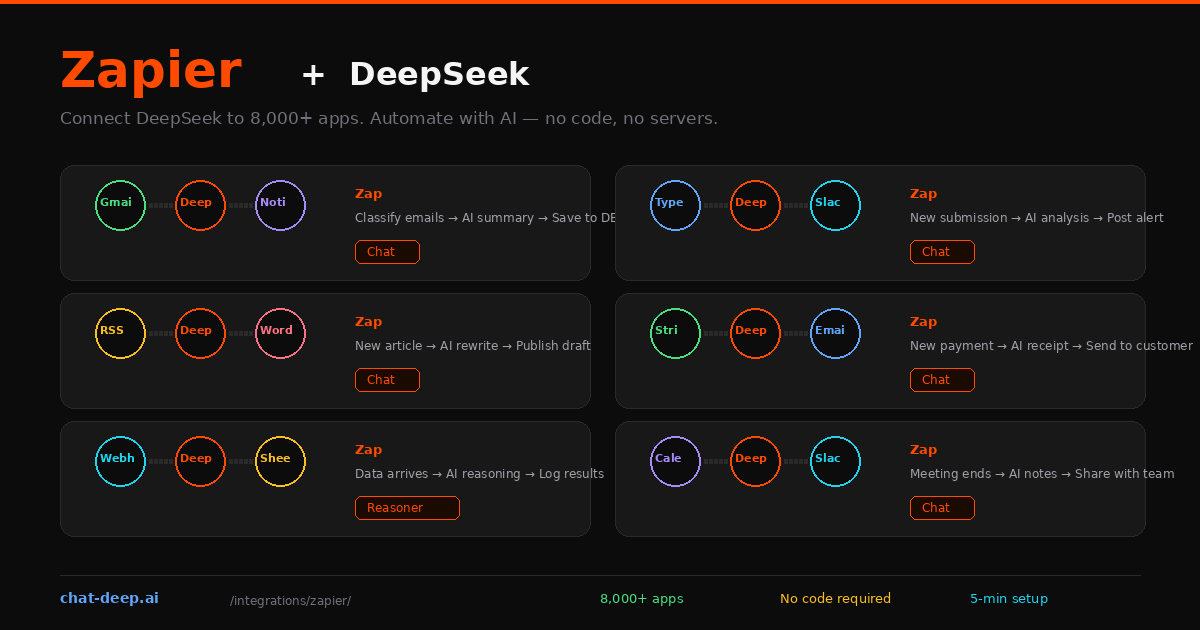
Zapier is the most widely used no-code automation platform, connecting over 8,000 apps through simple trigger-and-action workflows called “Zaps.” Add an email arrives in Gmail? Classify it with AI and save the summary to Notion. A customer fills out a form? Generate a personalized response with DeepSeek and post it to Slack. These workflows take five minutes to build and run automatically in the background, 24/7.
Zapier has a native DeepSeek integration with dedicated actions for chat completions, reasoning, code generation, and raw API access. Unlike some AI integrations that require webhooks and custom HTTP configuration, the DeepSeek app in Zapier works like any other app — add it to your Zap, configure the prompt, and connect it to the next step.
This guide walks through setting up the DeepSeek connection, explains each available action, and builds several practical Zaps you can use immediately. If you need background on the DeepSeek API, our API documentation covers the technical details.
Setting Up the Connection
You need a Zapier account (the free plan works for testing) and a DeepSeek API key.
Step 1: Log in to Zapier and click “Create a Zap.”
Step 2: Add a trigger. This is the event that starts your workflow — a new email, a form submission, a scheduled time, a webhook, or any of the 8,000+ trigger apps.
Step 3: Click the “+” to add an action step. Search for “DeepSeek” and select the DeepSeek app.
Step 4: Choose an action (we will cover each one below). Zapier prompts you to connect your DeepSeek account by pasting your API key. The connection is stored securely and reused across all your Zaps.
Step 5: Configure the prompt. You can type static text, or — and this is where Zapier shines — use dynamic data from the trigger step. For example, Classify this email: {{body}} injects the actual email content from the Gmail trigger.
Step 6: Test the step to see DeepSeek’s response. Connect an output action and turn on the Zap.
Get your API key from the DeepSeek platform — our login guide covers account creation. New accounts receive free credits for testing.
Available DeepSeek Actions
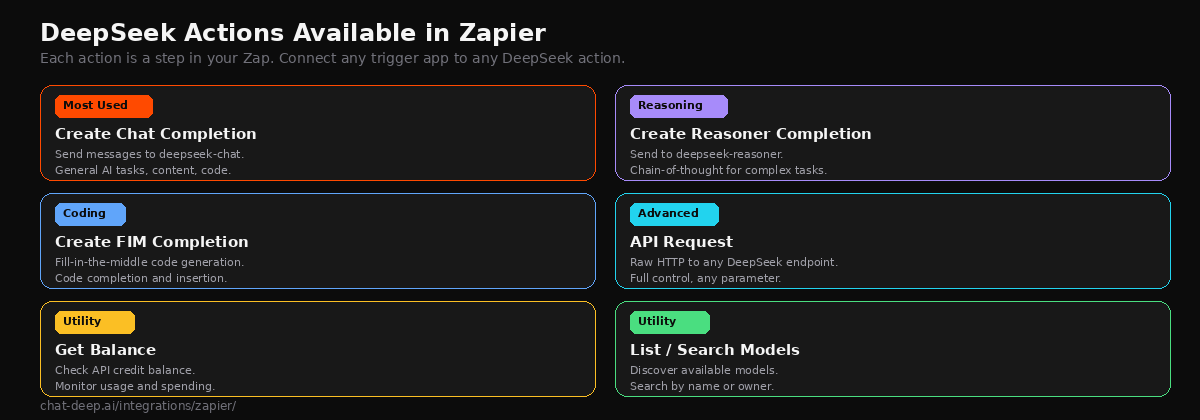
The Zapier DeepSeek integration includes six actions, each designed for a different use case.
Create Chat Completion is the most commonly used action. It sends a message to deepseek-chat (DeepSeek V3.2) and returns the AI’s response. Use it for content generation, summarization, classification, translation, code writing, and general Q&A. You configure the system message, user message, temperature, and max tokens directly in the Zapier interface.
Create Reasoner Completion sends a message to deepseek-reasoner, which produces chain-of-thought reasoning before the final answer. The response includes both the thinking process and the conclusion. Use it for math problems, complex analysis, debugging, and any task where step-by-step reasoning improves accuracy. Note that it takes longer to respond than the standard chat model.
Create FIM Completion stands for “fill in the middle” — a code-specific action where you provide a prefix and suffix, and DeepSeek generates the code that belongs between them. This is useful for code generation workflows where you want the AI to complete a specific section of a program.
API Request is the raw HTTP action for advanced users. It lets you call any DeepSeek endpoint with custom headers and body. Use it when the dedicated actions do not expose a parameter you need, or when you want to use features like JSON mode or function calling. For a full list of API parameters, see our API reference.
Get Balance retrieves your current DeepSeek API credit balance. Useful in monitoring workflows that alert you when credits run low.
List / Search Models returns the available DeepSeek models. Helpful if you want to build workflows that dynamically select which model to use. For details on model differences, visit our models hub.
Practical Zap Recipes
Here are five Zaps you can build in minutes. Each one solves a real workflow problem using DeepSeek as the intelligence layer.
Email triage assistant. Trigger: new email in Gmail. Action 1: DeepSeek Chat Completion with the prompt “Classify this email as ‘urgent’, ‘informational’, or ‘spam’. Then write a one-sentence summary. Email: {{body}}”. Action 2: create a row in Google Sheets with the classification and summary. Action 3: if urgent, send a Slack notification. This Zap processes every incoming email without you reading a single one.
Content repurposing pipeline. Trigger: new blog post in WordPress (or new item in an RSS feed). Action 1: DeepSeek Chat Completion with “Rewrite this article as a LinkedIn post (max 300 words) and suggest 3 hashtags. Article: {{content}}”. Action 2: create a draft in Buffer or post directly to LinkedIn. One piece of content turns into cross-platform distribution automatically.
Form response analyzer. Trigger: new submission in Typeform or Google Forms. Action 1: DeepSeek Chat Completion with “Analyze this customer feedback. Extract sentiment (positive/negative/neutral), key themes, and suggested follow-up action. Feedback: {{response}}”. Action 2: add the structured analysis to Airtable or Notion. Turn raw feedback into actionable insights at scale.
Meeting notes generator. Trigger: new recording in Fireflies or Otter.ai (or a calendar event ends). Action 1: DeepSeek Chat Completion with “Summarize these meeting notes into action items, decisions made, and open questions. Notes: {{transcript}}”. Action 2: send the summary to Slack and add follow-up tasks to Asana or Trello. Never miss an action item again.
Invoice data extractor. Trigger: new file in Dropbox or Google Drive. Action 1: extract text from the PDF (using a PDF parsing app). Action 2: DeepSeek Chat Completion with “Extract the vendor name, invoice number, total amount, and due date from this invoice. Return as JSON. Text: {{extracted_text}}”. Action 3: add the extracted data as a row in QuickBooks or Google Sheets. Automate data entry for incoming invoices.
Building Multi-Step Zaps
The real power of Zapier emerges when you chain multiple steps together. A multi-step Zap can call DeepSeek more than once — for example, first to classify an input, then to generate a response based on the classification.
Consider this customer support workflow. Step 1 (trigger): a new support ticket arrives via Zendesk. Step 2 (DeepSeek Chat): classify the ticket as “billing”, “technical”, or “feature request” and extract the key issue. Step 3 (Zapier Paths): branch the workflow based on the classification. Step 4a (billing path): DeepSeek generates a response referencing pricing policies and sends it as a draft reply. Step 4b (technical path): DeepSeek searches a knowledge base context (passed via the prompt) and drafts a technical solution. Step 4c (feature request path): add the request to a Productboard backlog entry.
Each path uses DeepSeek with a different system prompt optimized for that category. This single Zap replaces what would otherwise require a human to read the ticket, decide the category, look up the right response template, and draft a reply. The entire process runs in seconds.
Zapier’s Paths feature (available on paid plans) is what makes this branching possible. Combined with Filters, Formatter, and Looping steps, you can build surprisingly sophisticated AI workflows without writing code. For developers who need even more control, the Code step lets you add JavaScript or Python logic between DeepSeek calls.
Tips for Building Better Zaps
Be specific with your system message. The system message in the DeepSeek action defines how the AI behaves. “You are a professional email classifier. Always respond with exactly one word: urgent, informational, or spam.” produces far more reliable results than a vague instruction. Specificity is the difference between a Zap that works and one that produces unpredictable output.
Use Zapier Formatter before DeepSeek. If your trigger data is messy — HTML emails, long documents, nested JSON — use Zapier’s built-in Formatter step to clean it up before sending it to DeepSeek. Shorter, cleaner input produces better AI output and costs fewer tokens.
Choose the right model for the task. Use deepseek-chat (Create Chat Completion) for 90% of Zaps — it is fast and handles most tasks well. Switch to deepseek-reasoner (Create Reasoner Completion) only when the task genuinely requires multi-step reasoning, like math, logic, or complex data analysis. The reasoner is slower and uses more tokens.
Set temperature low for classification tasks. When DeepSeek needs to produce consistent, deterministic output — like classification labels or structured data — set temperature to 0 or 0.1. Higher temperatures introduce randomness that is useful for creative content but harmful for data processing.
Monitor your task usage. Each Zapier step counts as a task, and each DeepSeek action step counts as one task. High-frequency Zaps with multiple steps can burn through your task quota quickly. Use Zapier’s usage dashboard to track consumption. DeepSeek’s token costs are separate — at $0.28/M input and $0.42/M output, they are typically the cheaper part of the equation. Check our pricing page for current rates.
Handling Errors and Edge Cases
AI-powered Zaps can fail for several reasons: the DeepSeek API might be temporarily unavailable, the input text might exceed token limits, or the AI’s response might not match the expected format. Zapier provides built-in error handling to manage these situations.
Enable “Auto Replay” in your Zap settings to automatically retry failed steps after a delay. Use the “Error” app as a trigger to create a monitoring Zap that alerts you via email or Slack when any Zap fails. For critical workflows, add a Zapier Filter step after the DeepSeek action to validate the response — for example, checking that a classification result is one of the expected categories before passing it to the next step. If the filter fails, the Zap stops and you get notified instead of processing bad data downstream. You can check DeepSeek API availability on our status page.
Zapier MCP Server for DeepSeek
Zapier offers a DeepSeek MCP (Model Context Protocol) server that lets AI assistants like Claude, Cursor, and other MCP-compatible tools call DeepSeek actions through Zapier’s infrastructure. Instead of building a Zap visually, you give an AI agent access to Zapier’s DeepSeek actions as tools. The agent can then decide when to call DeepSeek as part of a larger autonomous workflow.
Setting it up takes minutes: visit the MCP page on Zapier, get your unique endpoint URL, configure which DeepSeek actions the agent can access, and paste the endpoint into your AI tool’s MCP configuration. Each MCP tool call uses 2 tasks from your Zapier quota. This is a more advanced integration path primarily for developers building agentic AI systems that need to interact with the broader Zapier ecosystem programmatically.
Zapier vs. n8n for DeepSeek Workflows
Both platforms work well with DeepSeek, but they serve different audiences. Zapier is the better choice when you want the fastest setup with zero technical overhead, need the broadest app selection (8,000+ vs. n8n’s 1,000+), and prefer a fully managed cloud service with no servers to maintain. Its per-task pricing model is simple to understand — each step in your Zap costs one task, and you always know what your bill will be.
n8n is the better choice when you need self-hosting for data privacy, want pricing based on workflows instead of individual tasks, or need code-level customization within your automations. n8n’s AI Agent node also offers deeper autonomous agent capabilities compared to Zapier’s more linear step-by-step model. For a detailed guide to n8n’s DeepSeek integration, see our n8n guide.
Conclusion
Zapier makes DeepSeek accessible to anyone who can fill in a form. The native integration gives you chat completions, reasoning, code generation, and raw API access — all configured through point-and-click steps. Combined with 8,000+ trigger and action apps, DeepSeek becomes the AI layer that connects your entire tool stack without a single line of code.
Start with the email classifier Zap — it takes five minutes, uses two steps, and demonstrates the core pattern of every AI automation. From there, expand to content generation, data extraction, and multi-step workflows. For more automation platforms, explore our dedicated n8n guide and Dify guide. Browse the full integrations section for all the different ways to use DeepSeek. Check API availability on our status page before activating production Zaps.