
Quick answer: to install DeepSeek locally and run it on Windows, macOS, or Linux, install Ollama, open a terminal, and run:
ollama run deepseek-r1:8bThe first run downloads about 5.2GB for Ollama’s current Q4 8B tag, then opens a local chat. No DeepSeek account or API key is required. After the model is downloaded, it can answer without sending prompts to DeepSeek’s hosted service.
Best starting model: use deepseek-r1:8b if your computer has at least 16GB of memory. Use deepseek-r1:1.5b for a low-memory laptop. The 8B tag is a smaller DeepSeek-R1-0528-Qwen3 distilled model—not the full DeepSeek-R1 or R1-0528 checkpoint.
In this tested guide:
Before You Install: Pick a Model That Fits
Model size, quantization, context length, and CPU/GPU placement all affect memory use. A model’s download size is not a guarantee that it will run in the same amount of RAM or VRAM: the runtime, KV cache, and active context need additional memory. Before downloading, use our DeepSeek system requirements guide to compare RAM, VRAM, storage, and operating-system support.
| Ollama tag | Current Q4_K_M download | Practical starting estimate | What it is |
|---|---|---|---|
deepseek-r1:1.5b | About 1.1GB | 8GB RAM; basic tests | Original R1 distill based on Qwen |
deepseek-r1:7b | About 4.7GB | 16GB RAM | Original R1 distill based on Qwen |
deepseek-r1:8b | About 5.2GB | 16GB+ RAM | R1-0528-Qwen3-8B distill in the current Ollama tag |
deepseek-r1:14b | About 9.0GB | 24GB+ RAM | Original R1 distill based on Qwen |
deepseek-r1:32b | About 20GB | 32–48GB+ RAM or suitable VRAM/offload | Original R1 distill based on Qwen |
deepseek-r1:70b | About 43GB | 64GB+ memory; advanced use | Original R1 distill based on Llama |
For most readers, 8B is the best balance. A 1.5B model downloads and responds faster but is much weaker at reasoning and coding. Moving to 14B or 32B can improve quality, but only if the larger model fits comfortably; heavy CPU offload or memory pressure may make it frustratingly slow.
NVIDIA users can also use our model-by-model guide to run DeepSeek on NVIDIA RTX GPUs. If you are still deciding whether local inference is right for you, compare privacy, cost, quality, maintenance, and scaling in DeepSeek Local vs API.
DeepSeek-R1 vs R1-0528: the naming trap
The original official DeepSeek-R1 repository lists the full model at 671B total parameters, 37B activated parameters, and a 128K context length. The official Hugging Face page currently reports the full DeepSeek-R1-0528 checkpoint as 685B parameters and describes it as a minor R1 upgrade. These are not consumer-laptop models.
Ollama’s deepseek-r1:8b currently points to DeepSeek-R1-0528-Qwen3-8B, a compact distillation of R1-0528 reasoning into a Qwen3 8B architecture. It is practical locally, but it is not equivalent to running the full R1-0528 checkpoint. For architecture and licensing, see our DeepSeek-R1 guide; for the updated checkpoint and its Qwen3-8B distill, see DeepSeek R1-0528. Check ollama show deepseek-r1:8b and the Ollama tag page because aliases can change.
How to Install DeepSeek Locally with Ollama
Step 1: Install Ollama
Use the official Ollama installer for your operating system. Avoid third-party installers.
Windows 10 22H2 or later
Open PowerShell and use Ollama’s official install command:
irm https://ollama.com/install.ps1 | iexAlternatively, download the signed installer from Ollama for Windows.
macOS 14 Sonoma or later
curl -fsSL https://ollama.com/install.sh | shYou can also use the official macOS download.
Linux
curl -fsSL https://ollama.com/install.sh | shThe official Linux download page also links to the script source and manual instructions, so you can inspect the installer first.
Step 2: Confirm the installation
ollama --versionIf the command is not recognized, close and reopen the terminal. If it still fails, restart the Ollama application or reinstall it from the official download page.
Step 3: Download and run DeepSeek-R1 8B
ollama run deepseek-r1:8bWait for the pull to finish, then enter a test prompt such as:
Explain in three bullets how local LLM inference differs from a hosted API.Type /bye to leave the interactive chat. The model stays installed for later use.
Step 4: Verify whether Ollama is using the CPU or GPU
Keep the model running, open a second terminal, and enter:
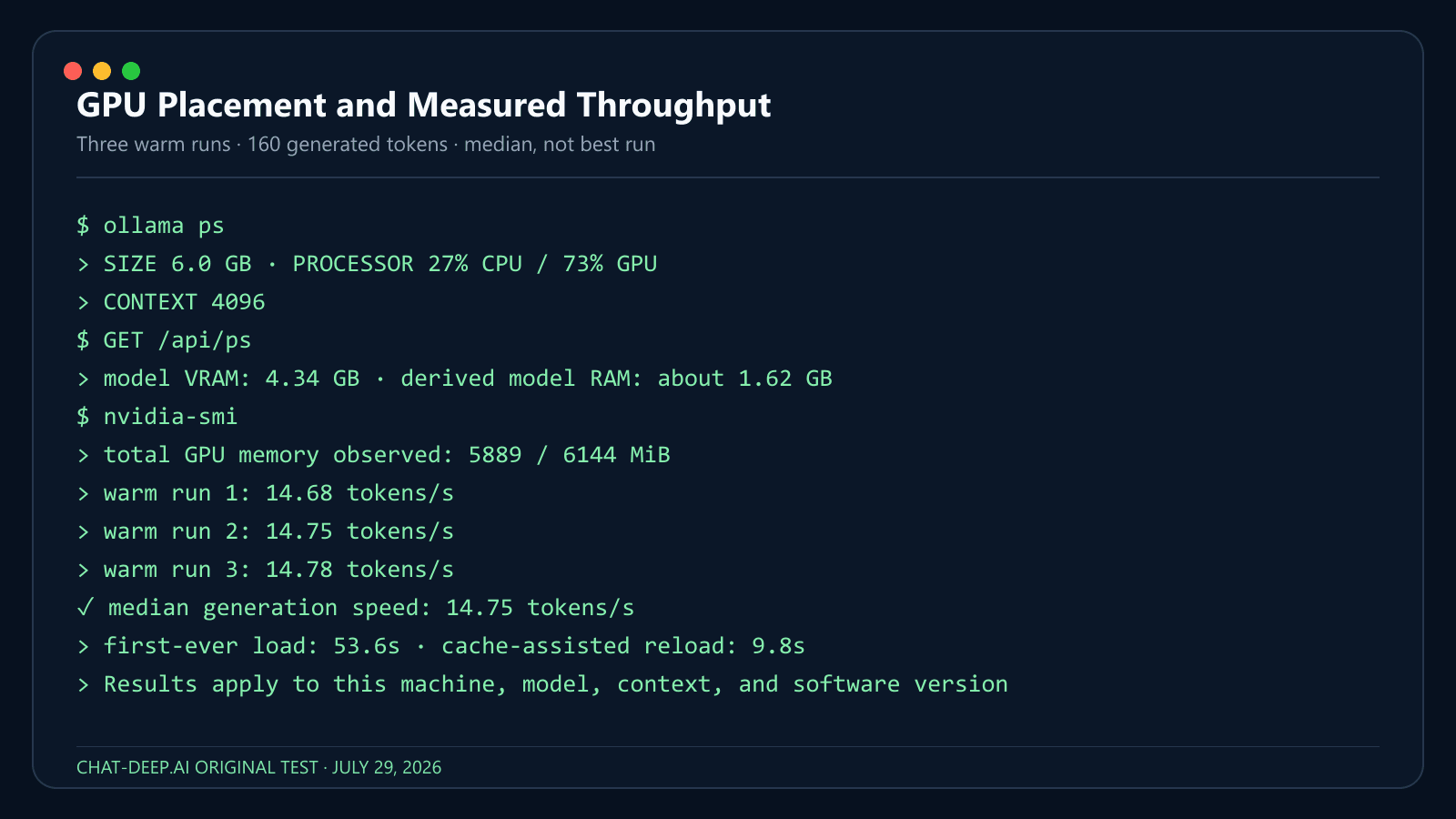
ollama psThe PROCESSOR column reports placement such as 100% GPU, 100% CPU, or a CPU/GPU split. This is more reliable than assuming that a detected GPU is actually carrying the model.
Step 5: Confirm the model can run offline
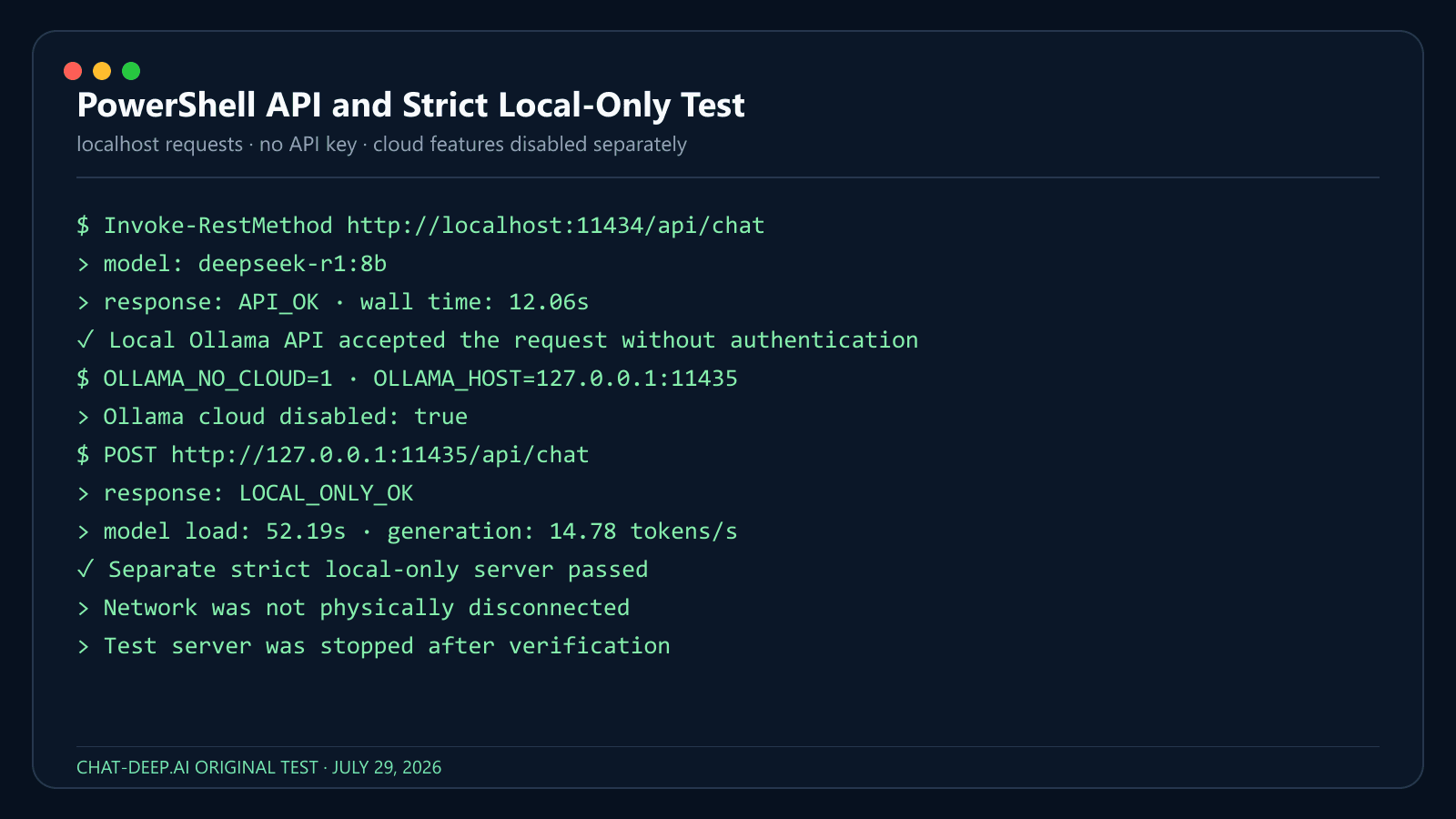
After the pull completes, you can physically disconnect a test computer and run the same command again, or launch Ollama with OLLAMA_NO_CLOUD=1 to disable cloud features. A downloaded local model should still load and answer; reconnect or re-enable cloud access before downloading updates or another model. In our reproducible test, a separate Ollama server with OLLAMA_NO_CLOUD=1 returned LOCAL_ONLY_OK and logged Ollama cloud disabled: true.
Privacy boundary: this result applies to a downloaded model on the local localhost endpoint. We did not physically disconnect the network, so the test proves Ollama’s strict local-only configuration—not an air-gapped system. Confirm the exact model and endpoint before handling sensitive material.
Our Local DeepSeek Test
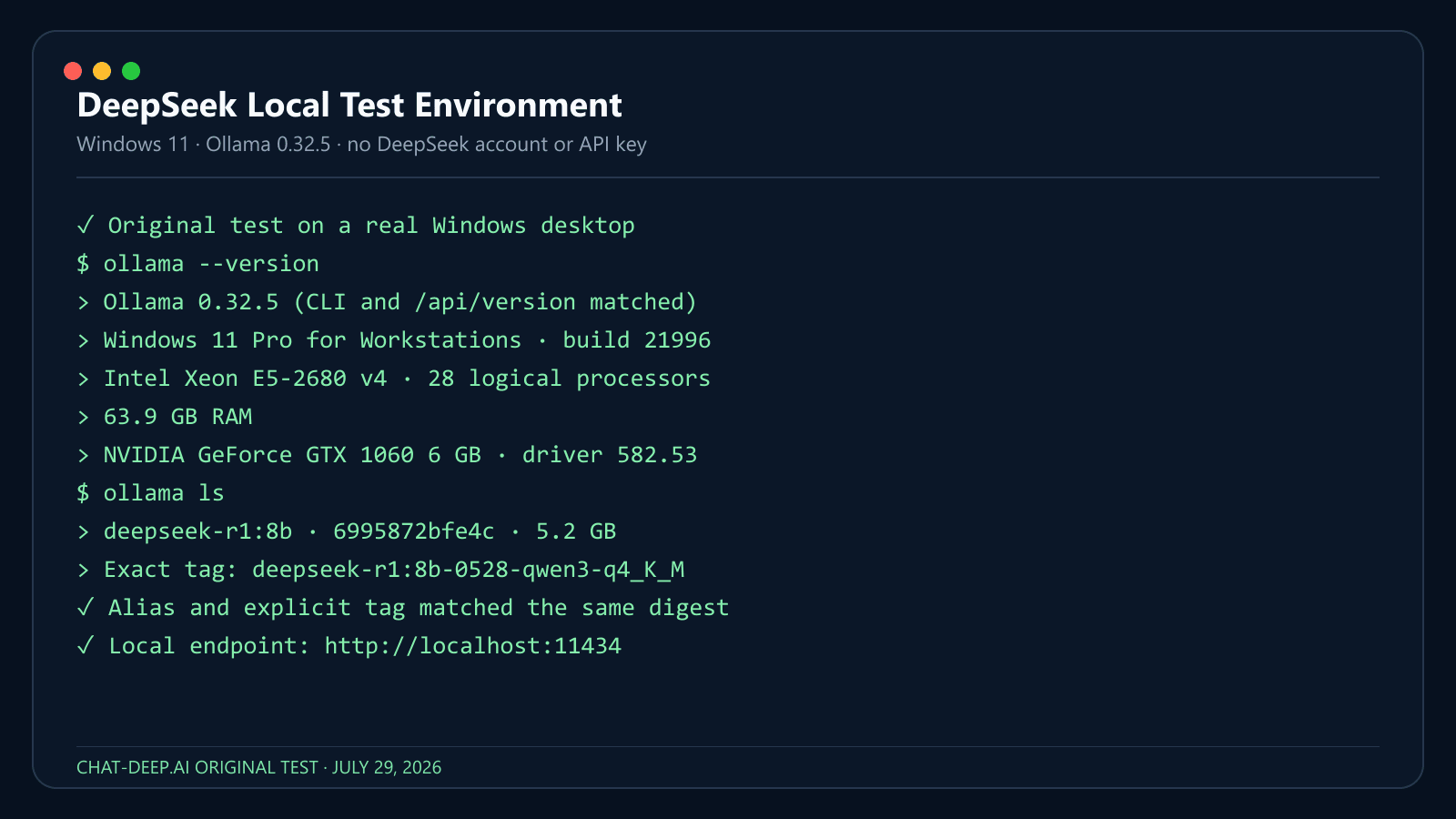
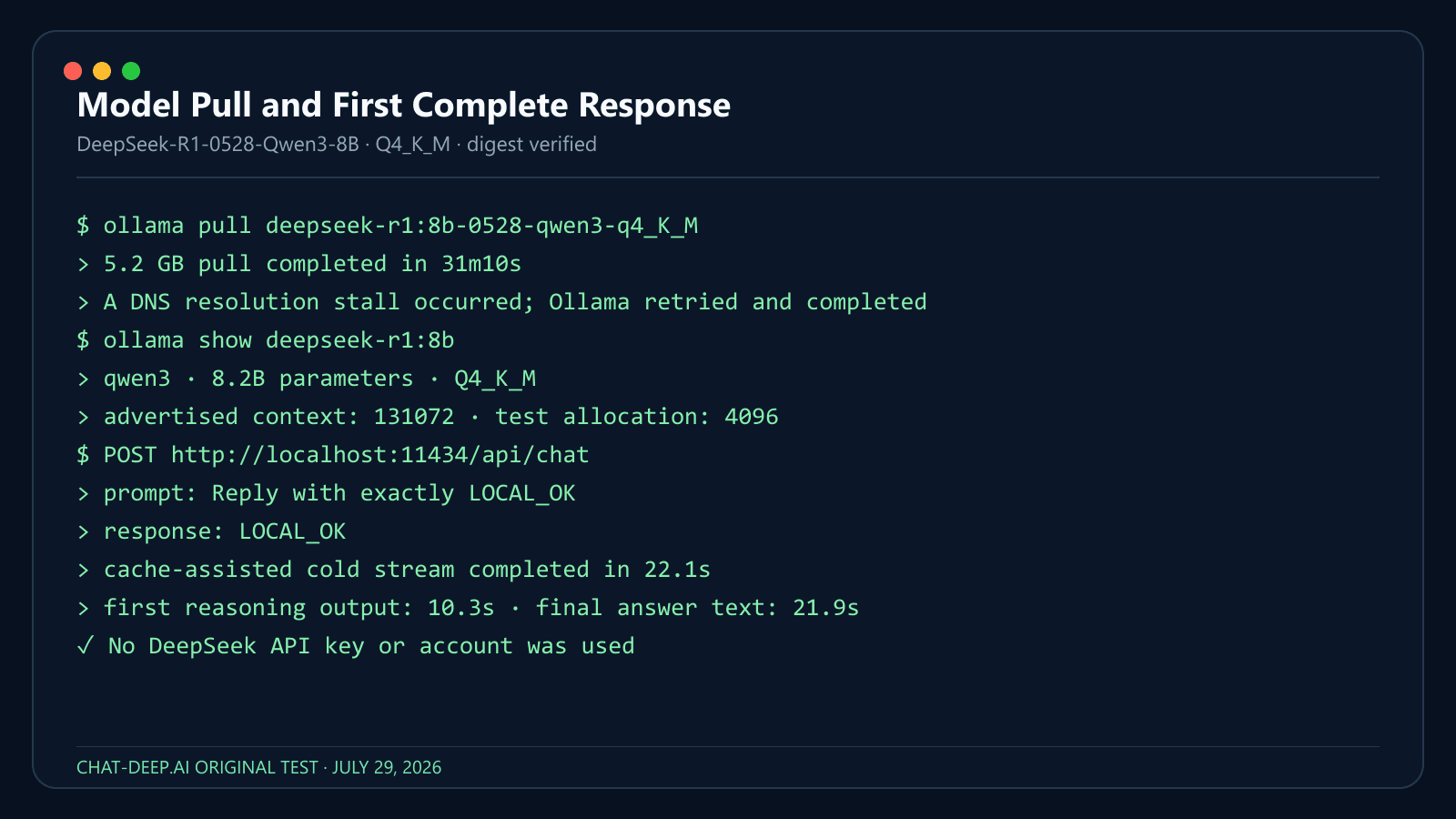
We installed Ollama and ran the current deepseek-r1:8b alias on a real Windows computer. We verified that it resolved to the same digest as the explicit deepseek-r1:8b-0528-qwen3-q4_K_M tag, then measured the pull, model placement, context, first complete API response, PowerShell request, and a separate strict local-only server. These observations describe this machine and software version; performance will vary with hardware, quantization, context, file cache, and background load.
| Test detail | Observed result |
|---|---|
| Test date | July 29, 2026 |
| Computer / CPU / GPU | Intel Xeon E5-2680 v4 (28 logical processors); NVIDIA GeForce GTX 1060 6GB |
| Installed RAM / VRAM | 63.9GB RAM; 6GB VRAM |
| Windows version | Windows 11 Pro for Workstations (build 21996) |
| Ollama version | 0.32.5 (CLI and local /api/version matched) |
| Model tag and digest | deepseek-r1:8b-0528-qwen3-q4_K_M; alias deepseek-r1:8b matched digest 6995872bfe4c |
| Reported download / loaded size | 5.2GB downloaded; 6.0GB loaded |
Processor placement from ollama ps | 27% CPU / 73% GPU; local API reported 4.34GB of model VRAM |
| Context used in test | 4,096 tokens |
| Cold-load time / time to first visible output | First-ever load: 53.6s. Cache-assisted reload after unload: 9.8s; first reasoning output at 10.3s and final answer text at 21.9s |
| Generation speed | 14.75 tokens/s median across three warm 160-token runs (14.68, 14.75, 14.78) |
| Peak Ollama RAM / VRAM observed | 4.34GB model VRAM; about 1.62GB of the loaded model remained in system RAM. Total GPU use observed: 5,889MiB of 6,144MiB |
| PowerShell API request | Passed: PowerShell Invoke-RestMethod returned API_OK from localhost:11434 in 12.06s, with no API key |
| Offline rerun after download | Passed in strict local-only mode: OLLAMA_NO_CLOUD=1, log confirmed cloud disabled, response LOCAL_ONLY_OK. Network was not physically disconnected |
What the numbers mean: the 8B Q4 model was usable on this older 6GB GPU, but it was not a comfortable all-GPU fit. Ollama offloaded 73% to the GPU and left 27% on the CPU, while total GPU use reached 5,889MiB of 6,144MiB. The first-ever load was much slower than the cache-assisted reload, and the 31m10s pull included a DNS-related stall; neither result should be treated as a universal benchmark.
Context Length: Why 128K Does Not Mean Ollama Uses 128K
The current DeepSeek-R1 distill tags on Ollama advertise support for up to 128K context. Ollama’s current context-length documentation chooses the runtime default by VRAM: 4K below 24GiB, 32K from 24–48GiB, and 256K at 48GiB or more. Cloud models use their maximum by default. The model’s advertised maximum and the context actually allocated by your local runtime are different numbers; our 6GB-VRAM test therefore used 4,096 tokens.
Inside an ollama run session, you can set an 8K context for that session with:
/set parameter num_ctx 8192Use the smallest context that fits the task. Increasing context can substantially increase memory use and may reduce speed or force more CPU offload. Do not jump directly to 128K on a 16GB laptop.
Call DeepSeek Locally from PowerShell
Ollama serves its local API at http://localhost:11434/api. On Windows, this PowerShell example avoids quoting problems that occur when a Bash-style curl command is pasted into Windows PowerShell:
$body = @{
    model = "deepseek-r1:8b"
    messages = @(
        @{
            role = "user"
            content = "Give three practical benefits of local inference."
        }
    )
    stream = $false
} | ConvertTo-Json -Depth 5

$response = Invoke-RestMethod `
    -Uri "http://localhost:11434/api/chat" `
    -Method Post `
    -ContentType "application/json" `
    -Body $body

$response.message.content
The response should print the assistant’s text. Ollama’s chat endpoint streams by default; stream = $false returns one JSON response and is simpler for a first test.
macOS and Linux curl example
curl http://localhost:11434/api/chat -d '{
  "model": "deepseek-r1:8b",
  "messages": [
    {
      "role": "user",
      "content": "Give three practical benefits of local inference."
    }
  ],
  "stream": false
}'
Keep the Local API Private
Ollama’s local API does not require authentication on localhost:11434. Cloud models, private-model downloads, and publishing do require authentication. No-auth local access is convenient on one computer, but it becomes a security risk if you expose port 11434 to a LAN or the public internet.
- Keep the service bound to
127.0.0.1unless remote access is intentional. - For strict local-only operation, disable Ollama cloud features in
~/.ollama/server.jsonor setOLLAMA_NO_CLOUD=1, then restart Ollama and confirm its log says cloud is disabled. - Do not set
OLLAMA_HOST=0.0.0.0:11434and open the firewall as a shortcut. - If remote access is necessary, put Ollama behind an authenticated gateway or reverse proxy with TLS, rate limits, and network restrictions.
- Do not expose Open WebUI, LM Studio’s server, llama.cpp, vLLM, or SGLang publicly without equivalent controls.
- Only download models from publishers and repositories you trust.
For container and network patterns, see our DeepSeek Docker deployment guide.
Useful Ollama Commands
| Task | Command |
|---|---|
| List installed models | ollama ls (ollama list also worked in our 0.32.5 test) |
| Inspect the selected tag and template | ollama show deepseek-r1:8b |
| See loaded models and CPU/GPU placement | ollama ps |
| Pull the current tag again | ollama pull deepseek-r1:8b |
| Unload the model from memory | ollama stop deepseek-r1:8b |
| Remove the downloaded model | ollama rm deepseek-r1:8b |
When Ollama Is Not the Right Tool
Ollama is the main path in this guide because it minimizes setup. Choose another runtime only when you have a specific reason:
| Need | Better option | Dedicated guide |
|---|---|---|
| A desktop interface for browsing and chatting with local models | LM Studio | Run DeepSeek in LM Studio |
| A self-hosted browser chat connected to Ollama | Open WebUI | DeepSeek Docker deployment |
| Manual GGUF selection, quantization, and CPU/GPU tuning | llama.cpp | GGUF vs Safetensors |
| High-throughput serving on GPU infrastructure | vLLM or SGLang | DeepSeek with vLLM |
LM Studio supports GGUF on Windows/Linux and GGUF or MLX workflows on compatible Macs, but format and runtime support are not interchangeable. Its current requirements specify macOS 14+ on Apple Silicon (Intel Macs are not supported), AVX2 for Windows x64, and 16GB RAM recommended; Windows ARM and Linux x64/ARM64 are also supported under the documented conditions. Open WebUI is an interface, not the model engine; it still needs Ollama or another compatible backend. llama.cpp offers more control but requires more decisions about model files, builds, and offload settings.
Can You Run DeepSeek V4 Locally?
Technically yes—but not on a normal laptop. DeepSeek has published open DeepSeek-V4 weights, but full V4 is a workstation or server path. The official model card lists DeepSeek-V4-Flash at 284B total parameters with 13B activated and V4-Pro at 1.6T total parameters with 49B activated; both support up to a 1M-token context in the model specification. Even the smaller V4-Flash checkpoint is far larger than an 8B R1 distill.
The command ollama run deepseek-r1:8b does not install DeepSeek V4. Running V4 locally requires an exact compatible checkpoint or quantization, a runtime that supports the V4 architecture, and substantial storage and memory planning. Context support also does not mean you can allocate 1M tokens on consumer hardware.
Start with the 8B R1-0528 distill to learn the workflow. If full V4 is a hard requirement, review the official model card and our DeepSeek V4 guide, then plan workstation or server resources. Be cautious with unofficial “V4 8B” downloads: verify the publisher, base model, model card, and whether it is truly a DeepSeek checkpoint or a third-party distillation.
Troubleshooting
ollama is not recognized
Reopen the terminal, confirm the Ollama app is installed and running, then try ollama --version. On Windows, restart the computer if the command is still missing from the path.
The download is slow or fails
Confirm there is enough free disk space, use a stable connection, and retry ollama pull deepseek-r1:8b. If you only need to verify the setup, start with the 1.1GB tag: ollama run deepseek-r1:1.5b.
Out-of-memory error or system freezing
Stop the current model, choose a smaller tag, close memory-heavy applications, and lower the context. A 128K-capable model can still fail when the runtime allocates more context than the machine can hold.
The model runs entirely on CPU
Use ollama ps to confirm placement. Update Ollama and GPU drivers, then check whether Ollama supports your GPU and operating system. CPU inference is valid, but it is usually slower.
The API connection is refused
Make sure the Ollama application or service is running. Test ollama ls, then retry http://localhost:11434/api/chat. Do not open the firewall broadly to solve a localhost configuration problem.
The answer quality is poor
Confirm the tag with ollama show deepseek-r1:8b, use a clear prompt, and try 8B or 14B instead of 1.5B. DeepSeek’s R1-0528 evaluation used temperature 0.6 and top-p 0.95, but those benchmark settings are a starting point—not a guarantee for every task.
For additional fixes, see DeepSeek troubleshooting.
Frequently Asked Questions
Can I install and run DeepSeek locally for free?
Yes. Ollama and the open DeepSeek model weights used here do not charge per token. You still supply the computer, storage, electricity, and download bandwidth.
Do I need a DeepSeek account or API key?
No. A model running through local Ollama does not need a DeepSeek account or DeepSeek API key. This is separate from DeepSeek’s hosted API.
Can I run DeepSeek without a GPU?
Yes. CPU inference works, especially for 1.5B or 7B/8B quantized models, but generation can be slower. Use ollama ps to see whether the model is on CPU, GPU, or split between them.
How much RAM do I need for DeepSeek-R1 8B?
16GB is a sensible minimum starting point for Ollama’s current 5.2GB Q4 8B tag. More memory gives the runtime and context cache greater headroom. Actual use depends on quantization, context, operating system, and GPU offload.
Is deepseek-r1:8b the full DeepSeek-R1 model?
No. Ollama’s current 8B tag is the smaller DeepSeek-R1-0528-Qwen3-8B distilled model. The original full R1 is listed at 671B parameters, while Hugging Face reports the full R1-0528 checkpoint at 685B.
Can I use DeepSeek locally without internet?
Yes, after Ollama and the model have been downloaded. You need internet again to pull new models or updates. Offline behavior applies to local models, not cloud-model features.
Why does Ollama show 128K but use a smaller context?
128K is the advertised maximum for the model tag. Ollama’s documented default runtime context is 4,096 tokens. Increase num_ctx only when the task needs it and your memory can support it.
Should I install DeepSeek with Ollama or LM Studio?
Choose Ollama for the shortest terminal and local-API setup. Choose LM Studio if you prefer a desktop interface for discovering, downloading, and loading model files. Both can run models locally; the exact model and quantization matter more than the interface.
Sources and Test Scope
- Ollama downloads — current Windows, macOS, and Linux installation methods.
- Ollama DeepSeek-R1 tags — tag identity, Q4 file sizes, and advertised model context.
- Ollama FAQ — privacy and local-only mode; context length — VRAM-based defaults and
ollama psverification. - Ollama API introduction and chat endpoint — local base URL and request format.
- Official DeepSeek-R1 repository — original R1 and distilled model identities.
- Official DeepSeek-R1-0528 model card — current update, model metadata, and usage recommendations.
- Official DeepSeek-V4 model card — V4 Flash/Pro sizes and context specification.
Tested: Windows 11, Ollama 0.32.5 installation and version endpoints, ls/list/show/ps, the 8B alias and digest, a 5.2GB pull, local chat API, PowerShell API, CPU/GPU placement, context, warm throughput, and strict local-only configuration. Not tested: the interactive ollama run chat inside our non-interactive automation harness, macOS, Linux, LM Studio, Open WebUI, llama.cpp, the full R1/R1-0528 checkpoints, DeepSeek V4, and a physically disconnected network; those instructions and model facts were checked against official documentation. Last technically reviewed: July 29, 2026.
Chat-Deep.ai is an independent DeepSeek resource and is not affiliated with DeepSeek or Ollama. See our editorial policy for how we test and update technical guides.