
The official DeepSeek login is available through DeepSeek’s own platforms (like the web chat interface or mobile app), where you can sign in with your DeepSeek account credentials. If you don’t have an account or prefer not to create one, you can still use DeepSeek’s AI through Chat-Deep.ai – an independent service that lets you chat without any login or registration. Chat-Deep.ai is not affiliated with DeepSeek, and we will never ask for your DeepSeek password or personal details.
(In fact, Chat-Deep.ai doesn’t require any sign-up at all, and it keeps your chat history stored only in your browser, not on our servers.)
Quick Answer:
- Official DeepSeek sign-in: Go to the official DeepSeek web chat or app and log in with your email and password (or with Google/Apple if supported). If you’re new to DeepSeek, create a free account first by signing up on the DeepSeek site or app.
- No-login alternative: Use DeepSeek on Chat-Deep.ai without any account. Just open our Chat-Deep.ai DeepSeek chat interface and start chatting instantly – no sign-up, no password needed.
Official DeepSeek login options
DeepSeek offers multiple official ways to access its AI assistant. You can use the DeepSeek Chat in a web browser, the DeepSeek mobile app, or the DeepSeek Platform for developers (to obtain API keys and manage usage). All of these use the same DeepSeek account (one account works across chat, app, and platform). Below are the sign-in steps for each:
How to sign in to DeepSeek AI Web Chat (Browser)
- Go to the DeepSeek Chat site: Open chat.deepseek.com in your web browser. This is the official web chat interface.
- Log in or sign up: If you already have a DeepSeek account, click Log In and enter your email and password. If you’re new, click Sign Up and follow the prompts to create an account (you’ll verify your email and set a password, or you can sign up quickly with Google/Apple if those options are shown).
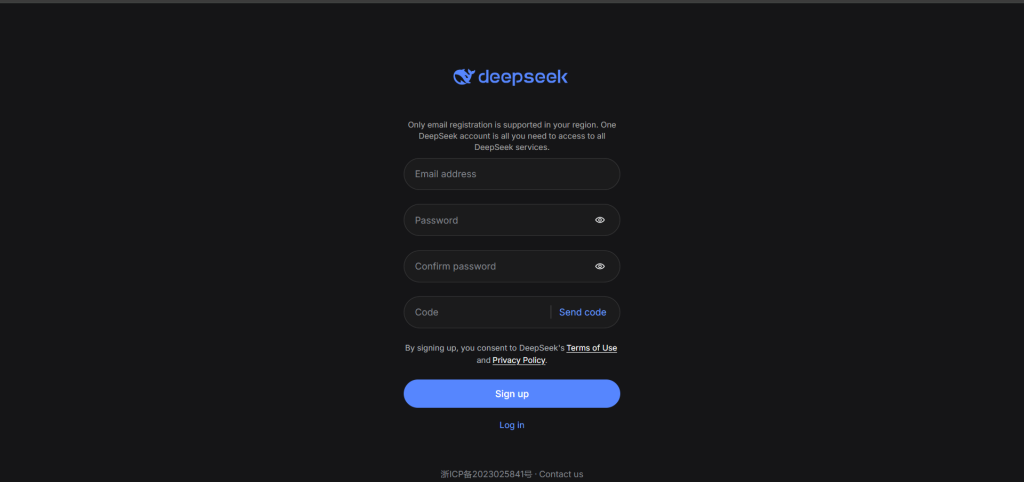
- Start chatting: After logging in, you’ll be able to use the DeepSeek web chat and start interacting with the AI.
How to sign in to the DeepSeek Mobile App
- Install and open the app: Download the official DeepSeek AI Assistant app from your app store (Android or iOS) and launch it on your device.
- Choose log in or sign up: The app will prompt you to either Log In with an existing account or Sign Up to create a new one. You can sign in with your email and password, or use one of the available social login options (like Continue with Google or Continue with Apple) if presented.
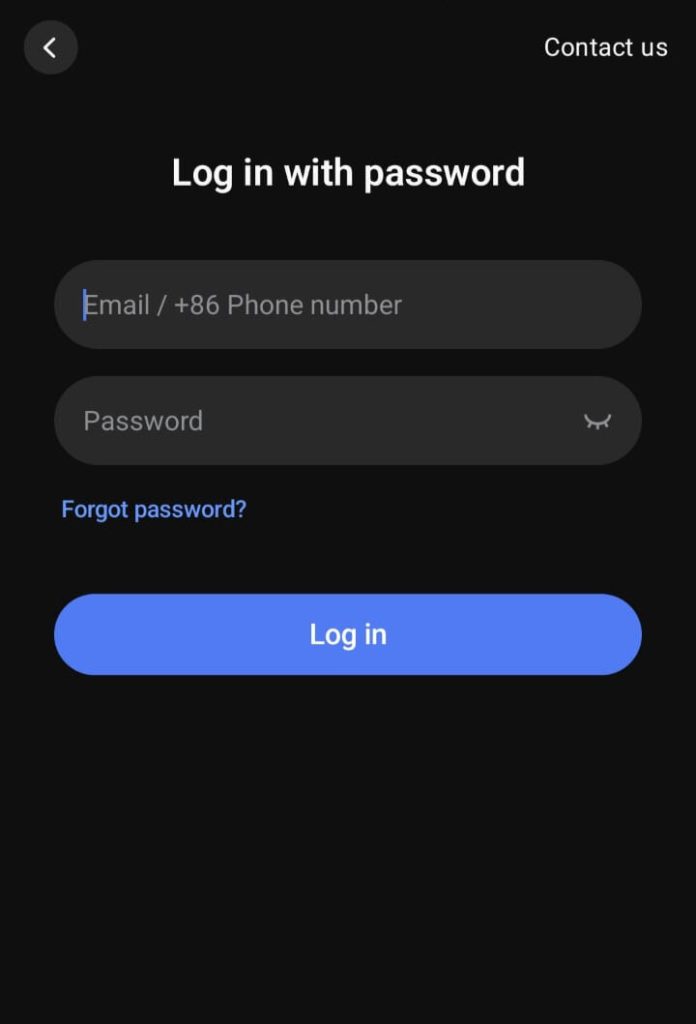
- Access DeepSeek on mobile: Once you log in (or finish signing up within the app), you can start chatting with DeepSeek through the app’s interface. The functionality is similar to the web chat, and your conversations will be tied to your account.
How to log in to the DeepSeek Platform (API portal)
- Visit the Platform site: Go to platform.deepseek.com in your browser. This is DeepSeek’s developer portal for API access.
- Sign in with your DeepSeek account: Click Log In and enter the same email/password you use for DeepSeek (or use Google sign-in if that’s how you registered). If you don’t have an account yet, click Sign Up to register (it’s the same account you’ll use on the chat).
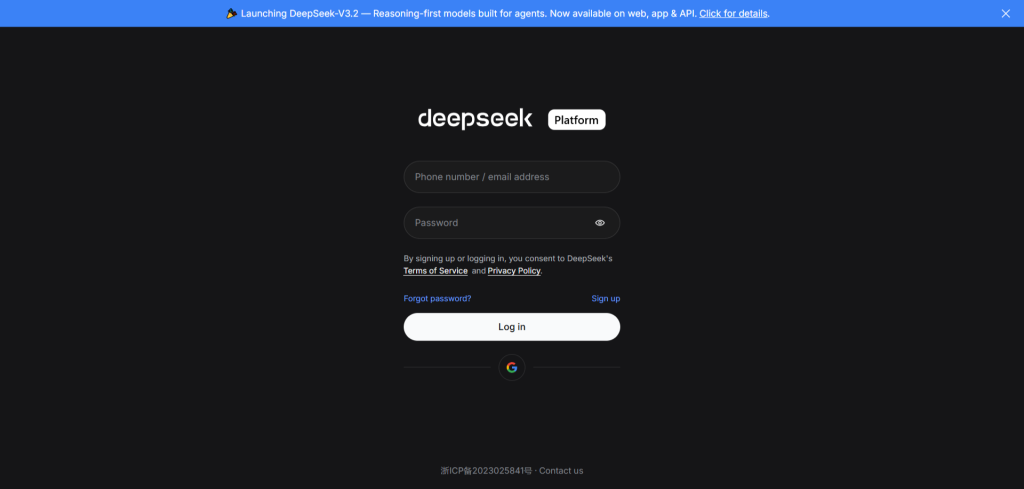
- Get your API keys: After logging in, you’ll see your developer dashboard. From there you can view or generate your DeepSeek API key and review documentation. (Remember, when you use the API, you’ll be authenticating with the API key in your code, rather than logging in interactively each time.)
Official DeepSeek Login Page: Ready to go? If you already have an account, you can directly head over to the DeepSeek login page and sign in to start using the AI.
Do you need a DeepSeek account?
In almost all cases, yes. The official DeepSeek chat, app, and platform all require you to sign in with an account. There’s no general “guest mode” for DeepSeek’s services – as soon as you want to chat or use the API, you’ll be prompted to log in or create an account. (Account creation is free, and one DeepSeek account works across all the official services.)
Keep in mind that sign-up options might vary by region or platform. For example, some regions may only support email registration (no Google or Apple sign-in), but regardless of how you sign up, you end up with the same DeepSeek account. If you’re not ready to make an account, you can still use DeepSeek’s AI on Chat-Deep.ai without one, as explained next.
Use DeepSeek without login on Chat-Deep.ai
Chat-Deep.ai provides a way to chat with DeepSeek’s AI model without any account or sign-in. You can start a conversation immediately on this site:
- No registration needed: Just open the Chat-Deep.ai chat interface (you’re likely already here!) and ask your question. There’s no sign-up form and no password required.
- Same AI experience: You’ll get responses from the DeepSeek AI just as you would on the official chat, but without the account setup. It works on desktop or mobile – you can even use your mobile browser to chat on the go without installing anything.
- Privacy advantage: Since we don’t ask for any personal info, you can try DeepSeek’s capabilities without sharing your email or data. Your chats on Chat-Deep.ai are stored locally in your browser (not on our servers), so when you clear your browser or switch devices, the conversation history won’t follow (and no one else has it either).
Ready to try it out? Use DeepSeek on Chat-Deep.ai now and get instant answers with no login needed.
DeepSeek login not working?
Are you running into problems signing in to DeepSeek? You’re not alone – users sometimes face a few common hiccups during the DeepSeek sign-in or account creation process. Here are some typical issues and how to address them:
- Using the correct DeepSeek portal: Make sure you’re on the right DeepSeek site for your needs. For example, use chat.deepseek.com to log into the consumer chat service, and platform.deepseek.com to log into the developer portal (for API keys). If you try to log in on the wrong portal, it might not show your data or allow access.
- Forgot your password: Click the Forgot password link on the DeepSeek login page and enter your account email. You’ll receive a reset link or code via email to set a new password. After resetting, try logging in again with the new password (and remember to double-check for typos in your email or password).
- “Email domain not supported” error: This means the email address you used to sign up isn’t accepted by DeepSeek. DeepSeek currently only allows common email providers (like Gmail, Outlook, Yahoo, etc.) for new accounts. If your address is from a private or unusual domain, you’ll need to use a more common email service to register.
- Third-party login or regional issues: If you signed up with Google or Apple, be sure to use the corresponding Continue with Google/Apple option when logging in. If those options aren’t available (some regions or platforms may only support email sign-in), log in with your email instead. You might need to reset your password via email if your account was originally created through Apple ID and you want to log in on a platform where Apple sign-in isn’t offered.
- Browser or app issues: If the login page isn’t responding or loading properly, try refreshing or using a different web browser. Clearing your cache/cookies or using an incognito window can also help. On the mobile app, ensure you have the latest version or try reinstalling if problems persist.
If none of these solutions work and you still can’t log in, consider reaching out to DeepSeek’s official support channels. Also, check if DeepSeek’s servers are experiencing issues (via their status page or community updates) – sometimes the problem might be on their end, and you may just need to wait.
Privacy and security note
When using any AI service and account, it’s important to keep privacy and security in mind:
- Safe login practices: Always sign in through the official DeepSeek website or app to avoid phishing. Use a strong, unique password for your DeepSeek account and keep it secure. If DeepSeek offers two-factor authentication, enable it for extra protection.
- Review DeepSeek’s Privacy Policy: Before creating a DeepSeek account or using their services, take a moment to read the official privacy policy and terms of use. This will tell you what data DeepSeek might collect (such as your prompts, chat history, or personal info) and how they use it. It’s a good idea to understand this, especially if you plan to use the AI for sensitive questions or data.
- Chat-Deep.ai has no accounts: On Chat-Deep.ai, we deliberately have no login system. We don’t store personal data like emails or passwords. Your chats with the AI here are stored locally in your browser, not on our servers. That gives you added privacy and control – when you end your session or clear your browser, the data is gone. However, because there’s no cloud account, if you lose your local data, we cannot recover your chat history.
- Data handling differences: Anything you do on the official DeepSeek (questions you ask it, etc.) might be saved to your account history on their side. On Chat-Deep.ai, there’s no cloud-stored history. Some users prefer using Chat-Deep.ai for more sensitive or experimental queries as an extra privacy measure. Just remember that even without login, your prompts are processed by DeepSeek’s model on the backend, so avoid sharing extremely sensitive personal information on any platform.
For more details about Chat-Deep.ai’s security measures and policies, you can also visit our Security practices page and the general FAQ page.
FAQ
Do I need an account to use DeepSeek?
If you are using DeepSeek through its official channels (the DeepSeek website, chat app, or developer platform), yes – you will need to create a DeepSeek account and log in. The account is free to set up, and it’s used to manage your usage and settings. However, if you want to use DeepSeek without an account, you can do so via Chat-Deep.ai (this site), which does not require any login or registration.
How do I create a DeepSeek account?
To create an account, go to the official DeepSeek site or app and click Sign Up. Enter your email address, then check your inbox for a verification code or link from DeepSeek. After verifying your email, set a password (unless you signed up with Google or Apple, in which case that account handles authentication). Once completed, your new DeepSeek account can be used to log in on the web chat, mobile app, or developer platform.
What if I forgot my DeepSeek password?
On the DeepSeek login screen, click “Forgot password?”. Then enter the email associated with your account. DeepSeek will send a password reset link or code to your email. Follow that link (or input the code) to set a new password. After resetting, go back to the login page and sign in with your new password. (If you don’t see the reset email, check your spam folder and wait a few minutes, as the message might be delayed.)
Why does DeepSeek say my email domain is not supported?
DeepSeek currently limits which email domains can be used for registration. If you see an error like “email domain is currently not supported for registration”, it means you tried to sign up with an address that DeepSeek doesn’t accept. Typically, DeepSeek only allows common email providers (like Gmail, Outlook, Yahoo, etc.). To fix this, use a standard email address from a popular provider when creating your account.
Can I use DeepSeek without signing in?
Not via the official DeepSeek app or website – they require an account. However, you can use DeepSeek’s AI without an account by using Chat-Deep.ai. This site lets you start chatting with DeepSeek’s model instantly, with no sign-up. It’s great for quick access or if you prefer not to create another account. Just remember that if you want features like cloud-saved chat history or developer tools, you’ll need an official DeepSeek account.
Is DeepSeek free to use, or do I have to pay?
The official DeepSeek chat is currently free to use for general users – you can have conversations without a subscription, as DeepSeek has been offering free access to its latest model (at least as of now). However, there may be some limitations or rate limits on the free usage (for example, a cap on messages per day, etc., which the company might adjust over time). The DeepSeek API (developer access) might require payment or have a credit system once you exceed any free tier. Always check DeepSeek’s official pricing or documentation for the latest details. As for Chat-Deep.ai, it is free to use; we incur costs on our end to provide the service, but we don’t charge users (see our pricing page for details).
Is Chat-Deep.ai affiliated with DeepSeek?
No, Chat-Deep.ai is an independent platform. We are not officially affiliated with or endorsed by DeepSeek. We simply provide a third-party interface that allows people to interact with DeepSeek’s AI model without an account. Think of it as an unofficial alternative for convenience. We encourage users to use DeepSeek’s official services for full features, and to refer to DeepSeek’s official info for any critical details – our goal is to complement the official platform, not replace it.