
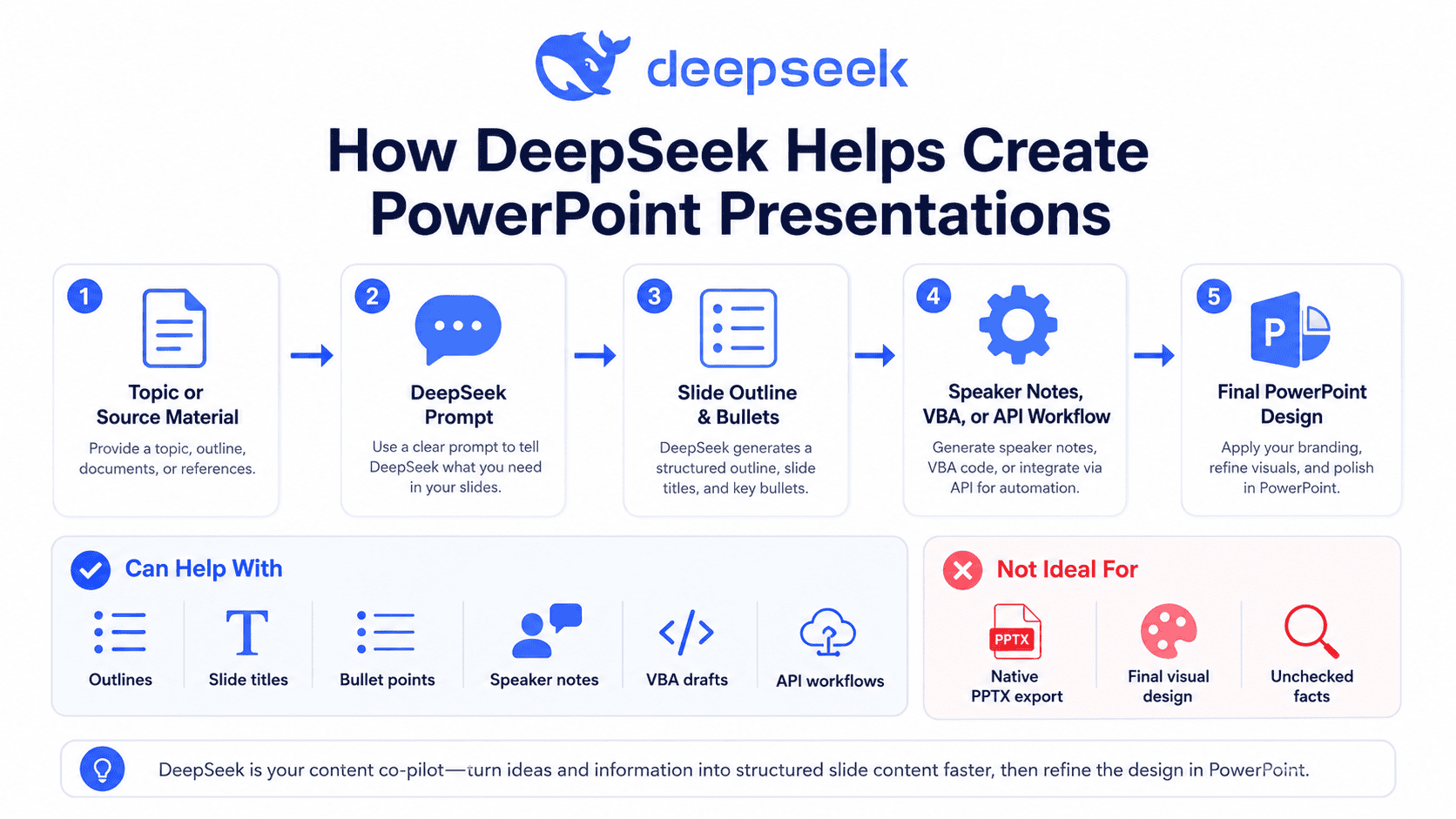
DeepSeek AI for PowerPoint Presentations can help you plan, write, structure, and improve slide decks faster. It can generate presentation outlines, concise slide bullets, speaker notes, summaries, visual suggestions, and even VBA code for PowerPoint automation. However, DeepSeek should not be treated as a native PowerPoint design tool or direct PPTX exporter unless the specific interface or integration you use clearly supports that feature. The best workflow is to use DeepSeek as the content engine, then use PowerPoint or a dedicated AI presentation maker for layout, branding, and final slide design.
What Is DeepSeek AI?
DeepSeek is an AI assistant and model platform used for tasks such as writing, reasoning, coding, summarization, document work, and content generation. The official DeepSeek website presents it as an intelligent model available through web, app, and API access, while the API documentation shows developers how to call DeepSeek models through chat completion endpoints.
For PowerPoint users, the important point is simple: DeepSeek is useful because presentations usually begin with thinking, structure, writing, and editing. A strong slide deck is not just a collection of pretty slides. It needs a clear goal, a logical flow, audience-aware messaging, short slide text, useful examples, and speaker notes that help the presenter communicate with confidence.
That is where DeepSeek can be valuable. It can help you move from a rough idea to a usable presentation plan in minutes. It can also rewrite dense reports into concise slide bullets, suggest slide titles, create executive summaries, and generate structured prompts for PowerPoint workflows.
Can DeepSeek Create PowerPoint Presentations?
Yes and no.
DeepSeek can help you create the content and structure for a PowerPoint presentation. It can generate an outline, slide titles, bullet points, speaker notes, scripts, summaries, tables, and automation code. It can also help you decide which slides you need and how to organize them.
However, DeepSeek should not be described as a guaranteed native DeepSeek PowerPoint generator that directly exports a polished .pptx file from its standard chat interface. DeepSeek’s public API documentation focuses on model access, chat completions, JSON output, tool calls, and related developer features, not a built-in PowerPoint export endpoint.
The practical answer is this: use DeepSeek to create the thinking and content, then use PowerPoint, VBA, a slide-generation tool, or a custom API workflow to produce the final deck.
| Capability | Can DeepSeek help? | Notes |
|---|---|---|
| Create a slide outline | Yes | Best use case for DeepSeek. |
| Write slide titles | Yes | Ask for short, action-oriented titles. |
| Generate bullet points | Yes | Give strict word limits to avoid crowded slides. |
| Create speaker notes | Yes | Useful for training, sales, and executive decks. |
| Summarize source material | Yes | Always fact-check important claims. |
| Suggest visuals | Yes | Use suggestions as creative direction, not final design. |
| Generate VBA for slides | Yes | Review and test code carefully before using macros. |
| Export a native PPTX file | Not by default | Use PowerPoint, VBA, API automation, or another presentation tool. |
| Design polished branded slides | Limited | Final layout and brand design should happen in PowerPoint or a design tool. |
Best Ways to Use DeepSeek AI for PowerPoint Presentations
There are several practical ways to use DeepSeek with PowerPoint. The right method depends on whether you want a quick manual workflow, a structured outline workflow, speaker notes, automation, or a developer-level pipeline.
Method 1 — DeepSeek Chat + Manual PowerPoint Creation
This is the easiest workflow for most users.
Start by telling DeepSeek the topic, audience, number of slides, tone, and goal. Then ask it to create a slide-by-slide outline. After that, ask for concise bullets and speaker notes for each slide.
A good prompt should include:
Create a PowerPoint presentation outline about [topic].

Audience: [audience]
Goal: [goal]
Number of slides: [number of slides]
Tone: [professional / persuasive / educational / executive]
Presentation length: [duration]
Requirements:
- One clear idea per slide
- Short slide titles
- 3–5 bullet points per slide
- Each bullet under 12 words
- Include speaker notes for each slide
- Suggest one visual idea per slide
Once DeepSeek generates the structure, paste the content into PowerPoint. Then apply your theme, adjust layouts, add visuals, and remove unnecessary text.
This workflow is best for business updates, class presentations, sales decks, webinars, and training materials.
Method 2 — DeepSeek + PowerPoint Outline View
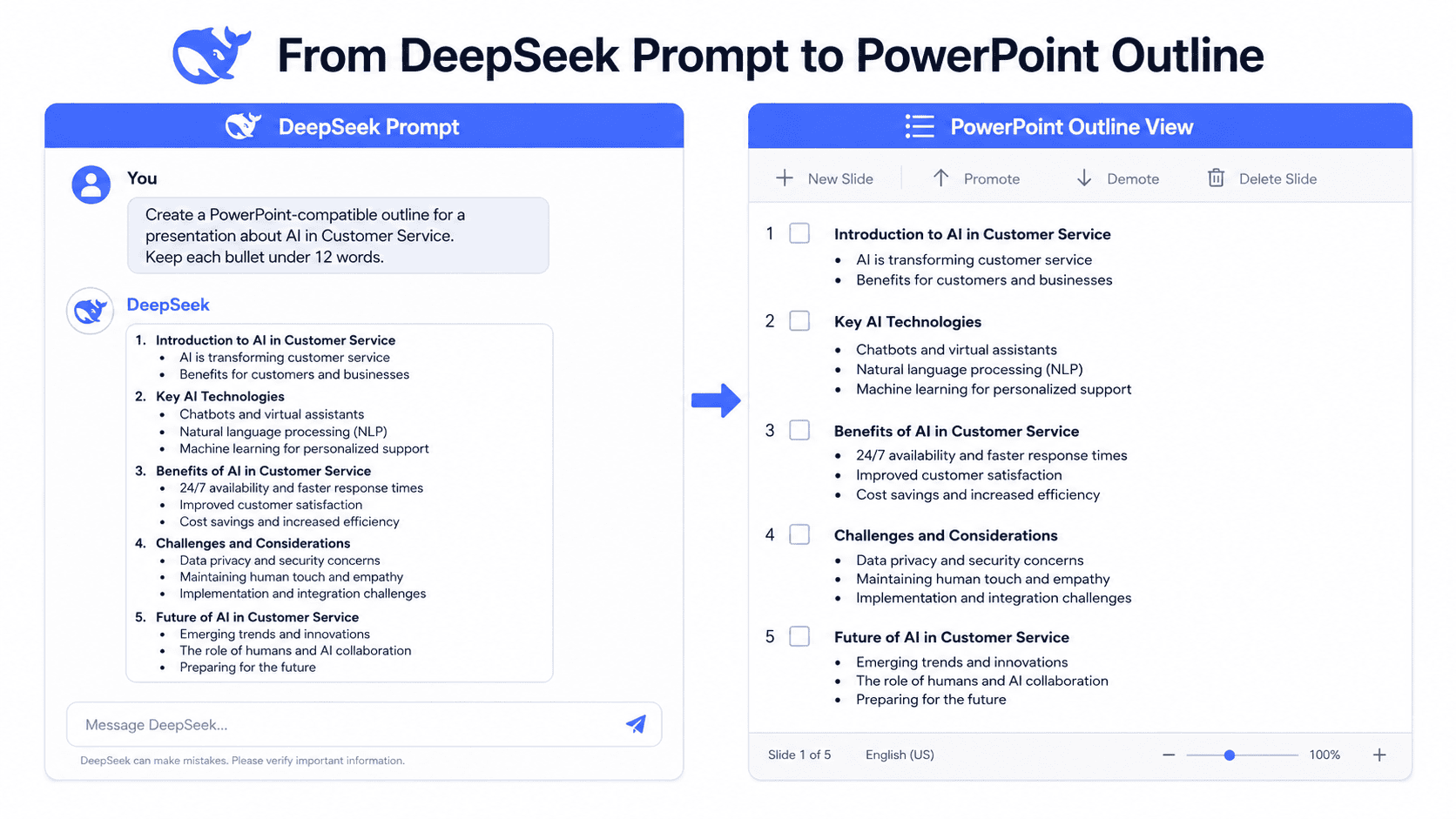
PowerPoint can create slides from outlines. Microsoft’s support documentation explains that PowerPoint can import outlines in .docx, .rtf, or .txt format, and that unindented lines in a text outline become new slide titles while indented lines become lower-level content.
This makes DeepSeek useful as a DeepSeek PPT outline generator.
Use this prompt:
Create a PowerPoint-compatible outline for a presentation about [topic].

Audience: [audience]
Goal: [goal]
Number of slides: [number of slides]

Formatting rules:
- Each slide title must be on its own unindented line.
- Bullet points must be indented with one tab.
- Sub-points, if needed, must be indented with two tabs.
- Keep each bullet under 12 words.
- Do not include markdown symbols.
- Do not number the slides.
Example output format:
AI in Customer Service
    Why customer service is changing
    How AI improves response speed
    Where human agents still matter

The Business Case for AI Support
    Lower response times
    Better ticket routing
    More consistent answers
Then save the outline as a text file and import it into PowerPoint using the desktop version’s outline import feature. Microsoft notes that creating a presentation from an outline requires a desktop version of PowerPoint, not PowerPoint for the web.
Method 3 — DeepSeek for Speaker Notes and Storytelling
Many presentations fail because the slides are overloaded with text. A better approach is to keep slides short and put the explanation in speaker notes.
DeepSeek can help you turn a basic slide outline into a more confident talk track.
Use this prompt:
Turn the following slide outline into speaker notes.

Audience: [audience]
Tone: [tone]
Goal: [goal]
Speaking time: [duration]

Rules:
- Keep each slide’s notes between 80 and 120 words.
- Use a natural speaking style.
- Add transitions between slides.
- Do not invent statistics.
- Mark any claim that needs a source.

Slide outline:
[source material]
This is useful for training decks, academic lectures, sales presentations, internal strategy updates, and conference talks.
Method 4 — DeepSeek for VBA PowerPoint Automation
DeepSeek can also help generate VBA code that creates simple PowerPoint slides automatically. This is helpful when you need a quick draft deck from structured content.
However, VBA should be handled carefully. Macros can create security risks if copied from unknown sources, and generated code can contain errors. Use this method only when you understand how to review, test, and safely run VBA in your own PowerPoint environment.
A safe prompt:
Generate beginner-friendly VBA code for PowerPoint that creates a simple [number of slides]-slide presentation about [topic].

Requirements:
- Use plain text only.
- Create a title slide.
- Create one slide per section.
- Use simple bullet layouts.
- Add clear comments explaining the code.
- Do not include external downloads.
- Do not access files, emails, networks, or system settings.
- Do not use hidden or malicious behavior.
This DeepSeek VBA PowerPoint workflow is best for internal drafts, repetitive training decks, or fast prototyping. It is not a substitute for final slide design.
Method 5 — DeepSeek API + Slide Generator Workflow
Developers can use DeepSeek through its API to generate structured presentation content, then pass that content into another system that creates slides. DeepSeek’s API documentation shows chat completion examples and OpenAI-compatible API usage, which makes it possible to build custom workflows around generated text or JSON outputs.
A simple workflow could look like this:
- User enters a topic and audience.
- DeepSeek generates a JSON slide outline.
- Your app converts the JSON into slide objects.
- A slide-generation library or presentation API creates the deck.
- A designer or user reviews the final PowerPoint.
This method is useful for SaaS products, internal tools, course builders, proposal systems, and reporting dashboards. It is also the most flexible option if you want to create PowerPoint with DeepSeek at scale.
Copy-Paste DeepSeek PowerPoint Prompts
The quality of your output depends heavily on your prompt. Below are practical DeepSeek PowerPoint prompts you can copy and adapt.
1. Basic Presentation Outline Prompt
Create a [number of slides]-slide PowerPoint outline about [topic].

Audience: [audience]
Goal: [goal]
Tone: [tone]
Presentation length: [duration]

For each slide, include:
- Slide title
- 3–5 concise bullet points
- Speaker notes
- Suggested visual
- Key takeaway

Rules:
- One idea per slide
- No bullet longer than 12 words
- No invented facts or statistics
2. Business Pitch Deck Prompt
Create a business pitch deck outline for [company/product].

Audience: [investors/customers/partners]
Goal: [fundraising/sales/partnership]
Stage: [idea/MVP/growth]
Number of slides: [number]

Include:
- Problem
- Solution
- Market opportunity
- Product overview
- Business model
- Traction
- Go-to-market strategy
- Competition
- Financial assumptions
- Team
- Ask

Rules:
- Keep the language persuasive but realistic.
- Mark any missing information as [needs input].
- Do not invent revenue, market size, or traction numbers.
3. Training Deck Prompt
Create a training presentation about [topic] for [audience].

Number of slides: [number]
Training goal: [goal]
Skill level: [beginner/intermediate/advanced]

For each slide, include:
- Slide title
- Learning objective
- Key teaching points
- Example or exercise
- Speaker notes

Make the training practical, clear, and easy to follow.
4. Academic Presentation Prompt
Create an academic PowerPoint presentation about [topic].

Audience: [students/professors/research audience]
Level: [undergraduate/graduate/professional]
Number of slides: [number]
Source material: [paste material]

Requirements:
- Define key concepts
- Organize ideas logically
- Include discussion questions
- Add speaker notes
- Mark any claim that requires citation
- Avoid unsupported claims
5. Executive Update Prompt
Create an executive update presentation about [project/topic].

Audience: [executive team/board/client]
Goal: [decision/update/approval]
Number of slides: [number]
Source material: [paste notes/data]

Slide style:
- Short titles
- Minimal bullets
- Clear recommendations
- Risks and next steps
- No jargon unless necessary

Include an executive summary slide and a final decision slide.
6. Rewrite Dense Text Into Slide Bullets
Rewrite the following text into PowerPoint-ready slide content.

Audience: [audience]
Goal: [goal]
Tone: [tone]

Rules:
- Create logical slide sections.
- Use short, clear slide titles.
- Convert paragraphs into concise bullets.
- Keep each bullet under 12 words.
- Remove repetition.
- Keep important facts.
- Do not invent new information.

Text:
[source material]
7. Speaker Notes Prompt
Write speaker notes for the following PowerPoint slides.

Audience: [audience]
Tone: [tone]
Presentation length: [duration]

Rules:
- Use a natural speaking voice.
- Add smooth transitions.
- Keep notes concise.
- Do not repeat slide bullets word for word.
- Do not add unsupported facts.

Slides:
[paste slide titles and bullets]
8. VBA Slide Generation Prompt
Generate safe VBA code for PowerPoint to create a draft presentation.

Topic: [topic]
Audience: [audience]
Number of slides: [number]
Tone: [tone]

Requirements:
- Create a title slide.
- Add slide titles and bullet points.
- Use simple default PowerPoint layouts.
- Add comments explaining each section.
- Do not access external files.
- Do not download anything.
- Do not modify system settings.
Example Workflow: From Topic to Finished PowerPoint
Let’s say your topic is “AI in Customer Service.”
You could start with this prompt:
Create an 8-slide PowerPoint presentation about AI in customer service.

Audience: customer experience managers
Goal: explain practical benefits, risks, and implementation steps
Tone: professional and practical

For each slide, include:
- Slide title
- 3 short bullets
- Speaker notes
- Suggested visual
DeepSeek might generate an outline like this:
| Slide | Title | Purpose |
|---|---|---|
| 1 | AI in Customer Service | Introduce the topic and business relevance. |
| 2 | Why Support Teams Are Changing | Explain rising volume and customer expectations. |
| 3 | Where AI Helps Most | Show use cases like routing, summaries, and chatbots. |
| 4 | Benefits for Customers | Explain faster answers and more consistent service. |
| 5 | Benefits for Teams | Show productivity, knowledge access, and prioritization. |
| 6 | Risks to Manage | Cover accuracy, privacy, bias, and escalation gaps. |
| 7 | Implementation Roadmap | Present a phased rollout approach. |
| 8 | Key Takeaways | Summarize actions and next steps. |
After generating the outline, ask DeepSeek to improve it:
Rewrite this outline for a senior executive audience. Make the titles more action-oriented and reduce each slide to three bullets maximum.Then move the content into PowerPoint. Apply your brand template, use icons or simple diagrams, and add real company data where needed.
Design improvements may include:
- Use a process diagram for the implementation roadmap.
- Use a two-column layout for benefits and risks.
- Use a callout box for the main recommendation.
- Replace generic AI images with product screenshots or workflow visuals.
- Keep every slide focused on one message.
This is the most practical way to use DeepSeek AI slides without pretending the tool replaces PowerPoint design judgment.
DeepSeek vs Dedicated AI Presentation Makers
DeepSeek is powerful for thinking and writing, but dedicated presentation tools may be better for visual output.
| Tool type | Best for | Limitations |
|---|---|---|
| DeepSeek | Outlines, slide text, summaries, notes, VBA, API workflows | Not primarily a native slide design tool. |
| Microsoft Copilot for PowerPoint | Creating and editing slides inside PowerPoint | Availability depends on Microsoft 365 subscription and settings. |
| Canva or AI design tools | Visual templates and quick design | May require manual content refinement. |
| Gamma, Beautiful.ai, and similar tools | Fast AI-generated presentation layouts | May offer less control than manual PowerPoint. |
| Manual PowerPoint | Full control, branding, final polish | Slower without AI support. |
Microsoft’s own Copilot documentation describes PowerPoint-specific workflows such as creating a new presentation from a prompt, adding content, generating an outline, and asking clarifying questions before drafting slides.
That is the key difference. Copilot is built into the Microsoft PowerPoint environment. DeepSeek is better understood as a flexible AI assistant that can power the content, structure, and automation side of your presentation process.
Best Practices for Better PowerPoint Results with DeepSeek
To get better results from DeepSeek, give it clear constraints. Do not simply type “make me a PowerPoint.” That usually produces generic content.
Use these rules:
- Specify the audience.
- Define the decision or learning goal.
- Tell DeepSeek the slide count.
- Ask for one main idea per slide.
- Limit each bullet to 8–14 words.
- Request speaker notes separately.
- Provide real source material.
- Ask for visual suggestions, not fake charts.
- Tell it not to invent statistics.
- Review all facts before presenting.
- Ask for a second version with stronger titles.
- Ask for a shorter version if slides feel crowded.
A strong prompt might look like this:
Create a 10-slide executive presentation about [topic].

Audience: [audience]
Goal: help them decide [decision]
Tone: direct, strategic, and practical

Rules:
- Each slide must have one message.
- Use action-oriented titles.
- Use no more than three bullets per slide.
- Keep each bullet under 12 words.
- Add speaker notes separately.
- Use only the facts provided below.
- If information is missing, write [needs input].

Source material:
[paste content]
This type of prompt gives DeepSeek the information it needs to create a useful structure instead of a generic article disguised as slides.
Common Mistakes to Avoid
The biggest mistake is asking for a presentation without giving context. DeepSeek needs to know who the audience is, what the deck is supposed to achieve, and what level of detail is appropriate.
Another common mistake is accepting AI-generated facts without checking them. This is especially risky for financial numbers, market size claims, legal topics, medical topics, scientific claims, and competitive analysis. DeepSeek can help organize information, but the presenter is responsible for accuracy.
Avoid these mistakes:
- Asking “make me a PowerPoint” without structure.
- Using too much text per slide.
- Not defining the audience.
- Failing to specify the presentation goal.
- Trusting AI-generated facts without verification.
- Letting the AI invent charts or financial numbers.
- Skipping design cleanup in PowerPoint.
- Uploading confidential documents without reviewing privacy policies.
- Using the same prompt for every type of deck.
- Forgetting to add real examples, screenshots, or data.
A professional presentation should feel designed for a specific audience, not generated for a generic topic.
Is DeepSeek Good for Business, Education, and Marketing Presentations?
DeepSeek can be useful across many presentation types.
For business reports, it can summarize long updates, identify key messages, create executive summaries, and convert meeting notes into slide sections.
For investor decks, it can help with story flow, problem-solution framing, market narrative, competitive positioning, and pitch structure. You should still provide real numbers and validate all claims.
For training materials, DeepSeek can create lesson plans, learning objectives, examples, exercises, quizzes, and speaker notes.
For academic presentations, it can organize research notes, simplify difficult concepts, suggest discussion questions, and help structure lectures. You should still cite sources properly and verify academic claims.
For sales presentations, DeepSeek can help tailor messaging to customer pain points, write benefit-focused slides, create discovery questions, and draft talk tracks.
For technical explainers, it can simplify complex concepts, create step-by-step diagrams, write analogies, and generate glossary slides.
In short, DeepSeek is most useful when the challenge is thinking, writing, summarizing, or structuring. It is less useful when the main challenge is visual design.
Limitations of Using DeepSeek for PowerPoint
DeepSeek is helpful, but it has limitations.
First, it may not directly export PPTX files from the standard chat experience. That means you will usually need PowerPoint, VBA, a slide-generation tool, or an API-based workflow to create the actual presentation file.
Second, it does not replace design judgment. A deck still needs hierarchy, spacing, contrast, typography, visual rhythm, and brand alignment.
Third, it may produce inaccurate or unsupported information. Always review important claims, especially in business, health, legal, technical, or financial presentations.
Fourth, it needs detailed prompts. Vague prompts lead to vague slides.
Fifth, features can vary by interface, region, plan, app version, or integration. DeepSeek’s official site currently points users to web, app, and API access, while its API documentation focuses on developer usage rather than PowerPoint-native export.
The safest position is this: DeepSeek is a strong presentation assistant, not a guaranteed standalone PowerPoint publishing tool.
Final Verdict: Should You Use DeepSeek AI for PowerPoint Presentations?
Yes, you should use DeepSeek AI for PowerPoint presentations if you want help with planning, structure, writing, summarization, speaker notes, and automation ideas. It is especially useful when you already know your topic but need to turn it into a clear slide narrative.
DeepSeek is less suitable if you expect a finished, branded, visually polished PPTX file with no additional work. For that, use PowerPoint, Microsoft Copilot for PowerPoint, a dedicated AI presentation maker, Canva, or a custom workflow that combines DeepSeek-generated content with a slide creation tool.
The best practical workflow is:
- Use DeepSeek to create the outline.
- Ask DeepSeek to refine slide titles and bullets.
- Generate speaker notes.
- Move the content into PowerPoint.
- Apply your template and brand design.
- Add real data, visuals, and examples.
- Review everything before presenting.
Used this way, DeepSeek becomes a powerful presentation planning partner. It helps you create better PowerPoint content faster while leaving final design and accuracy in human hands.
FAQ
Can DeepSeek make a PowerPoint presentation?
DeepSeek can help create the structure and content for a PowerPoint presentation, including outlines, slide titles, bullets, speaker notes, and visual suggestions. It usually does not replace PowerPoint itself for final design and file creation.
Can DeepSeek export PPTX files?
DeepSeek should not be assumed to export native PPTX files by default. Its official public API documentation focuses on chat completions, model access, JSON output, and developer features, not a native PowerPoint export feature.
How do I use DeepSeek with PowerPoint?
The easiest method is to ask DeepSeek for a slide-by-slide outline, then paste the content into PowerPoint. You can also ask DeepSeek to create a PowerPoint-compatible outline and import it using PowerPoint’s outline feature.
Can DeepSeek generate PowerPoint VBA code?
Yes, DeepSeek can generate VBA code that creates basic PowerPoint slides. However, you should review the code, understand macro security, and test it carefully before using it.
Is DeepSeek better than ChatGPT for presentations?
It depends on your workflow, preferred model, budget, and output quality. DeepSeek can be strong for reasoning, writing, coding, and structured outputs. ChatGPT and other tools may offer different integrations or presentation workflows. The best choice is the one that gives you accurate content and fits your slide creation process.
Can DeepSeek create speaker notes?
Yes. DeepSeek is very useful for speaker notes. Provide your slide titles and bullets, then ask it to write natural notes for each slide with your audience and tone in mind.
Is DeepSeek free for creating presentations?
DeepSeek’s official website currently promotes free access to the web experience and also offers API access, but pricing and availability can change by product, plan, region, or API usage. Always check the current DeepSeek platform and pricing pages before relying on it for production workflows.