

Yes—DeepSeek has image-generation models in its Janus family. To use them, start with the Janus-Pro-7B demo published by DeepSeek on Hugging Face, or run the released model yourself. Janus-Pro is a separate model release; it is not a model name you can substitute into an ordinary DeepSeek API request.
The distinction matters when you search for a “DeepSeek image generator.” You might find a Janus demo, a service operated by another company, or instructions for uploading a picture to a chat model. Those routes do different things. This guide explains which one creates images, how to start, and what to expect from the result.
On this page
- Image generation, vision, and DeepSeek chat
- What is Janus-Pro?
- Generate an image with the official demo
- Write a useful prompt and adjust the settings
- Resolution and practical limits
- Run Janus-Pro locally
- Costs and licensing
- If something goes wrong
- Frequently asked questions
Which DeepSeek can generate images?
Image generation creates a new picture from a description. Image understanding reads a picture you already have and answers questions about it. For example, creating a picture of a bicycle is generation; describing the bicycle in an uploaded photograph is understanding.
| Route | What it is for | Where to start |
|---|---|---|
| Janus-Pro | Text-to-image generation and questions about images | DeepSeek’s Hugging Face demo or official model repository |
| Hosted DeepSeek API | The current Flash model accepts images for visual understanding. That is not an image-generation endpoint. | The official Vision guide for image input |
| A third-party “DeepSeek image generator” | Whatever model and features that provider actually supplies | Check its model, operator, charges, and data policy |
DeepSeek’s Vision documentation describes image input to deepseek-flash for tasks such as explaining screenshots and charts. Its public API quickstart lists the hosted model names separately from Janus. Uploading a file, buying API credit, or using an OpenAI-compatible SDK does not by itself add Janus image generation.
If you are using the regular DeepSeek chat, do not confuse a written image prompt or a description of a picture with a generated image file. The documented Janus route covered here is the separate demo or model download. Our DeepSeek guide explains the other ways to use the service if your main task is writing, research, or coding.
What is Janus-Pro?
Janus-Pro is DeepSeek’s model for both understanding images and generating them from text. It processes those two tasks through different visual pathways while sharing a language-model backbone. You can ask a question about an existing image or switch to creating a new one; the two functions have separate controls in the demo. The official model card explains this design.
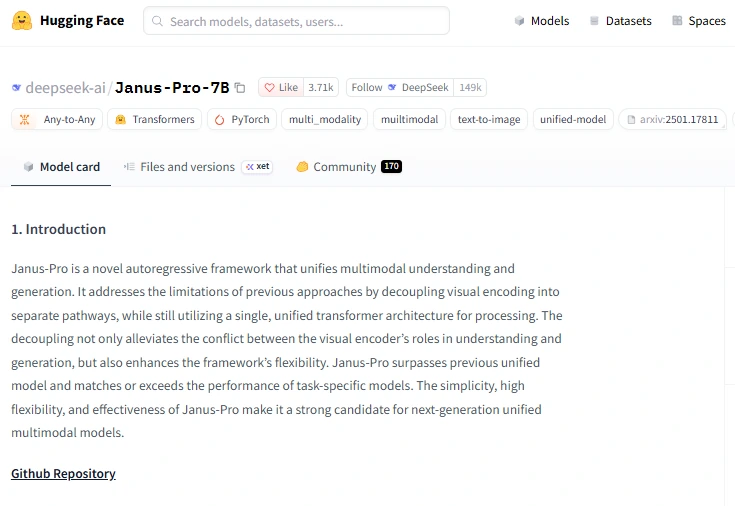
DeepSeek released Janus-Pro in January 2025, with two download names: Janus-Pro-1B and Janus-Pro-7B. The same official repository also contains the earlier Janus and the separate JanusFlow model. For the browser walkthrough below, use Janus-Pro-7B so the interface matches the instructions.
For local experimentation, the smaller checkpoint is worth considering when resources are limited. The larger name does not mean a larger output canvas: model size and image resolution are different specifications. Neither download is an upgrade to a DeepSeek chat subscription. For a wider comparison of the families, see our DeepSeek model guide.
How to generate an image with Janus-Pro
The browser demo is the most direct starting point if you want to try a prompt without installing a model. Open the Space under the deepseek-ai account, not a similarly named commercial website.
- Open the official Janus-Pro-7B Space. Wait for the app to load inside the page.
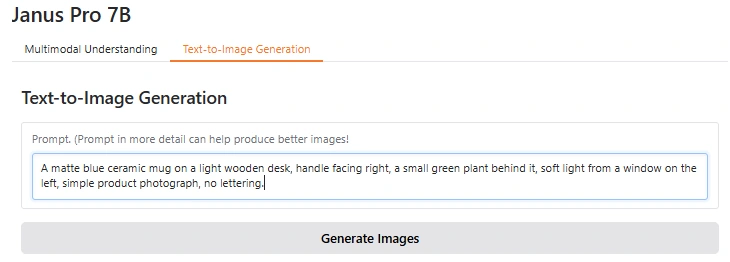
- Select “Text-to-Image Generation.” The “Multimodal Understanding” tab is for supplying an image and asking a question.
- Enter a description in the prompt box. Specify the subject and the features that matter to your intended use.
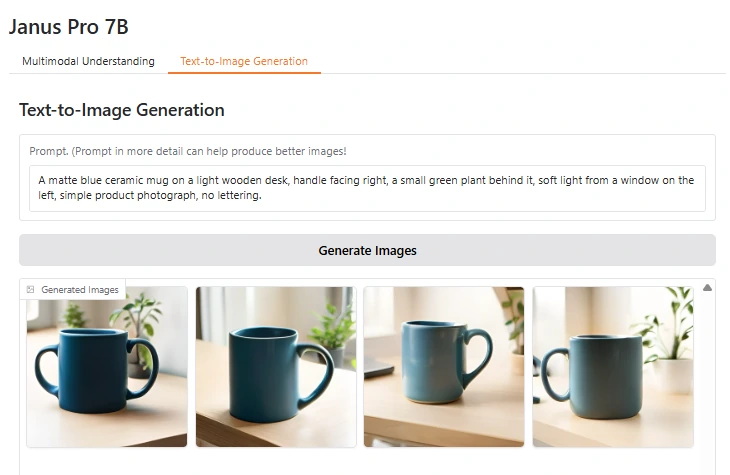
- Leave the advanced settings at their defaults for the first attempt, then select “Generate Images.” The output belongs in the image gallery below the button.
- Inspect the images before saving a result. Check whether the requested objects, colors, and arrangement are present. Use the gallery’s available image or download controls to save the version you want.
A public demo can have queues or an exhausted allowance. This Space uses Hugging Face ZeroGPU, whose usage rules include account-based quotas and queue priorities. An available page is not a promise of immediate or unlimited generation.
For your first attempt, choose a non-sensitive subject. A hosted demo processes the prompt on its hosting service; opening it in your browser does not mean inference runs on your own computer.
Give the model a clear image to aim for
Start with the details you would give an illustrator: the subject, setting, composition, and visual style. Put the requirements that determine whether the image is usable ahead of decorative adjectives.
Here is an illustrative prompt for a product-style composition:
A matte blue ceramic mug on a light wooden desk, handle facing right, a small green plant behind it, soft light from a window on the left, simple product photograph, no lettering.
For an illustration, the requirements might instead be:
A red bicycle leaning against a cream wall, one terracotta plant pot beside the front wheel, flat editorial illustration, warm afternoon colors, uncluttered background.
Use these examples as starting points and adjust them to your own image. If the pot keeps appearing in the wrong place, simplify the scene and revise that relationship. Adding more unrelated objects makes it harder to identify what needs fixing.
The demo’s advanced options expose three useful controls:
| Control | What it changes | How to approach it |
|---|---|---|
| CFG Weight | The strength of guidance from the prompt | Begin with the default 5. Change it gradually when assessing how closely a result follows the description. |
| Temperature | Randomness when sampling image tokens | Start with the default 1. A different value is not an automatic quality improvement. |
| Seed | The random starting state | Keep it fixed while comparing one prompt change; change it when looking for another variation. |
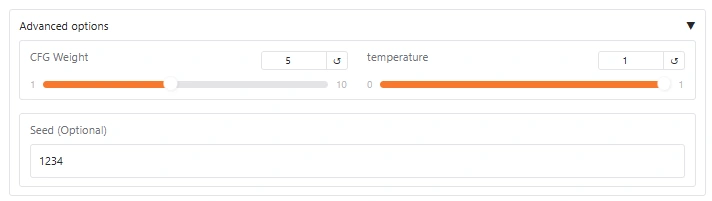
These controls belong to the Janus demo, not the hosted chat API’s settings. A seed is useful for comparison, but it is not a guarantee of identical results across different software or hardware. Save the prompt and settings alongside a useful result so you can revisit the choice.
Resolution and quality: what to expect
Janus-Pro’s reference generation uses a 384 × 384 image. The hosted demo’s implementation then applies a separate 2× upscaler, producing a larger displayed result. That does not turn the underlying generation into native 768-pixel detail. Writing “4K” or “8K” in the prompt does not change the model’s output dimensions.
The Janus-Pro technical report identifies limited fine detail and small facial regions as weaknesses. It also notes that the input resolution affects fine-grained understanding tasks such as OCR. Inspect the image at its intended display size, rather than judging it only from a small gallery thumbnail.
For a concept sketch or an early visual direction, an imperfect image may still be useful. For a product listing, a diagram, or artwork containing exact text, check the details that carry meaning. A plausible-looking label or extra component can make the result unsuitable even when the overall scene looks good. Add precise typography in an editor when it must be correct.
You may also see claims that Janus-Pro “beats” other image generators. DeepSeek’s report includes favorable results on specific instruction-following benchmarks from its 2025 evaluation. Those results are not a current ranking of every image service, nor a guarantee about your own prompts. The practical question is whether the output meets your requirements for detail, composition, editing, and delivery.
Can you run Janus-Pro locally?
Yes, using the released weights and inference code. This is a developer setup rather than a desktop installer. The reference examples use PyTorch and CUDA, so they are not a ready-made CPU or Apple-silicon walkthrough. If you only want a few images, start with the hosted demo before spending time on installation.
The following is a Linux shell route for an NVIDIA CUDA environment, based on the official repository. You need Git, a supported Python installation with virtual-environment support, suitable NVIDIA drivers, and enough memory for the model and generation workload. The project declares Python 3.8 or newer, but that old minimum is not a compatibility guarantee for today’s dependencies; check both the project requirements and the PyTorch installation requirements for your environment.
1. Create an isolated environment
git clone https://github.com/deepseek-ai/Janus.git
cd Janus
python3 -m venv .venv
source .venv/bin/activate
python -m pip install --upgrade pip
Use the PyTorch installer selector linked above to choose Linux, Pip, Python, and a CUDA build suitable for your machine. Run its installation command in this environment. Then install the Janus demo dependencies:
python -m pip install -e ".[gradio]"
python -c "import torch; print(torch.cuda.is_available())"
The CUDA check should print True before you follow this GPU route. It confirms that PyTorch can see CUDA, not that your card has enough memory for a particular checkpoint. Keep this environment separate: the repository pins older demo packages, and a successful download alone does not establish that all installed versions work together.
2. Choose the checkpoint and local access
Open demo/app_januspro.py. Its model_path selects deepseek-ai/Janus-Pro-7B; use deepseek-ai/Janus-Pro-1B if you want the smaller official checkpoint. Do not substitute a hosted API model name.
The reference demo ends with demo.launch(share=True). For use only on this computer, replace that line with:
demo.launch(share=False, server_name="127.0.0.1")This avoids creating the public sharing link described in Gradio’s documentation. Review downloaded model code before running it: the reference loader enables trust_remote_code=True.
3. Start the interface
python demo/app_januspro.pyAllow the first model download and loading step to finish. Open the local address printed in the terminal and find the Text-to-Image Generation section. The local script places the two tasks on one page rather than using the hosted demo’s tabs. Follow the same prompt workflow, and stop the process with Ctrl+C when finished.
There is no single reliable memory minimum to infer from “1B” or “7B.” Precision, temporary tensors, and the number of images generated together also matter. If memory is tight, the smaller checkpoint and a reduced generation batch are more relevant than the RAM recommendations for a completely different DeepSeek text model.
Is Janus-Pro free, and what does its license allow?
The model is publicly downloadable. That does not make every way of running it free: local use consumes your hardware resources, rented GPU time has a cost, and hosted services set their own allowances. The official Hugging Face demo uses ZeroGPU quotas. A paid “Janus” website is a separate service with its own terms, even if it uses DeepSeek’s weights.
There is also a distinction between the code and model licenses. The official repository licenses its code under MIT, while the model card’s license section points to the DeepSeek Model License. Although the card also displays an MIT badge, do not treat that badge as the complete licensing terms. DeepSeek states that commercial use is permitted under the applicable terms; review those terms for the exact checkpoint and any additional components you distribute or host.
For business work, choosing a model license and choosing an image you can publish are separate checks. Review the actual output, any supplied reference material, and the hosting service’s conditions before using it in a client deliverable.
If Janus-Pro is not working
The demo is waiting or refuses another request
Read the status or quota message before changing the prompt. A queue or exhausted GPU allowance concerns compute access, not the wording of your image description. Follow the stated retry time or account instructions. Repeated clicks will not resolve an exhausted allowance.
You get text instead of a picture
Check that you selected Text-to-Image Generation. The understanding tab returns an answer about an uploaded image. A regular chat response containing a prompt, Markdown, or an image description is not the generated image you were trying to obtain.
A local run reports CUDA out of memory
Close other GPU workloads and check which checkpoint the script loaded. In the local demo/app_januspro.py, the generate_image function sets parallel_size = 5. Reducing that value to 1 requests one image at a time instead of five. Consider the 1B checkpoint if the larger model still does not fit. If the failure happens while loading weights, changing the text prompt will not solve it.
Installation succeeds, but the app fails to start
Read the first actual exception in the terminal. A missing package, incompatible library, failed model download, and unavailable CUDA device need different fixes. Confirm that installation and execution use the same environment, then compare the failing component with the repository’s requirements. When seeking help, include the traceback and package versions, with tokens and private paths removed.
Frequently asked questions
Can I use Janus-Pro on an iPhone or Android phone?
You can open the hosted demo in a mobile browser; computation happens on its server. This does not mean the model runs on the phone or that the official DeepSeek mobile app includes Janus. The same demo availability and quota limits apply.
Can Janus-Pro edit an uploaded photo?
The official demo separates image understanding from text-to-image generation. Its generation form does not provide an input-image-and-mask editing workflow. Asking it to describe a photo and then generating a new image from that description is not precise editing of the original.
Do I need a DeepSeek API key?
The documented Janus demo and local model route do not use a DeepSeek API key. Hugging Face access requirements are separate. If a third-party service asks for credentials, check which provider they belong to and why that service needs them.
Does Janus-Pro have an API?
You can build a service around the released inference code, and the hosted Gradio demo exposes a “Use via API” interface. That is a different service from DeepSeek’s hosted chat API. Inspect the demo’s current API instructions and limits before integrating it; do not assume public demo capacity is suitable for production traffic.
Start with the image you actually need
For a first attempt, use the official demo with one clear prompt and default settings. Inspect the result at the size you intend to use, then change the description or seed according to what is missing. Move to a local setup when control over the model and workload justifies the installation effort.
If your task is reading a screenshot or explaining a chart, choose an image-understanding route instead. Making that choice first saves you from setting up an image generator for a job that needs a text answer.