
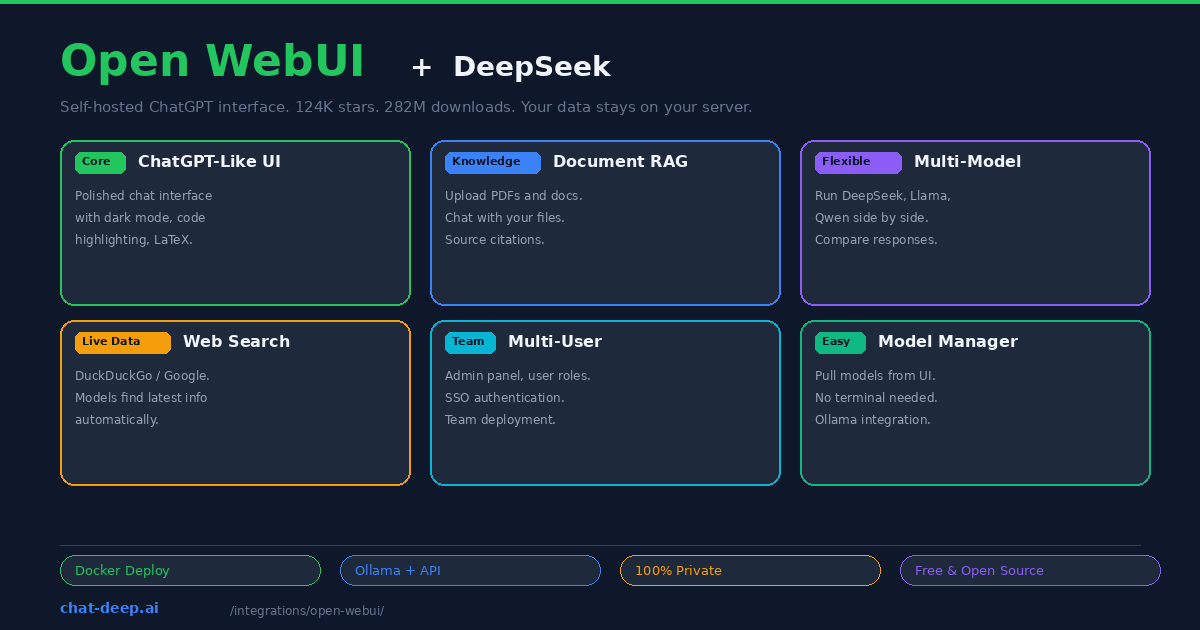
Open WebUI is the most popular self-hosted AI chat interface in the world. With over 124,000 GitHub stars and 282 million Docker downloads, it has become the default way to interact with local and cloud-hosted LLMs through a polished, ChatGPT-like browser interface. Connect it to DeepSeek — either through Ollama for local inference or through the DeepSeek API for cloud access — and you have a private AI assistant that rivals ChatGPT in experience while giving you complete control over your data.
What makes Open WebUI more than just a chat wrapper is the depth of its features: built-in RAG for chatting with your documents, web search integration so models can find current information, multi-model parallel chat for comparing responses side by side, a model manager that pulls Ollama models from the UI without touching the terminal, multi-user support with admin controls, and an extensible pipeline system for custom processing. It is not just a ChatGPT clone — it is a platform for building AI-powered workflows around DeepSeek.
This guide covers installation, connecting DeepSeek (local and API), the RAG system, multi-model comparison, and deployment for teams. For API details, see our DeepSeek API documentation.
Installation with Docker
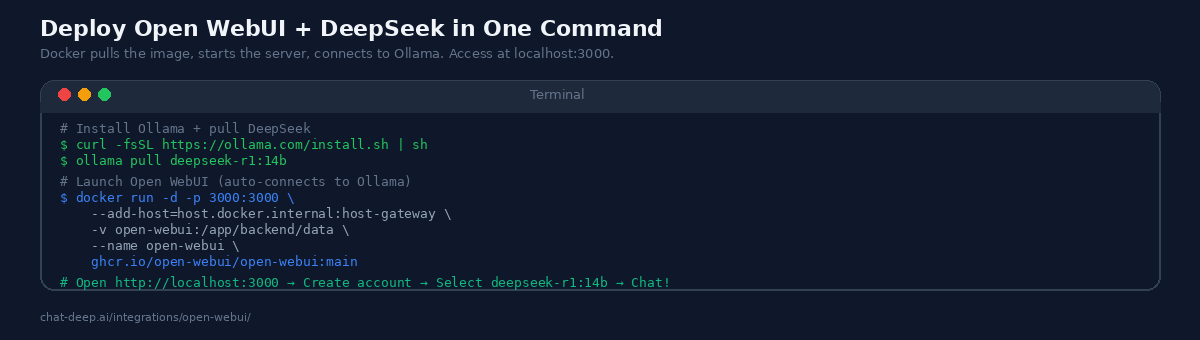
Open WebUI runs as a Docker container. If you already have Ollama installed with a DeepSeek model, you are one command away from a working chat interface:
docker run -d -p 3000:3000 \
  --add-host=host.docker.internal:host-gateway \
  -v open-webui:/app/backend/data \
  --name open-webui \
  ghcr.io/open-webui/open-webui:main
Open http://localhost:3000 in your browser, create an admin account, and you will see all your Ollama models listed in the model selector — including any DeepSeek models you have pulled. The --add-host flag allows the Docker container to reach Ollama running on the host machine. The volume mount persists your chat history, user accounts, and settings across container restarts.
If you do not have Ollama yet, install it and pull DeepSeek first:
curl -fsSL https://ollama.com/install.sh | sh
ollama pull deepseek-r1:14b
For a complete stack in one Docker Compose file that includes both Ollama and Open WebUI, see the Open WebUI documentation.
Connecting to the DeepSeek API
Open WebUI also supports OpenAI-compatible API endpoints, which means you can connect directly to DeepSeek’s cloud API for the full V3.2 model without running anything locally. Go to Settings → Connections, add a new connection labeled “OpenAI,” and configure it with your DeepSeek API key and the base URL https://api.deepseek.com/v1.
Once saved, Open WebUI fetches the available models from the endpoint. Both deepseek-chat and deepseek-reasoner appear in the model selector. You can use the cloud API and local Ollama models simultaneously — pick the right model for each conversation. Use the cloud API when you need the full V3.2 quality and 128K context, and the local model for private conversations that should not leave your machine.
Get your API key from the DeepSeek platform — our login guide covers account creation. For pricing, see our DeepSeek pricing page.
Document RAG: Chat with Your Files
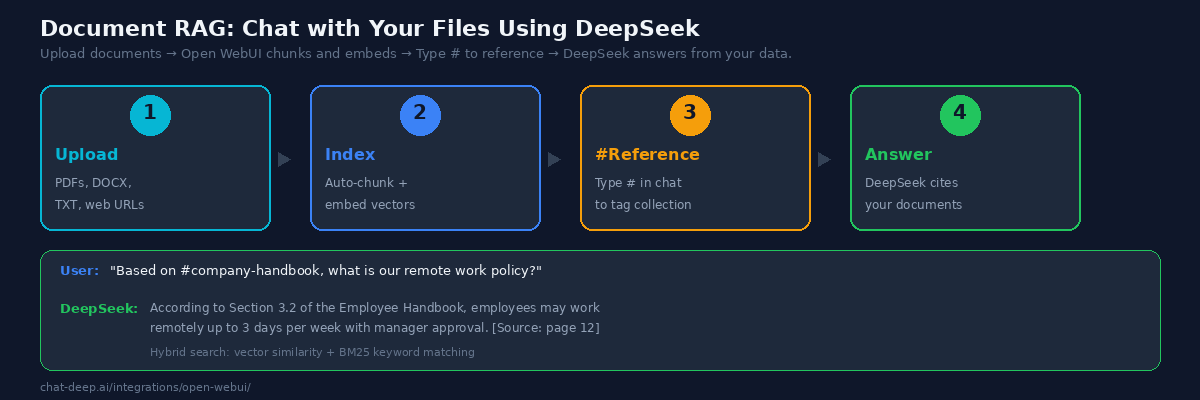
Open WebUI’s RAG (Retrieval-Augmented Generation) system lets you upload documents and ask DeepSeek questions grounded in their content. This is the feature that transforms Open WebUI from a chat tool into a knowledge management platform.
Click “Documents” in the sidebar, upload your files (PDF, DOCX, TXT, or web URLs), and create a collection. Open WebUI automatically chunks the documents, generates vector embeddings, and indexes them for semantic search. In any chat, type # followed by the collection name to tag it. DeepSeek then retrieves relevant chunks before generating a response, citing the source document and page number.
For best results, configure the document settings under Settings → Documents. Enable Hybrid Search, which combines vector similarity search with BM25 keyword matching — this catches both semantically related content and exact term matches. Set the chunk size to 1000 tokens with 200-token overlap for technical documents, or 500 tokens for shorter content like FAQs. Use a robust embedding model like nomic-embed-text (available via Ollama) for better retrieval accuracy.
Use cases for document RAG include company knowledge bases where employees ask questions about policies and procedures, technical documentation where developers query API references, legal document review where lawyers search contracts for specific clauses, and research workflows where academics analyze papers. DeepSeek’s 128K context window handles large retrieved contexts without truncation.
Multi-Model Comparison
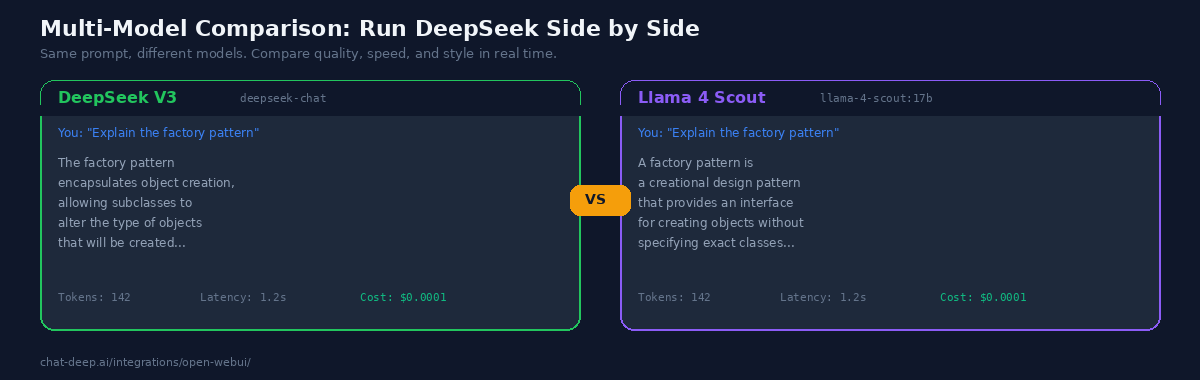
One of Open WebUI’s standout features is the ability to run multiple models in parallel and compare their responses. Open two chat panels side by side, select DeepSeek in one and Llama or Qwen in the other, and send the same prompt to both. You see both responses simultaneously, making it easy to evaluate which model handles each type of task better.
This is invaluable for teams evaluating AI models. Instead of switching between different interfaces, you compare output quality, response speed, and token costs in one view. DeepSeek’s cost advantage becomes immediately visible — it often produces comparable or better output at a fraction of the token cost of premium alternatives. For a full model comparison, see our DeepSeek models hub.
Web Search Integration
Local models have a knowledge cutoff — they do not know about events after their training data ends. Open WebUI solves this with built-in web search integration. Go to Settings → Web Search, enable it, and configure a search provider (DuckDuckGo is free and requires no API key, Google PSE offers more precise results).
When you ask DeepSeek a question that requires current information, Open WebUI automatically determines whether a web search is needed, fetches results, and includes them in the DeepSeek prompt as context. The model cites the web sources in its response. This turns your local DeepSeek into an AI assistant that knows about today’s events — bridging the gap between local inference and cloud-connected services.
Model Management from the UI
Open WebUI includes a visual model manager that lets you pull, delete, and switch Ollama models without opening a terminal. Go to Settings → Admin → Models, type a model name like deepseek-r1:32b in the pull field, and Open WebUI sends the pull request to Ollama. The download progress appears in the UI. This makes it easy for non-technical team members to try different model sizes — start with the 7B for fast responses, try the 14B for better quality, and test the 32B when you need the best reasoning.
Multi-User Deployment
Open WebUI supports multiple users with role-based access control. The first account created becomes the admin. Additional users can self-register or be created by the admin. Each user has private conversations that others cannot see. The admin can control which models are available, set usage policies, and monitor the system.
For team deployments, Open WebUI supports SSO (Single Sign-On) through OIDC providers like Okta, Auth0, and Azure AD. This is essential for enterprise environments where every application must integrate with the company’s identity provider. Combined with DeepSeek’s low token pricing, Open WebUI becomes a cost-effective way to give an entire team access to AI assistance — far cheaper than buying individual ChatGPT or Copilot subscriptions for every employee.
Remote Access
By default, Open WebUI is only accessible at localhost:3000. For access from other devices — your phone, a tablet, or teammates on the same network — you have several options. The simplest for local networks is changing the Docker port binding to 0.0.0.0:3000:3000 and accessing via your machine’s IP address. For secure remote access over the internet, use a reverse proxy (nginx or Caddy) with TLS, or a tunnel service like ngrok or Cloudflare Tunnel.
For production team deployments, put Open WebUI behind nginx with HTTPS, configure OIDC authentication, and use a domain name. This creates a professional AI portal that your team accesses like any other internal web application.
Pipelines: Custom Processing
Open WebUI’s Pipelines feature lets you add custom processing to the AI workflow. Pipelines are Python functions that intercept requests before they reach DeepSeek or process responses before they reach the user. Use cases include input filtering (block certain topics or enforce format rules), response post-processing (add citations, format code blocks, translate output), custom RAG logic (query external databases or APIs before generating a response), and logging (track all conversations for compliance or analytics).
Pipelines run as a separate service that Open WebUI connects to via an API. The community has published pipelines for content moderation, multi-step research workflows, and even image generation using multimodal models. For teams building internal AI tools, Pipelines turn Open WebUI from a chat interface into a customizable AI platform.
Memories and Persistent Context
Open WebUI maintains persistent context through its Memories system. When you correct the AI or provide information about yourself (“I work in TypeScript, not JavaScript” or “Our API uses v2 endpoints”), Open WebUI stores this as a memory that persists across conversations. DeepSeek receives these memories as additional context, producing more relevant and personalized responses over time without you repeating yourself.
Memories are user-specific — each team member builds their own set of preferences. Admins can also set system-level memories (called “documents” in the admin panel) that apply to all users, such as company-specific terminology, product names, or coding standards. This combination of personal and organizational memories makes DeepSeek increasingly accurate as your team uses the system.
Open WebUI vs. Other Chat Interfaces
Several self-hosted AI chat interfaces exist. Here is how Open WebUI compares for DeepSeek users.
LobeChat is a polished alternative focused on multi-agent collaboration. It supports agent groups and has a visual plugin marketplace. LobeChat excels at agent-based workflows but lacks Open WebUI’s depth in RAG and document management. If your primary need is chatting with documents, Open WebUI is the stronger choice.
LibreChat unifies multiple AI providers (OpenAI, Anthropic, Google) into a single privacy-focused interface. It focuses on multi-provider support rather than local model features. If you primarily use cloud APIs from multiple providers, LibreChat is worth considering. For Ollama-first workflows with DeepSeek, Open WebUI is more deeply integrated.
AnythingLLM specializes in document-based RAG with a no-code agent builder. It handles workspace-based document management well but has a smaller community than Open WebUI. For straightforward document Q&A, AnythingLLM is competitive. For a broader feature set, Open WebUI’s 124K stars and 282M downloads reflect a larger ecosystem with more community support.
The DeepSeek web app (chat.deepseek.com) is the simplest option — no setup required. But your data goes to DeepSeek’s servers, you cannot upload documents for RAG, there is no multi-user support, and you are limited to one model. Open WebUI gives you all of these features while keeping data on your infrastructure. For more on the DeepSeek web experience, see our features page.
Tips for Best Results
Use the 14B model for the best local experience. The 7B model is fast but limited in reasoning quality. The 14B model on 16 GB RAM provides strong DeepSeek R1 reasoning at acceptable speed. If you have a GPU with 24+ GB VRAM, the 32B model is the sweet spot for quality.
Enable hybrid search for RAG. Vector-only search misses exact terms. Keyword-only search misses meaning. Hybrid search combines both, dramatically improving retrieval accuracy for technical documents with specific terminology.
Create separate collections for different document sets. Keep your company handbook, API docs, and research papers in separate collections. When chatting, tag only the relevant collection with # — this keeps the retrieved context focused and reduces noise in DeepSeek’s responses.
Combine local and cloud models. Use Ollama DeepSeek for everyday private chats and the DeepSeek API for tasks that need the full V3.2 model’s quality and 128K context. Both appear in the same model selector — switching is one click.
Back up the data volume. All conversations, user accounts, document embeddings, and settings live in the Docker volume. Include it in your backup strategy. A corrupted or lost volume means losing all chat history and RAG indexes.
Check API health. If using the DeepSeek cloud API, verify availability on our status page before important sessions. For current API pricing, check our pricing page.
Conclusion
Open WebUI turns DeepSeek into a private ChatGPT that you own and control. The polished interface makes AI accessible to non-technical team members. The RAG system grounds DeepSeek’s answers in your actual documents. Multi-model comparison helps you evaluate DeepSeek against alternatives in real time. Web search bridges the knowledge cutoff gap. And the entire stack runs on your infrastructure with zero data leaving your network.
Start with Docker and a local DeepSeek model through Ollama — you will have a working AI chat in under five minutes. Add the DeepSeek API connection for cloud-quality responses. Upload your documents for RAG. Invite your team for multi-user access. For related tools, see our Ollama guide for local model management, our Docker guide for production self-hosting, and browse the full integrations section for more ways to use DeepSeek.