

DeepSeek Harness is DeepSeek’s agent application and open-source runtime for working with files, code, and longer tasks on your computer. You give it a goal, and it can use tools to inspect a workspace, make changes, run commands, and produce files you can review. It is available as an official desktop app or through a locally hosted web interface.
Use it when the job involves doing something with a project: turning notes into a report, working through a spreadsheet, or changing several files in a codebase. For a question you can answer in a normal conversation, the DeepSeek chat app is usually the easier place to start. Harness is still in preview, so begin with a small project you can check before giving it more responsibility.
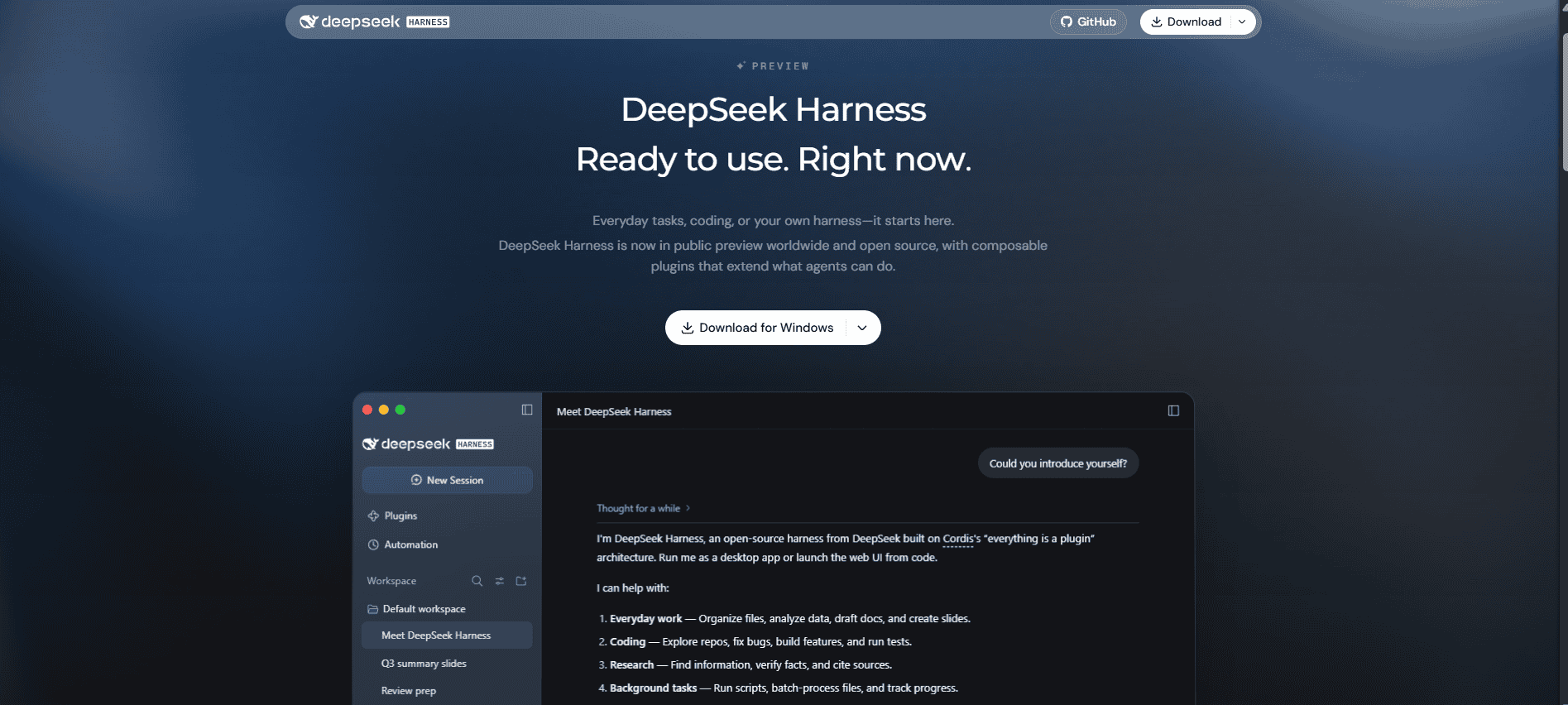
What is DeepSeek Harness?
A model generates a response. A harness supplies the surrounding tools and manages the work that follows: opening a file, running a command, reading the result, and asking the model what to do next. DeepSeek’s project uses the command name dsh and is built around plugins, allowing its capabilities to be extended. The official repository publishes the source under the MIT license.
That distinction explains why installing Harness is different from downloading model weights. The application can run on your computer while its selected model runs on a provider’s servers. Installing the app does not, by itself, install a local DeepSeek model.
| Option | What you use it for | What you need to manage |
|---|---|---|
| DeepSeek chat | Ask questions, draft text, and work through a conversation. | Your prompts, attachments, and the answers you keep. |
| DeepSeek Harness | Give an agent a task involving workspace files and tools. | The workspace, model connection, permissions, and resulting changes. |
| DeepSeek API | Add model responses to software you are building. | Your application code, credentials, requests, and usage. |
| A locally hosted model | Run model inference on hardware you control. | The model files, runtime, hardware capacity, and any connected services. |
If you are still deciding which route you need, our DeepSeek overview explains the wider set of products and access options. This guide focuses on using Harness itself.
What can you do with it?
DeepSeek presents Harness as a tool for document work, data analysis, coding, research, and background tasks. Its official product page shows examples involving documents, spreadsheets, slides, and code. The useful question is what a finished result should look like in your own project.
- Turn source files into a usable document. For example, ask for a project brief from a folder of notes, with unresolved questions separated from confirmed decisions. Name the output file and ask for references to the source filenames.
- Investigate a dataset. Ask it to describe the columns, identify missing values, and prepare a summary before making changes. Decide how duplicates and incomplete records should be handled rather than letting those choices disappear into an automated cleanup.
- Work on a codebase. Ask it to locate the cause of a specific error, propose a change, and explain the affected files. Review the change and relevant test output before keeping it.
- Prepare research you can check. Request a comparison with source links and a clear distinction between documented facts and recommendations. A polished document still needs its citations and conclusions checked.
These are suggested tasks, not results from a test we ran. Start with a deliverable that is easy to inspect. “Create a brief from these five notes” gives you a clearer basis for review than “organize my entire business.”
Download and set up DeepSeek Harness
There are two practical starting points. Choose the desktop installer if you want an ordinary application window. Choose the command-line launch if you prefer a browser interface and are comfortable installing Node.js. You do not need both for your first task.
Option 1: Use the official desktop app
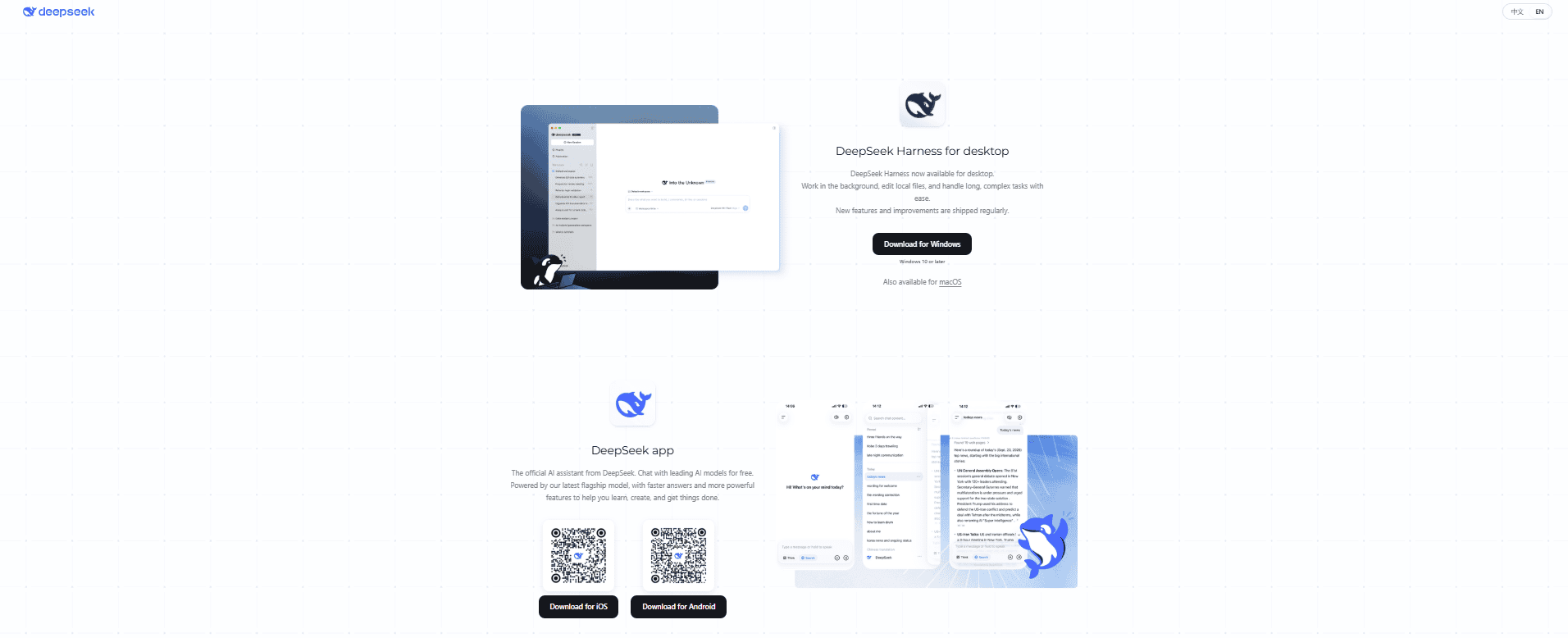
Start from the official DeepSeek download page. It lists Harness for Windows and for Apple silicon Macs running macOS 13 or later. The Harness product page labels the Windows download as 64-bit. Check those requirements against your machine before downloading; a mobile DeepSeek app installer is a different product.
- Download the installer for your platform from DeepSeek. Several community desktop projects use similar names. Following the links on DeepSeek’s own website avoids confusing one of those projects with its official app.
- Install and open Harness. Follow the installer’s prompts. You do not need to build the GitHub repository to use the packaged desktop application.
- Choose an available model access route. Desktop builds support account sign-in and a separate API-key route. Use Sign in where offered, or Add API Key for a key you already manage. Preview builds can differ in their onboarding screens.
- Confirm the selected model and workspace. Use a dedicated folder containing copies of the files for your first task. If a default workspace has been created, make sure it is actually the folder you intend to use.
- Read the task’s permission setting before sending it. Decide whether the agent needs to inspect files, create output, or run commands. Grant access for the work you have chosen.
The desktop documentation describes its sign-in and API-key entry paths. If a particular preview does not offer the same sign-in flow, use the supported API-key path or check the release notes for that build.
Option 2: Launch the web interface with Node.js
Use a supported Node.js release. The repository’s current requirement is 22.19 or newer within the 22.x series, or version 24 and later. Run node --version in your terminal to check an existing installation.
Install Node.js, open a terminal in the folder you want to work with, and run the command from DeepSeek’s official quick start:
npx @deepseek-ai/dsh webThis downloads and runs the Harness package; it is not a command for downloading model weights. For a normal local launch, the documented default address is http://127.0.0.1:3080, and the browser opens automatically. Use the address printed in your terminal if your configuration differs. Keep the server process running while you use its interface.
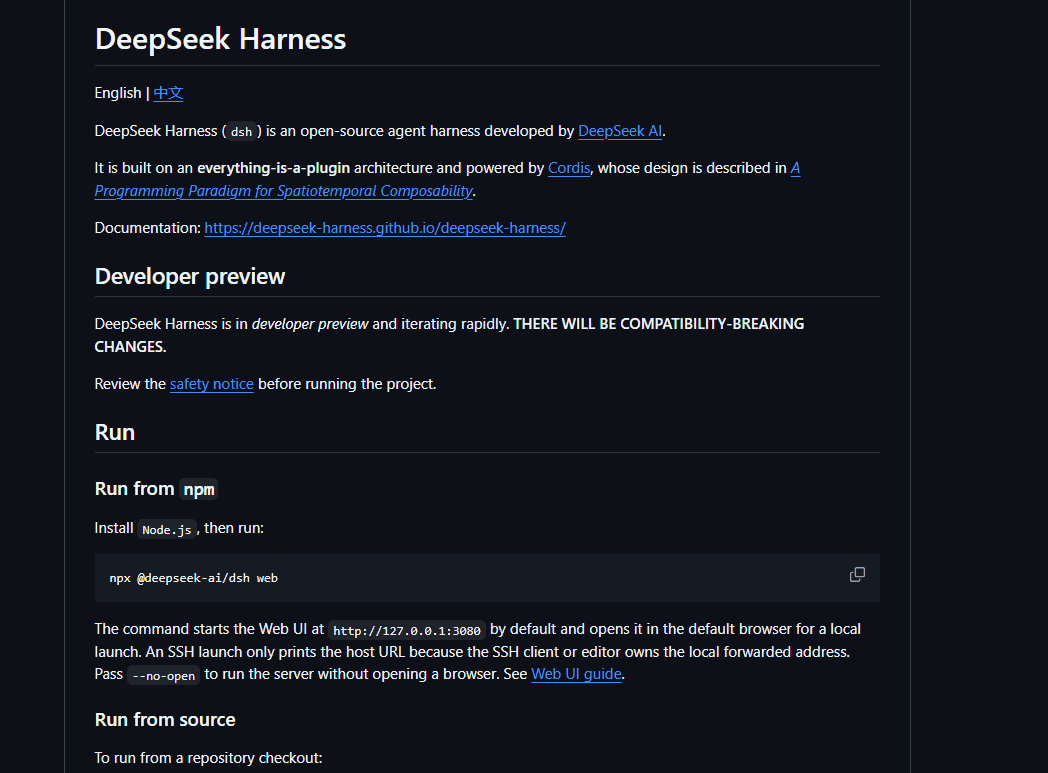
In the Web UI, open Settings → Models, save your DeepSeek API key, and select a model. Then choose or add the project workspace. The Web UI guide explains that input is unavailable when no workspace is selected. On a build that starts with a default workspace, check its path instead of assuming it contains your project.
This route is also the starting point for readers using Linux or a machine without a matching desktop installer. Follow the runtime’s platform requirements; the Windows and Mac downloads do not establish support for every other operating system or processor.
Choose a model and understand what you are paying for
Harness being open source does not make all model usage free. The software license and the service processing your requests are separate. With a DeepSeek API key, usage is charged according to the model’s input and output token rates. One task may involve several requests as the agent reads files, runs tools, and follows up on their results. DeepSeek publishes the applicable API rates in its Models & Pricing documentation.
For an API-only cost example, the Flash peak rates checked on October 6, 2026 are US$0.30 per million cache-miss input tokens and US$1.20 per million output tokens. A hypothetical task totaling 50,000 such input tokens and 5,000 output tokens across its requests would cost US$0.021 in model usage. Cache hits, off-peak pricing, another model, or additional services change that amount. This illustrates API billing; it is not a fixed Harness task price or an account-plan quote.
Check which access route the task is using before adding credit. DeepSeek’s desktop release notes distinguish account-funded tasks from API-key tasks and document separate model entries for them. Signing into an account does not mean every task is using that account’s model entry. If a quota warning appears, follow the billing route associated with the selected provider.
For account access, use the balance, quota, and top-up information shown for that account. Do not assume a promotional credit is permanent, available to everyone, or interchangeable with another provider’s API balance. For API access, our API key guide covers obtaining and protecting the key.
For a first task, use a configured model that supports the tools you need. If you will attach images, choose an image-capable model and connection; a setting that labels a custom model as image-capable cannot add support to its server. Start with a small input folder and a specific output. Expand the task after checking the result and the usage it incurred.
Harness also supports other model providers and custom endpoints. In Settings → Models → Add model provider, choose a listed provider or configure a custom model API with its endpoint, protocol, credentials, and model IDs. Use the protocol that the server actually supports. The official model configuration guide covers those choices and their compatibility settings.
A useful first task: turn project notes into a brief
Start with a few non-sensitive text or Markdown files you already understand. Copy them into a separate folder, select that folder in Harness, and decide where the result should be saved. This gives you something useful to produce and enough familiarity to spot mistakes.
Here is an example prompt you can adapt:
Read the .txt and .md notes in this workspace. Create project-summary.md with three sections: confirmed decisions, open questions, and next actions. Identify the source filename for each decision and action. Keep the original files unchanged. If an owner or deadline is missing, mark it as unspecified instead of guessing.
Watch for approval requests while the task runs. Check the action being requested and whether its file path belongs to this project. If it asks to install software or access another location, decide whether that is necessary for the task you gave it.
When the task finishes, open the resulting file and check three things:
- The file exists where you expected. A description of a document in the conversation is not the same as a saved document.
- The summary is faithful to the notes. Follow a few filename references, check dates and owners, and look for unsupported conclusions.
- The source files remain intact. Compare them with your copies if anything seems unexpected. For a code project, use version control to review changes.
Then request a focused revision: separate this week’s actions from later work, or shorten the brief for a particular audience. Keep the next request tied to the same sources. You are refining a deliverable, not asking the agent to invent missing project information.
The same approach works for coding: identify one problem, define the allowed files, ask for an explanation of the changes, and inspect the result. Our DeepSeek coding guide covers choosing and checking those tasks in more detail.
Files, permissions, and where your data goes
Harness can act on the resources available to it. That makes workspace selection and permissions part of using the product, not just an installation detail. A request to summarize notes needs a different level of access from a request to install dependencies or edit a repository.
DeepSeek’s safety notice says the project is experimental, has not undergone a security audit, and should not be treated as production-ready. It also says sandboxing and approval controls reduce risk without guaranteeing isolation. Those limits matter most when a task can modify valuable files or access credentials.
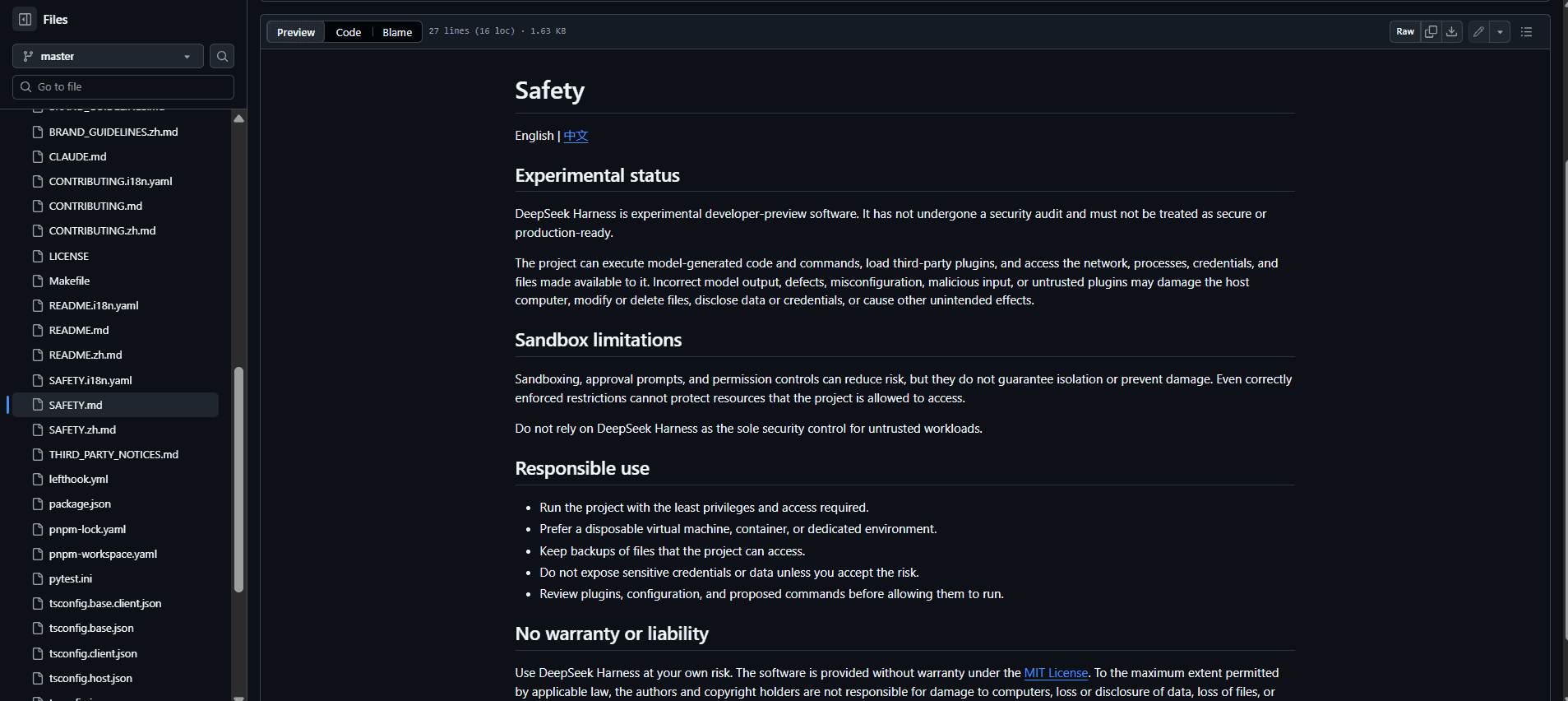
Use a dedicated workspace, keep a backup or version-control history, and review requests for broader access. Give credentials through the appropriate provider settings rather than putting them into task prompts or source documents. A prompt asking the agent to leave files unchanged is useful guidance, but it does not replace a permission boundary.
A local application window does not mean the whole task stays local. With a hosted model, request context goes to the configured provider; that context can include file contents read for the task. Plugins and external tools may introduce additional destinations. For confidential work, establish which provider and tools will receive the material before making it accessible.
Plugins, MCP, and scheduled work
Add capabilities when a task needs them
Plugins can extend Harness’s tools, interface, and behavior. Its Plugin Manager supports installing and configuring bundles and enabling or disabling capabilities. Creator mode can help build plugins through conversation. You do not need to develop a plugin to use the application for ordinary work.
For your first project, keep the installed set small. Add an extension when you can name the missing capability it will provide, and check its source and compatibility with your Harness version. Community plugins are separate software; being listed in a directory does not make them part of DeepSeek’s official release. The Plugin Manager reference explains how bundles and compatibility are managed.
Connect an MCP service when you need an external tool
MCP is a way for Harness to connect to tools supplied by another service or process. For example, the official documentation includes optional connections to third-party memory systems. Connecting one does not automatically create its account, prepare its storage, or configure any model service it requires; those are separate setup steps.
Treat each connection as a specific integration with its own data access and maintenance requirements. DeepSeek describes its memory MCP examples as interoperability examples, not endorsements. You can complete the first-task example above without adding a memory service.
Check the schedule, then check the result
Harness can schedule follow-up work. The way you enable it depends on the preview: older releases and the scheduling guide use an optional Automation tasks plugin, while the 0.2.1-alpha.1 release notes move automation into the Web application. Look for Automation tasks; if it is unavailable, check the instructions for your installed version and its Plugins page.
Specify the task, frequency, and time zone. After creating it, inspect the saved rule to confirm that a repeating request has not become a one-time reminder. Keep the machine and Harness host running when you expect work to happen. The scheduling documentation explains that stopping the host stops scheduling until it restarts.
A delivery record means a message reached the conversation, not that the requested work completed successfully. Open the associated conversation and inspect its output. A recurring file-processing task should also identify what has already been processed so that another run does not repeat a change unnecessarily.
If Harness is not working
Start with the stage that failed: launching the app, connecting a model, accessing a workspace, or executing a tool. Reinstalling everything before identifying that stage can leave the original problem untouched.
| What you see | What to check first |
|---|---|
| The local browser page will not open. | Check that the terminal process started successfully and is still running. Open the URL it printed; use the first startup error to diagnose a failed launch. |
| The message box is unavailable. | Confirm that a workspace and a configured model are selected. A removed provider can leave an old default model unusable. |
MISSING_CREDENTIAL or an authentication error. | Save the correct key for the selected provider. If the task uses account access, check whether it is asking you to sign in again. |
UNKNOWN_MODEL or an empty model list. | Choose a configured model. A custom endpoint may not support automatic model discovery; enter the model ID documented by that provider. |
| A quota or insufficient-credit warning. | Identify whether the task uses an account model or an API-key model before checking or topping up its balance. |
| A file operation is denied. | Check the workspace path and requested operation. Grant the specific access the task needs, or move a working copy into the intended workspace. |
| An extension stops working after an update. | Check its supported Harness version and configuration. Follow the release notes before changing profiles or reinstalling packages. |
Provider errors and discovery limitations are documented in the model configuration troubleshooting section. For a bug report, include your operating system, Harness version, launch method, relevant provider, and the error text. Remove keys and private file content. Use the project’s official Discussions for support.
Common questions about DeepSeek Harness
Is DeepSeek Harness an official DeepSeek product?
Yes. DeepSeek links it from its own website and maintains the source in the deepseek-ai/deepseek-harness repository. Community desktop wrappers and plugin directories may use similar names. Chat-Deep is an independent publication; the official download links above go to DeepSeek.
Do I need an API key?
The documented Web UI setup uses a provider API key. Desktop also has an account sign-in route, so an API key is not the only option in supported builds. Check which route your selected model uses, because credentials and billing follow that choice.
Is DeepSeek Harness free to use?
The open-source software is available under the MIT license. Model requests and connected services can still cost money. Check the terms and available credit for your account or API provider instead of treating a free download as unlimited free usage.
Can Harness run completely offline?
Not when the task depends on a hosted model or an online tool. A custom connection to a locally hosted model can change where inference runs, but every plugin, tool, and dependency also needs to be considered before calling the whole workflow offline.
Do I need a powerful GPU?
Using a hosted model does not require your computer to run that model’s weights. Your machine still needs to support the Harness application and the local work you ask it to do. If you host a model yourself, its hardware requirements are a separate consideration.
Will work continue when I close the desktop window?
The official desktop release notes distinguish closing the window from quitting the application: background work can continue after the window closes. Quitting the app or stopping the host affects running and scheduled work. Do not assume tasks continue after shutting down the computer.
Should I use Harness instead of an editor extension?
Choose Harness when you want a workspace agent that can work across files and different kinds of tasks. An editor integration may suit you better when you want assistance inside an existing coding workflow. The useful comparison is where you want to work and how you will review changes.
Start with a result you can review
The best first Harness task has a small set of inputs, a named output, and a clear way to tell whether it succeeded. A project brief, a documented data check, or a focused code change gives you that structure. Review the saved file or changes before widening the task.
If that workflow helps, add the next capability you actually need. A model change, plugin, or scheduled follow-up should solve a specific problem in your work. Keep the setup understandable enough that you know which files it can change, which service processes the request, and what to check when it finishes.