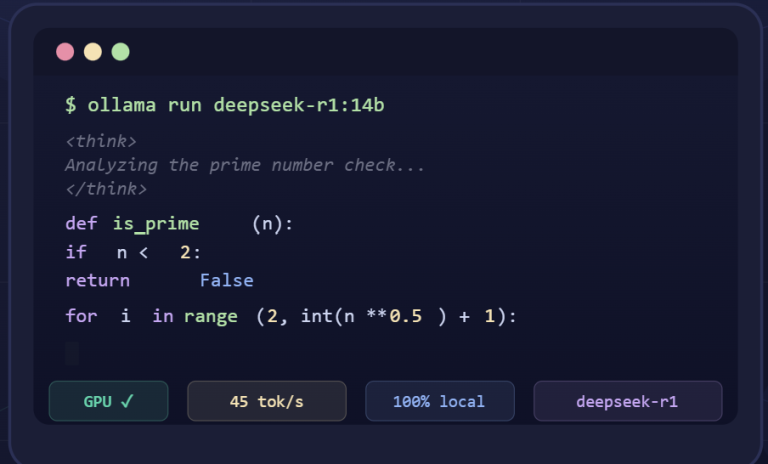
DeepSeek is an open-weight large language model family designed with a focus on reasoning and structured outputs. Some variants support extended context lengths depending on the specific release. Unlike many proprietary models, DeepSeek’s weights are freely available under an open license, which means you can run it locally on your own hardware.
This guide explains how to run DeepSeek on a CPU-based system (with a focus on Mac computers), using the llama.cpp inference engine and the new GGUF model format. We’ll cover what GGUF is, how to choose an appropriate quantization level for DeepSeek based on your RAM, steps to install and use llama.cpp on Mac/CPU, example commands for interactive chat and server modes, as well as tips for boosting speed and understanding quality trade-offs when using quantized models.
This article is published by an independent DeepSeek-focused website. We are not affiliated with DeepSeek or its developers. All model references are based on publicly available documentation.
DeepSeek Models Supported in GGUF Format
DeepSeek models can be converted and distributed in GGUF format for local inference using llama.cpp. The following DeepSeek variants are commonly available in quantized GGUF builds:
- DeepSeek-R1 Distill – A distilled reasoning-focused variant optimized for efficient local execution.
- DeepSeek 8B – A compact dense model suitable for CPU-based setups with limited RAM.
- DeepSeek 70B – A larger dense model requiring substantial memory but offering broader reasoning capacity.
- DeepSeek Distilled Variants – Additional distilled sizes (such as 1.5B, 14B, and 32B) designed to balance memory requirements and inference quality.
Availability of specific quantization levels depends on community conversions and Hugging Face releases.
See the full DeepSeek model overview here: [DeepSeek Models]
What Is GGUF?
GGUF (GPT Generated Unified Format) is the file format used by llama.cpp to store model weights, tokenizers, and other data for inference. In practical terms, a GGUF file contains the neural network parameters along with metadata in a consolidated way. GGUF replaces the older GGML format and is optimized for efficient loading and execution across platforms (particularly making GPU offloading easier). For example, large models on Hugging Face may be distributed as multiple .gguf shard files, which llama.cpp can read directly as if one model. In short, GGUF is the container that lets DeepSeek run in llama.cpp with all necessary components included.
(Tip: If your DeepSeek GGUF model downloads as several parts (e.g. ...-00001-of-00005.gguf), you can simply point llama.cpp to the first file – it will load the rest automatically.)
Choosing a Quantization Level (Q4, Q5, Q8) Based on Your RAM
DeepSeek models come in various quantization levels, which trade off memory usage for some loss in quality. Quantization reduces the number of bits used to represent model weights:
- 4-bit (Q4): Uses about a quarter to one-third of the original model size in memory. This is the smallest practical size – for example, the DeepSeek 8B distilled model at Q4 is around 5 GB (versus 16 GB in full precision). A 70B model at Q4 might be on the order of ~35–40 GB. Q4 can retain a high percentage of model quality if using advanced techniques (Q4 quantization can retain most of the original model capability in many practical scenarios, depending on the task and quantization method used), though very low-bit methods may degrade reasoning on complex tasks.
- 5-bit (Q5): A common middle-ground quantization level that balances memory usage and output fidelity for many real-world workflows. In practice, Q5 variants often produce more stable answers than 4-bit while still keeping RAM requirements manageable. If you have moderate system memory, a 5-bit DeepSeek GGUF build can be a sensible default choice for CPU-based inference—especially when you want a reliable experience without pushing your machine into swapping.
- 8-bit (Q8): Uses one byte per weight (about half the size of FP16). This is nearly lossless quantization – Q8_0 (8-bit) quantization is generally considered near-lossless in typical inference setups. The trade-off is higher memory use. DeepSeek 8B at Q8_0 is ~8.5 GB, and a DeepSeek 70B at 8-bit can be ~70–80 GB in size, which only very high-end machines (e.g. 128 GB RAM) can fully accommodate. Use 8-bit if your system has ample memory or if you require maximum fidelity from DeepSeek.
How to pick? Generally, match the quantization to your available RAM:
Limited RAM (8–16 GB)
Use smaller DeepSeek models (e.g. the 8B distill) at 4-bit quantization. This keeps memory under ~6 GB, leaving room for the system. You’ll sacrifice a bit of output precision, but DeepSeek’s strong reasoning may still shine through due to its training. Avoid the 70B model at this RAM level, unless you accept very slow performance and heavy disk swapping via mmap (not recommended).
Moderate RAM (32–64 GB)
You can experiment with the DeepSeek 70B distilled model at 4-bit or 5-bit. At 4-bit (~35–40 GB), it might fit in 64 GB memory with some headroom. At 5-bit (~45–50 GB), 64 GB may be just enough if nothing else is running. Alternatively, the 8B model could be run at 8-bit for better quality since 8.5 GB is trivial in this range. Choose Q5 or Q4 for 70B if 8-bit doesn’t fit. These quantization levels have been found to preserve most of the model’s reasoning ability, especially given that larger models tend to handle aggressive quantization better than smaller ones.
High RAM (128 GB and up)
You have the freedom to run DeepSeek 70B at Q8 for maximum quality (~75 GB). In fact, DeepSeek’s full 671B MoE R1 model is theoretically runnable on such systems with ultra-low-bit quantization – The DeepSeek team has publicly discussed experimental ultra-low-bit quantization techniques for extremely large models.
These approaches are primarily research-focused and not typically practical for CPU-only inference. However, running such a huge model on CPU is extremely slow. For practical purposes, with 128+ GB you can also consider offloading some model layers to GPU (if available) to speed it up – more on that in the optimization section. Most users in this category will prefer the 70B model at a comfortable quant level.
Lastly, remember that quantization primarily affects model size and speed. If you notice DeepSeek’s answers losing accuracy or detail, you might have quantized too aggressively. You can then try a higher-bit model if memory allows, or use the DeepSeek distill variant that better fits your hardware (for example, the 8B model instead of the 70B). DeepSeek provides multiple distilled sizes (1.5B, 8B, 14B, 32B, 70B), so you’re not limited to the largest model for good results.
Exact file size varies depending on build, metadata, and quantization variant.
Recommended RAM Matrix for DeepSeek (CPU Users)
The table below provides a simplified reference for selecting an appropriate DeepSeek model and quantization level based on available system memory. Actual performance may vary depending on CPU architecture, memory bandwidth, and background processes.
| System RAM | Suggested DeepSeek Model | Suggested Quantization |
|---|---|---|
| 16GB | DeepSeek 8B | Q4_K |
| 32GB | DeepSeek 8B / 14B | Q5_K |
| 64GB | DeepSeek 32B / 70B | Q4_K |
| 128GB+ | DeepSeek 70B | Q5_K / Q8 |
These recommendations prioritize stable CPU inference without excessive disk swapping. For long-context workloads, additional memory headroom may be required due to KV cache growth.
Installing and Building llama.cpp on Mac/CPU
To run DeepSeek on a CPU (or Mac) you will use llama.cpp, a lightweight C/C++ LLM runtime. You can either download a pre-built binary or build it from source. Building from source ensures you have the latest features (like GGUF support and optimizations) and allows enabling platform-specific acceleration. Here’s how to get started:
Install prerequisites: On macOS, ensure you have Xcode Command Line Tools or Homebrew’s developer tools (for make and cmake). On Linux, you’ll need a C++ compiler (gcc/clang), CMake, and possibly OpenBLAS/OpenMP for speed. Windows users can compile via CMake + Visual Studio or use the Windows Subsystem for Linux (WSL) for an easier UNIX-like build.
Clone the llama.cpp repository: Retrieve the code from the official GitHub:
git clone https://github.com/ggerganov/llama.cpp.git && cd llama.cppBuild for your platform:
Mac (Apple Silicon): Use the Metal backend to utilize the Apple GPU for faster processing. Compile with LLAMA_METAL=1 make. For example, the Replicate guide notes that setting LLAMA_METAL=1 will “allow computation to be executed on the GPU” during inference. This produces binaries like llama (or llama-cli) and possibly llama-server if included.
Linux or Intel Mac: Simply run make (or use CMake as per the README). This will create a CPU-only binary. You can also add make chat or make server to build optional targets. If you prefer a one-line install, llama.cpp’s docs note you can use package managers (Homebrew, winget, etc.) or Docker for convenience – but compiling from source is straightforward and quick for CPU builds.
Windows: Either use the provided precompiled releases or compile via CMake. For instance, you might generate Visual Studio project files with cmake -B build . and build the llama.sln. Ensure you enable AVX2 in the compiler flags if on a modern CPU. (Windows users without a compiler can also use WSL and follow Linux steps.)
Verify the build: After compilation, you should have executables such as llama-cli and llama-server (or a combined main binary in older versions). Test this by running ./llama-cli --help – it should display usage options. You are now ready to run DeepSeek on your machine.
Obtaining the DeepSeek GGUF model: DeepSeek’s model files in GGUF format can be downloaded from Hugging Face. For example, the DeepSeek-R1-Distill-Llama-8B model quantized to various levels is available (community contributors like Bartowski provide ready-to-use GGUF files).
The DeepSeek 70B distilled model is also on Hugging Face via the unsloth repository. You can use the huggingface_hub Python tool or wget to fetch the .gguf files. Place the model file (or folder of shards) under a models/ directory for convenience. Now you’re set to run it with llama.cpp.
Running DeepSeek with llama.cpp: Chat and Server Modes
Once you have the DeepSeek .gguf model and the llama.cpp binaries, you can run the model in two primary ways:
Interactive Chat (CLI)
For a quick test or single-user chat, use the CLI in interactive mode. The exact command may vary slightly based on llama.cpp version, but the concept is to specify the model file, set your parameters (threads, context length, etc.), and optionally a prompt or chat mode. For example:
./llama-cli \
  -m ./models/DeepSeek-R1-Distill-Llama-8B-Q4_K_M.gguf \
  --threads 8 \
  --ctx-size 4096 \
  --interactive \
  --top-p 0.9 --temp 0.7
Let’s break down these arguments:
-m ./models/DeepSeek-R1-Distill-Llama-8B-Q4_K_M.gguf – Path to the DeepSeek model file (here the 8B distilled model quantized to Q4_K_M). If the model is sharded into multiple files, point to the first file name. You can also load directly from Hugging Face with -hf username/modelname if llama.cpp was built with CURL support.
--threads 8 – Use 8 CPU threads for inference. Typically, set this to the number of physical cores in your CPU for best performance (e.g. on an M1 Mac 8 threads might map to the performance cores).
--ctx-size 4096 – Set the context length to 4096 tokens (the amount of prompt+response the model can handle). Context length support depends on the specific DeepSeek release and configuration. If you have a model or version supporting longer context (some DeepSeek variants go up to 128K in the MoE version), you could increase this, but be mindful that more context consumes more memory.
--interactive – Puts the CLI in chat mode, where it will prompt you for input iteratively. You can also use the shorthand -i in some versions. This simulates a conversation where each turn is prepended with the proper role tokens (DeepSeek uses a format with <|User|> and <|Assistant|> tags which you may need to follow for best results).
Other generation parameters like --top-p 0.9, --temp 0.7 adjust the sampling randomness. The DeepSeek team’s recommended settings for inference are a temperature around 0.3 for general reasoning (and 0.0 for strict coding tasks), and using a low --min-p (probability floor) such as 0.01 to remove extremely unlikely tokens. You can experiment with these to suit your needs.
After running the above command, you should see the model load (this may take some time, especially the first load if using disk swapping). Then you’ll get a prompt where you can start typing your queries to DeepSeek. Each prompt you enter (as the “User”) will result in DeepSeek generating a response (as the “Assistant”). You can continue the dialogue interactively.
(Note: The first time you run a large GGUF model, llama.cpp might need to cache or mmap the file. If it’s a very large model and your disk is slow, initial load can be minutes. Subsequent loads are faster if cached in RAM.)
Running as a Local API Server
llama.cpp also offers an OpenAI-compatible RESTful API server mode, which is useful if you want to connect DeepSeek to existing applications or UI front-ends. In server mode, you launch the model once and then send it prompts via HTTP requests (e.g. using curl or an API client), similar to how you’d use OpenAI’s API – except everything runs locally. This turns your machine into a self-hosted DeepSeek service.
To start the server, run the llama-server binary (or llama.cpp --server depending on version). For example:
./llama-server \
  -m ./models/DeepSeek-R1-Distill-Llama-70B-Q4_K_M.gguf \
  --port 8000 \
  --threads 16 \
  --no-webui \
  --ctx-size 8192
Key points in this command:
llama-server – This is the dedicated server executable included in llama.cpp (make sure you built it, e.g. by running the CMake target for server). It will load the model and listen for API calls.
--port 8000 – Specifies the port (in this case 8000) for the HTTP server. The server listens on localhost by default. You can then make API calls to http://localhost:8000/v1/completions or /v1/chat/completions in the OpenAI API format. For example, you could use an OpenAI-compatible client by pointing it to this URL with your prompt.
--no-webui – Disables the built-in web UI (if any). We just want the API in this context.
Other options like --threads 16 and --ctx-size are similar to before (here we used 16 threads, assuming a hefty CPU, and set a larger context of 8192 tokens as an example – ensure the model supports that).
Running the above will load DeepSeek and print a message that an OpenAI-compatible server is running. At this point, any application that can use OpenAI’s API can be directed to your localhost:8000 endpoint. This is a powerful way to integrate DeepSeek into chat UIs, developer tools, or automation scripts while keeping everything local. As one guide notes, “llama.cpp provides an OpenAI-compatible server… you will be able to use self-hosted LLM with [any API-based] tools by setting a custom endpoint”.
Tip: In server mode, you might want to use batched processing flags (like --threads-batch and --batch-size) if you expect multiple requests or long prompts. These allow the model to process multiple tokens in parallel for efficiency. For advanced use (especially on multi-core servers), refer to llama.cpp’s documentation on throughput tuning.
Speed Optimizations for CPU Inference (Threads, Batch, MMap, Offloading)
Running a large model like DeepSeek on CPU can be slow, but several options can help maximize throughput:
Use All Available Threads
As mentioned, set --threads to the number of physical cores (or a bit higher if you have hyper-threading, though returns diminish beyond physical cores). DeepSeek’s model will benefit from parallelism during matrix multiplications. If you run the API server, you may also see options like --threads-batch (for the computation threads per batch request) and --threads-http (for handling incoming requests) – tune these if you handle concurrent prompts. On a MacBook with an M1 chip (8 performance + 2 efficiency cores), using 8 or 10 threads for llama.cpp is recommended; on an Intel/AMD desktop, using 12 or 16 threads if available will generally speed up generation proportionally until memory bandwidth becomes the bottleneck.
Memory Mapping vs Full Loading
By default, llama.cpp will memory-map (mmap) the model file, meaning it lazily loads weights from disk as needed. This is good for low-RAM situations because unused parts of the model stay on disk. However, if you do have enough RAM to hold the model, you can disable mmap (--no-mmap) to force the model to fully load into RAM upfront. This can improve throughput, since accessing RAM is faster than hitting the disk during generation.
It will also eliminate any latency from OS page-in operations mid-inference. A community write-up explains that --no-mmap “forces llama.cpp to fully load the model into RAM instead of keeping it on disk”. Use this if you notice disk activity slowing things down and your RAM usage is below capacity. Conversely, if you are tight on RAM, stick to mmap (the default) so the OS can manage memory and avoid crashing – just be aware it might swap data in/out during long runs.
Lock Memory (prevent swapping)
If you are on Linux or macOS, you can try the --mlock option. This attempts to pin the model’s pages in memory, preventing the OS from swapping them out to disk. In practice, you might need root privileges or appropriate limits to lock a large amount of memory. When successful, this ensures more stable inference speed (no sudden slowdowns due to swap). Use it only if you have plenty of RAM for the model; otherwise, it may just fail or cause out-of-memory issues.
Batch Size (Prompt Processing)
The parameter -b or --batch_size (also called --n_batch in older usage) controls how many prompt tokens are processed at once. A larger batch size can speed up prompt ingestion at the cost of higher temporary memory use. For example, you might use -b 256 or 512 for faster prompt loading if you have the RAM. However, beyond a certain point, you won’t gain much and could even worsen performance due to cache misses. A good rule is to set batch size to a few hundred for long prompts, but you can usually leave this on default for interactive usage.
GPU Offloading on Mac (Metal)
If you built llama.cpp with Metal support on an Apple Silicon Mac (LLAMA_METAL=1), you can offload some of the model’s layers to the GPU for acceleration. This is done via the --n-gpu-layers N flag (or -ngl N). For instance, -ngl 1 offloads the first layer to the GPU, -ngl 20 offloads 20 layers, etc. Offloading more layers can significantly boost token throughput, as Apple’s GPUs are quite performant for these tasks. However, you must have enough unified memory to hold those layers on the GPU.
Apple devices share memory between CPU and GPU, so effectively it’s the same pool – but GPU memory access is faster for the offloaded layers. Experiment gradually: start with a small --n-gpu-layers and increase until you notice either maximum speed or you hit memory limits. For example, on an M2 Ultra with 128 GB unified RAM, one could offload ~59 layers of a very large model before running out of GPU memory.
On a 16 GB MacBook, offloading maybe 1–4 layers of a 13B model might be feasible. If you go too high and the process terminates or MacOS complains about memory, reduce N. When used properly, Metal offloading can significantly improve generation speed compared to CPU-only inference, depending on hardware configuration.
Use Flash Attention (GPU Builds Only)
When running DeepSeek with a GPU-enabled backend (such as CUDA), certain llama.cpp builds may include optional attention optimizations depending on compilation flags and backend support. These optimizations are primarily relevant for NVIDIA CUDA environments and may not apply to CPU-only setups.
If you are using a hybrid CPU+GPU configuration—such as offloading layers to a CUDA-compatible GPU—review the official llama.cpp documentation for supported build flags (for example, CUDA-specific compilation options). The availability and impact of these optimizations depend on your hardware, backend configuration, and llama.cpp version.
Avoiding Bottlenecks
Large models are often memory-bandwidth bound on CPUs. This means feeding data to the compute units is the slow part. Quantization already helps here by reducing model size (less data to move). To further alleviate bandwidth issues, close other memory-heavy programs when running DeepSeek. Also, using a NUMA-aware strategy on multi-socket systems (binding threads to the CPU attached to the RAM where model is loaded) can help advanced users.
In summary, to maximize DeepSeek’s performance on a CPU or Mac: use all your cores, choose the highest quantization that fits in RAM (to minimize disk I/O), and offload to available accelerators (Apple GPU, etc.) within their memory limits. Monitor token generation speed (-ts flag in llama.cpp can show tokens/sec) as you tweak settings to see what has the most impact.
Quality Trade-offs and Limitations of Quantization
Quantization is a double-edged sword: it makes running DeepSeek feasible on smaller hardware, but it can hurt the model’s output quality if pushed too far. It’s important to be aware of these trade-offs:
Near-Full Precision (8-bit) vs. Low-Bit: As noted earlier, 8-bit quantization (Q8_0) is commonly used when minimizing quantization artifacts is a priority, though it requires significantly more memory than lower-bit variants. You can expect DeepSeek’s reasoning and coding abilities to remain intact when moving from float16 to 8-bit. With 4-bit and 5-bit, especially older methods, some drop in benchmark performance is measurable.
The latest K-quant methods (like Q4_K_M, Q5_K_M) significantly narrow this gap, retaining most of the original model capability in many practical scenarios. This means for most casual use, you might not notice a difference between DeepSeek Q5 and full precision. However, extremely low-bit schemes (2-bit, 3-bit) will degrade output fluency and accuracy more noticeably. DeepSeek’s own developers introduced dynamic low-bit quants (like 2.7-bit) to mitigate this, but you should only resort to such extremes if your system truly cannot handle 4-bit and you understand the quality hit.
When can quantization affect output quality?
If the quantization level is too aggressive for your workload, you may observe changes in generation behavior. These can vary by task and prompt structure, but may include:
- Reduced coherence or grammatical stability in longer responses
- Less consistent performance on multi-step reasoning or numerical tasks
- Occasional repetition or early truncation in generated text
- Increased likelihood of minor syntax or logic issues in code outputs
The impact depends on the specific DeepSeek variant, quantization method, and task complexity. If you notice instability, consider testing a higher-precision build (for example, moving from a lower-bit Q4 variant to a Q5 or Q6 configuration) while staying within your available memory constraints.
Model Size and Quantization Considerations: Model size influences both memory requirements and inference behavior, particularly under quantization. Larger DeepSeek variants contain more parameters and therefore require more system memory, but they may also retain broader representational capacity when compressed to lower precision. The practical impact of quantization depends on several factors, including model architecture (dense vs mixture-of-experts), quantization method, prompt structure, and task complexity.
If multiple DeepSeek variants fit within your available RAM, selecting between a smaller model at higher precision and a larger model at lower precision should be guided by your specific workload and stability requirements. In all cases, behavior under quantization can vary, and testing with your intended prompts is recommended. Extremely large models—such as mixture-of-experts (MoE) architectures—introduce additional routing and scaling considerations that may affect memory footprint and runtime characteristics. For local CPU-based setups, distilled dense variants are typically more practical due to their predictable memory and inference patterns.
Quantizing the KV Cache: One often overlooked aspect is the key-value cache (KV cache), which stores intermediate states for long contexts. Llama.cpp allows quantizing the KV cache (--cache-type parameter). Community testing suggests that aggressive KV cache quantization can negatively affect output coherence, recommending 8-bit for the cache instead.
The KV cache can consume a lot of memory (scales with context length and batch size), so you might be tempted to quantize it to save RAM – but be aware it can impact coherence. A good compromise is using 8-bit (q8_0) for the cache, which still halves memory vs float16 but retains performance. This is exactly what we did in the example commands (--cache-type-k q8_0 in the CLI examples) to balance memory and quality.
Limitations of CPU and Mac-Based Inference: running DeepSeek on a CPU-based system will typically be slower than running it on dedicated accelerator hardware. Large models in particular can introduce noticeable latency during both prompt processing and response generation, especially when memory bandwidth becomes a bottleneck. On CPU-only systems, generation speed depends heavily on model size, quantization level, available RAM, and thread configuration. Heavily quantized models may load faster and use less memory, but overall responsiveness will still vary based on hardware constraints.
For experimentation, local development, research workflows, or privacy-sensitive tasks, CPU-based DeepSeek inference is often sufficient. However, for high-throughput production workloads or long interactive sessions with very large context windows, performance limitations should be considered in advance. The primary advantage of running DeepSeek locally is control: inference happens entirely on your own machine, without relying on external services. If responsiveness is a priority, starting with smaller distilled DeepSeek variants can provide a more balanced experience on consumer-grade hardware.
Context Length and Quantization: If you plan to use DeepSeek’s full 128K context window, note that memory requirements grow significantly for the KV cache. Quantizing the model weights alone won’t reduce KV cache usage (which is typically float16 by default). You may need to either accept shorter contexts on smaller hardware or use KV cache quantization (with caution about quality degradation as mentioned above). Additionally, long contexts slow down per-token generation — each new token attends to all previous tokens — so large context + CPU = very slow. Running DeepSeek at or near 128K context locally is possible, but only practical on high-VRAM systems with optimizations like KV cache quantization or context windowing.
Final Thoughts
Running DeepSeek on CPU or Mac hardware is absolutely achievable thanks to quantization and efficient software like llama.cpp. By converting DeepSeek models into the GGUF format and choosing an appropriate quantization level, you can experiment with this advanced reasoning AI locally – whether for coding assistance, answering research questions, or just chatting.
In practice, a MacBook or modest PC can handle the smaller DeepSeek distilled models with ease, and higher-end desktops can even grapple with the 70B model given enough RAM and some tuning. While CPU-based inference will not match dedicated GPU or cloud deployments in speed, you will get the DeepSeek reasoning experience under your own control. As you work with it, use the tips on threads and memory to find a sweet spot for performance. And remember, if something isn’t working right (quality issues or slowdowns), adjust the quantization or settings – the guidelines above, drawn from documented tests and community insights, should point you in the right direction.
DeepSeek’s open-weight release enables researchers and developers to experiment locally without relying on external APIs.
With this guide, you should be equipped to seek deeper with DeepSeek on your own machine, enabling local experimentation on consumer-grade hardware, subject to memory and performance constraints, without relying on external APIs or cloud access. Happy experimenting, and refer to the [DeepSeek Models] page for details on the various versions, or the [DeepSeek FAQ] for any common issues. Enjoy your journey with DeepSeek running on llama.cpp!