Integrating DeepSeek AI with your CRM can transform how you derive insights from customer data. Business users and non-technical teams can now enrich Salesforce, HubSpot, or Microsoft Dynamics 365 with AI-driven intelligence – no coding required.
In this guide, we’ll explore no-code strategies to connect DeepSeek’s powerful language model to your CRM, unlocking smarter customer insights for lead management, support, and marketing.
We’ll cover key use cases (think lead analysis, ticket summarization, smart replies, segmentation, data extraction) and walk through step-by-step no-code workflows. Let’s dive into making your CRM smarter with DeepSeek AI integration.
What is DeepSeek AI and Why Use It in Your CRM?
DeepSeek AI is a cutting-edge large language model (LLM) known for its cost-effective yet high-performance capabilities. Developed by a Chinese AI firm as an open-source project, DeepSeek specializes in advanced natural language processing and reasoning.
It excels at understanding context and nuances in human language, even across multiple languages. In practice, this means DeepSeek can read and generate text with a deep understanding of intent – ideal for customer interactions, support tickets, and sales communications.
Integrating DeepSeek into your CRM (Customer Relationship Management) system brings those AI capabilities directly into your customer data workflows. Why bother? Here are a few big benefits:
- Smarter Customer Support & Engagement: DeepSeek can comprehend customer inquiries and context, helping craft better responses. For example, embedding it in CRM workflows can boost customer support quality and engagement by automating intelligent replies and summaries.
- Multilingual Communication: DeepSeek’s multilingual mastery breaks language barriers. It can translate or generate content in numerous languages, enabling your CRM to support a global customer base without misunderstandings.
- Cost-Effective AI Power: Compared to many top-tier AI models, DeepSeek is highly cost-effective while delivering impressive performance. Its design (like the Mixture-of-Experts architecture) allows high efficiency, meaning you get AI insights without breaking the bank.
- Secure and Flexible Deployment: DeepSeek offers on-premise deployment options, giving enterprises full control over sensitive customer data. Unlike cloud-only AI, you can integrate DeepSeek with your CRM behind your firewall to eliminate third-party data exposure risks – a big plus for industries with strict privacy regulations.
In short, DeepSeek AI is a powerful yet accessible AI engine. Bringing it into your CRM means you can analyze and generate customer-related text with a human-like understanding, all while maintaining control and keeping costs manageable. Next, let’s see what exactly DeepSeek can do within a CRM context.
What Can DeepSeek AI Do for Your CRM?
When integrated into CRM workflows, DeepSeek AI can automate and enhance a range of customer data tasks. Here are some key use cases and capabilities to consider:
- Automated Lead Qualification: DeepSeek can act as an AI Sales Development Rep, quickly analyzing new lead information (e.g. form entries, emails) to qualify prospects. It can parse a lead’s details or inquiries and assign a score or category, syncing the results back to your CRM. In fact, an AI SDR powered by DeepSeek could automate up to 80% of lead gen and qualification tasks, seamlessly updating your CRM records.
- Support Ticket Summarization: With DeepSeek, your CRM can automatically summarize long customer support tickets or emails into concise notes. For example, when a ticket is logged in Salesforce or HubSpot, DeepSeek can generate a brief summary and suggested next steps, which can be attached to the case record. This saves agents time and ensures important details aren’t missed.
- Smart Reply Suggestions: DeepSeek’s natural language generation shines in drafting responses. Integrated into CRM communication modules, it can compose email replies or chat responses for you. For instance, compose and reply features allow DeepSeek to draft emails based on brief instructions, outputting a response in draft mode for review. This is great for customer follow-ups – the AI prepares a personalized reply (even in the customer’s language) that your team can refine and send.
- Data Extraction and CRM Data Entry: DeepSeek can pull structured info out of unstructured text and auto-populate your CRM. A prime example: when creating a new contact from an incoming email, DeepSeek can extract details like the person’s phone number or company name and fill in the CRM fields automatically. No more manual copy-paste from emails – the AI does the heavy lifting, reducing data entry time.
- Customer Insights and Segmentation: Beyond text generation, DeepSeek’s reasoning model can analyze patterns in customer data. It could scan through interaction history or notes and highlight trends – e.g. common customer pain points or product interests – giving your marketing team actionable insights. In retail CRM usage, AI like DeepSeek is used for analyzing purchase patterns and preferences, which helps segment customers for targeted campaigns (truly AI customer insights in action).
- Multilingual Support & Translation: If you operate globally, DeepSeek can be a game-changer. It can translate messages to and from customers on the fly and even help agents reply in the customer’s language. For example, a Dynamics 365 user in the US could receive a German customer email; DeepSeek can translate it to English, help draft a response in German, and log both in the CRM. Your support becomes multilingual without hiring an army of translators.
- Content Generation for CRM Records: Need a synopsis of a sales call or an AI-generated follow-up note? DeepSeek can generate these within your CRM. It might create a summary of a recorded call transcript or even suggest the next best action to take with a lead based on analysis of CRM data. This kind of automation ensures your CRM is always updated with rich, informative notes.
These are just a few examples. In essence, integrating DeepSeek turns your CRM into a smarter assistant that can understand text and produce insights or content.
Business users get to spend less time on tedious tasks (like writing emails or crunching notes) and more time on high-value interactions. Now, let’s look at how to achieve this integration without writing a single line of code.
No-Code Strategies for Integrating DeepSeek AI and CRM
You don’t need to be a developer to connect DeepSeek with your CRM. Several no-code automation platforms make it plug-and-play to build AI-driven workflows. Here are the most popular options to consider:
- Zapier: A widely-used no-code automation tool, Zapier allows you to connect DeepSeek with 8,000+ other apps (including Salesforce, HubSpot, Dynamics). Zapier’s DeepSeek integration (currently in Beta) supports actions like Create Chat Completion – meaning you can send prompts to DeepSeek and get AI-generated text back. Zapier is ideal for quick, simple integrations. For example, it excels at email automations, meeting summaries, content creation, and customer service workflows using DeepSeek. Its user-friendly interface is perfect for beginners to set up workflows (called “Zaps”) in minutes – no coding and no technical jargon required.
- Make (formerly Integromat): Make.com offers a visual workflow builder with powerful features and budget-friendly plans. It allows you to drag-and-drop to connect apps like DeepSeek and HubSpot or Salesforce in flexible scenarios. One big perk: Make provides 1000 free operations/month for new users, so you can experiment with automations at no cost. It’s known for allowing more complex multi-step workflows at a lower cost than some competitors. If you want a visual way to integrate AI – for instance, a scenario where a HubSpot trigger leads to a DeepSeek API call and then several CRM updates – Make is a strong choice. It even has pre-built templates to integrate DeepSeek with CRMs, so you can start with a ready blueprint.
- Pipedream: Pipedream is another integration platform that caters a bit more to tech-savvy users but still doesn’t require coding knowledge for many tasks. It’s great for event-driven workflows and has support for DeepSeek actions (often via API calls or community components). Pipedream can, for example, listen for a new CRM event and run a workflow that calls DeepSeek’s API and processes the result, with the flexibility to add custom logic as needed. It’s free for basic usage and good for those who want more control without setting up full code. (There are even community examples like using Pipedream to create DeepSeek chat completions in workflows.)
- Microsoft Power Automate: For Dynamics 365 (and any Microsoft-centric environment), Power Automate is a natural choice. It’s part of the Microsoft Power Platform and allows point-and-click automation across hundreds of connectors, including Dynamics 365, Outlook, and HTTP actions for any API. With Power Automate, you can directly call the DeepSeek API via a built-in HTTP action – no external tools needed. For instance, you can create a flow: When a new case is created in Dynamics 365 (trigger) -> HTTP POST to DeepSeek API (action to get AI analysis) -> Update the case with the AI response. This is exactly as straightforward as it sounds: a few steps in a flow editor. DeepSeek’s API is simple to use (just needs your API key and a JSON body), so even a Power Automate novice can set this up in minutes. If you prefer Microsoft’s ecosystem or have security requirements to keep everything in-house, Power Automate is powerful.
Each of these no-code platforms can connect to both your CRM and DeepSeek. The general approach is: use the CRM app’s trigger (e.g. “New Contact” or “New Ticket”) and then add a DeepSeek action (like “Create Chat Completion”) to process the data, and finally another CRM action to save the results (like “Add Note” or “Update Record”).
In the next section, we’ll walk through concrete examples of such workflows for Salesforce, HubSpot, and Dynamics to illustrate how it works in practice.
DeepSeek AI Integration with Salesforce (No-Code Example)
Salesforce, being a leading CRM, has many integration options. Here we’ll outline a no-code workflow using Zapier (one of several possible tools) as an example of DeepSeek for Salesforce integration:
Use Case: Automatically analyze new leads in Salesforce and add an AI-generated insight to the lead record. This gives sales reps a “smart summary” or qualification hint as soon as a lead comes in.
Workflow Steps (Zapier example):
- Trigger – New Lead in Salesforce: We set up a Zapier trigger for when a new Lead is created in Salesforce. Zapier’s Salesforce integration offers triggers like New Record (which can be filtered to Lead objects).
- Action – DeepSeek AI Chat Completion: Next, we add a Zapier action for DeepSeek: Create Chat Completion. In this step, we craft a prompt to send the lead’s details to DeepSeek. For instance, the prompt might be: “You are a sales assistant. Given the following lead info, provide a one-sentence summary of the lead’s potential needs and how likely they are to convert: [Lead Name], [Company], [Lead Description].” This prompt uses the lead’s data from Salesforce fields. When the Zap runs, DeepSeek will generate a response – perhaps something like “TechCorp is a mid-size prospect showing interest in our CRM solution; likely a warm lead with a high conversion potential.”
- Action – Update Lead in Salesforce: After receiving DeepSeek’s AI-generated insight, we add another step to update the Salesforce lead record. This could involve writing the summary into a custom field (like “AI_Insight”) or adding a note or task on the lead. Salesforce’s Zapier connector allows actions like Create/Update Record, so we map the DeepSeek response into the appropriate field. Now, whenever users view the lead in Salesforce, they’ll see the AI-provided insight alongside the raw data.
That’s it – within Zapier, this entire process is configured with clicks. Once activated, every new Salesforce lead triggers an automatic DeepSeek analysis.
You can imagine the value: as leads pour in, the sales team gets immediate, consistent summaries or qualification scores generated by AI. This saves time and ensures no lead is overlooked.
Other Salesforce Integration Ideas: The above is one example, but DeepSeek can enhance many Salesforce workflows. For instance, you could automatically summarize opportunity updates – when an opportunity moves stages, have DeepSeek read the latest notes and post a summary or risk assessment.
(Relay.app, another no-code tool, showcases templates like automatically summarizing each opportunity stage change with DeepSeek’s reasoning model.) You might also use DeepSeek to classify support cases in Salesforce Service Cloud.
A new case description could be sent to DeepSeek, which returns a classification (e.g. “billing issue” vs “technical bug” vs “feature request”), and then assign the case to the right team based on that. The possibilities are broad, and thanks to no-code platforms, non-engineers can set these up with ease.
DeepSeek AI Integration with HubSpot CRM
HubSpot’s CRM is another popular platform where AI integration can deliver quick wins. Let’s consider an example of DeepSeek for HubSpot using Make (Integromat) or Zapier:
Use Case: Automate customer support ticket summaries in HubSpot. When a new ticket comes in via HubSpot Service Hub, DeepSeek will summarize the issue and add the summary to the ticket for faster agent triage.
Workflow Steps (Make.com example):
- Trigger – New Ticket in HubSpot: In Make’s scenario builder, use the HubSpot module trigger for “Watch Tickets” or “New Ticket” (HubSpot APIs allow watching new tickets as they’re created).
- Action – DeepSeek API Call (Summary): Insert a DeepSeek module in Make (Make has a DeepSeek app integration with actions like Create a Chat Completion). We configure this action with a prompt such as: “Summarize this customer support ticket in 2 sentences, focusing on the main issue and urgency: [Ticket Text].” The ticket text (customer message) is passed in. DeepSeek’s response might be something like: “Customer reports their analytics dashboard is not loading (error 504). Issue is impacting their marketing campaign launch, so it’s urgent.”
- Action – Update Ticket in HubSpot: Now we take the summary and update the HubSpot ticket. Using HubSpot’s modules, we could add a Note to the ticket or update a custom “AI Summary” field on the ticket record. The Make scenario maps DeepSeek’s output to this field. Optionally, we could also notify a Slack channel or email the support team the AI summary for immediate visibility.
Once activated, every incoming ticket triggers this scenario. Support agents then see a concise summary and urgency level as they start working on the ticket, which can drastically reduce the time to understand the issue at hand.
Other HubSpot Integration Ideas: HubSpot’s marketing and sales tools can equally benefit from DeepSeek. Imagine AI-driven email drafting in HubSpot: you could have DeepSeek generate a first draft of a follow-up email to a lead, pulling in context from the contact’s CRM properties.
HubSpot workflows could send a contact’s info and last interaction notes to DeepSeek, get a suggested email reply or sales pitch, then save it as a logged email (in draft) for the rep to review.
Additionally, DeepSeek can assist in content creation for HubSpot’s CMS – e.g., automatically generating a knowledge base article summary or translating blog comments.
HubSpot has even introduced its own AI tools (like ChatSpot), but integrating DeepSeek via no-code gives you more flexibility and potentially lower cost.
The key is you can tailor DeepSeek’s prompts to your specific HubSpot data and needs, whether it’s smarter segmentation of contacts or automated qualification of deals.
DeepSeek AI Integration with Microsoft Dynamics 365
For organizations on Microsoft Dynamics 365 (which includes modules for Sales, Customer Service, etc.), integrating DeepSeek can largely be achieved with Power Automate or similar tools. Let’s illustrate DeepSeek for Dynamics 365 with an example:
Use Case: Provide AI-suggested replies for customer emails in Dynamics 365 (CRM for Customer Service). When an email from a customer is tracked in Dynamics, have DeepSeek generate a draft response and log it for the support agent.
Workflow Steps (Power Automate example):
- Trigger – New Email Activity in Dynamics 365: In Power Automate, we create a flow with a trigger like “When a record is created” and specify the Email entity (an email activity linked to a case or contact). This triggers whenever a new inbound email is recorded in CRM (assuming your system is tracking or forwarding customer emails into Dynamics).
- Action – HTTP Request to DeepSeek API: Using Power Automate’s built-in HTTP action, we configure a POST request to DeepSeek’s API endpoint (e.g.,
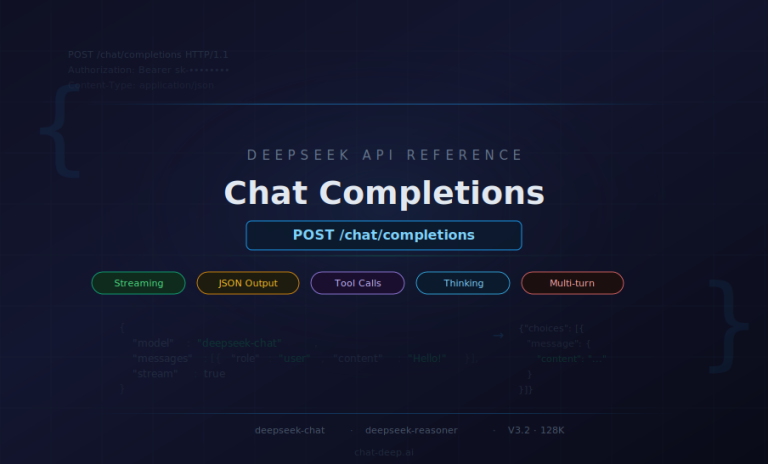
https://api.deepseek.com/chat/completions). We include in the body JSON the model to use and the prompt. For example, the JSON might contain the email’s text in a prompt: “Compose a polite, helpful reply to the customer email below. The reply should address their concerns and offer next steps. Customer email: [email body]”. We authenticate this call with our DeepSeek API key (in the header). Note: This may sound technical, but it’s mostly copy-pasting – Power Automate lets you put the API URL, headers, and body in simple text fields. No code, just JSON that DeepSeek’s documentation provides. - Action – Parse and Save Response: The DeepSeek API will return a response containing the AI’s drafted reply. We add a step to parse the JSON (Power Automate can directly read the JSON and extract fields). Then, we create a Follow-up Email activity in Dynamics 365 (or a draft response). This could be done by using a Dynamics action to create a new Email record, addressed to the customer, with the DeepSeek-generated text as the body (and perhaps marked as draft or requiring approval). Alternatively, we could post the draft text as a Note on the case or as a suggestion in Microsoft Teams for the agent to review. The exact implementation can vary, but the core idea is storing the AI reply in a place the support agent can use it.
Now, every time an email comes in from a customer, the agent doesn’t start from scratch – the CRM will present a suggested reply composed by DeepSeek. The agent can edit or approve it, drastically cutting response times. This no-code flow taps into both Dynamics and DeepSeek seamlessly.
Other Dynamics Integration Ideas: Dynamics 365 users can leverage the whole Power Platform, so beyond Power Automate, even Power Virtual Agents (chatbots) could integrate DeepSeek for more natural conversations in customer chat.
Another idea: use DeepSeek to analyze customer feedback or case notes in Dynamics. For instance, when a case is closed, run DeepSeek on the case description and resolution to extract key insights or sentiment, and log that for quality analysis.
Dynamics 365 Customer Insights (a separate product) could also ingest DeepSeek outputs – e.g. feeding it transcripts of support calls to categorize customer sentiment or common issues. The Microsoft ecosystem makes it convenient to call external AI services like DeepSeek, so you can get creative without code.
(There’s also third-party connectors: the AppSource DeepSeek Connector for Outlook/Dynamics demonstrates features like auto-composing emails, translating messages, and extracting contact details right within the Microsoft CRM interface – all powered by DeepSeek.)
Best Practices for AI-CRM Integration
Before you rush to automate everything with DeepSeek, keep these best practices and considerations in mind to ensure a smooth integration:
- Start Small and Test: Begin with a simple workflow and small data set to validate the integration. For example, test the AI on a few support tickets or leads before rolling it out to all incoming data. This lets you catch any issues or weird AI outputs early. It’s recommended to thoroughly test workflows and check the AI’s results for accuracy and relevance before fully automating.
- Monitor and Refine Outputs: AI isn’t perfect. Monitor the content DeepSeek generates, especially in the early stages. Have your team provide feedback on whether the lead summaries or ticket replies make sense. If you notice any inaccuracies or inappropriate suggestions, refine the prompt you’re using or add constraints. Continuous prompt tuning and workflow adjustments will greatly improve the quality of outputs.
- Maintain Human Oversight: For customer-facing outputs (like email replies or chat responses), it’s wise to keep a human in the loop initially. Use DeepSeek’s suggestions as drafts, not final messages. This ensures no AI mistake reaches the customer, and it helps train your team to trust and improve the AI’s assistance. Over time, as confidence grows, you might automate more fully, but always have a fallback for humans to intervene on critical tasks.
- Data Privacy and Compliance: Ensure you’re handling data safely when using DeepSeek. If using the cloud API, remember you are sending customer data to DeepSeek’s servers – so avoid including highly sensitive personal info beyond what’s necessary for the AI task. DeepSeek operates on a pay-per-use API model (no free tier), and it doesn’t store your data long-term for its own purposes, but you should still vet its privacy policy. For highly regulated data, consider deploying DeepSeek on-premises or in a private cloud. DeepSeek supports secure on-premise deployment, which eliminates third-party data leakage by keeping all AI processing within your controlled infrastructure. This is ideal for industries like finance or healthcare where compliance is paramount.
- Manage Costs and Quotas: DeepSeek’s API is cost-effective, but it isn’t free. Monitor your API usage and maintain sufficient balance in your DeepSeek account. Set up usage alerts if possible – for instance, if a workflow accidentally triggers a flood of requests (an infinite loop scenario), you want to catch that early. DeepSeek also has dynamic rate limits to ensure stability. Typically, if you stay within normal use patterns, you won’t hit these limits, but be aware that excessive rapid calls might be throttled. If you need higher throughput, consider reaching out to DeepSeek support or using a batch processing approach.
- Prompt Design Matters: How you ask DeepSeek to perform a task will greatly affect the output quality. Invest time in crafting clear prompts. Provide context in your prompt – e.g. tell DeepSeek it’s an assistant helping a support team, or a sales analyst reviewing a lead. You can even feed a bit of format guidance (e.g. “Reply in a friendly tone and include a next step suggestion.”). Small prompt tweaks can shift responses from good to great. No-code tools often allow you to insert dynamic data into prompts (like the customer’s name, product they use, etc.), which DeepSeek can incorporate into a more personalized and useful output.
- Stay Within Ethical & Quality Boundaries: Ensure the AI usage aligns with your company’s guidelines and ethical practices. For instance, if DeepSeek is summarizing customer communications, use it to highlight key points but not to make customer-affecting decisions without review. Avoid using AI to generate content that hasn’t been fact-checked or that could sound “too automated” without oversight. Transparency can also help – some companies let customers know that AI assists in generating responses, to manage expectations.
By following these practices, you’ll harness DeepSeek in a way that’s effective, safe, and adds genuine value to your CRM workflows.
Remember, the goal is to augment your team’s capabilities, not fully replace the human touch. When done right, DeepSeek AI integration can save countless hours and uncover insights, all while your team maintains control over the customer experience.
If your CRM contains customer PII, regulated records, or high-stakes workflows, don’t stop at the integration layer. Our guide to using DeepSeek in enterprise environments explains when cloud API usage is reasonable, when private deployment makes more sense, and what governance and compliance gaps to plan for before rollout.
Conclusion
Incorporating DeepSeek AI into Salesforce, HubSpot, Microsoft Dynamics 365 or any major CRM can dramatically enhance how your business understands and interacts with customers.
With modern no-code integration platforms, DeepSeek AI CRM integration is within reach for any organization – you don’t need to write code or have a data science team to get started.
By setting up intelligent workflows, you’ll enable no-code AI automation for CRM tasks that were once manual and time-consuming: from analyzing leads and drafting emails to summarizing tickets and extracting key data.
The result is a CRM that not only tracks customer information, but also actively provides AI customer insights to drive smarter decisions.
As you implement these integrations, focus on user-friendly, practical outcomes. Train your non-technical staff on how the AI workflows operate and how to best leverage them.
Embrace an iterative approach – start with one use case (perhaps DeepSeek for Salesforce lead qualification or DeepSeek for HubSpot ticket summaries), demonstrate the quick wins, and then expand to other processes.
Many businesses that adopted AI in their customer operations have seen impressive results, such as faster response times and higher customer satisfaction (e.g. one company handled 5,000+ daily queries with AI and improved customer satisfaction by 40%). You too can achieve such gains by combining your CRM’s rich data with DeepSeek’s intelligence.
Finally, keep the content helpful and user-focused. Google’s SEO guidelines reward content that truly helps the reader – in this case, business users should walk away knowing not just the “why” of integrating DeepSeek, but the “how” in clear terms.
By following the strategies and examples above, you’ll be well on your way to creating a smarter, AI-powered CRM system that delights your team and your customers alike. Here’s to unlocking deeper customer insights with DeepSeek AI – all without writing a single line of code!